Set product weight for shipping
- Version
- 3.x
- Updated
Audience: store admins · Scope: the weight that drives weight-based shipping · Last reviewed: 2026-07-23
What this does — Weight is what weight-based shipping prices delivery from. Each answer can add weight, and the product carries a base weight; CBX sums them for the configured product and hands the total to the shipping calculation.
Before you start
- Shipping must be on. If Disable Shipping is ticked in Settings, weight is irrelevant and its fields don't matter — see tour the Settings sections.
- Know your store's weight unit (set in Settings, Configurator section — here kg) and enter every weight in it consistently.
Steps
-
Open an answer, expand its Weight section, and enter the Weight field — the amount this choice adds to the configured product's total, in the store's weight unit (a Weight Calculation next to it can work the amount out instead):
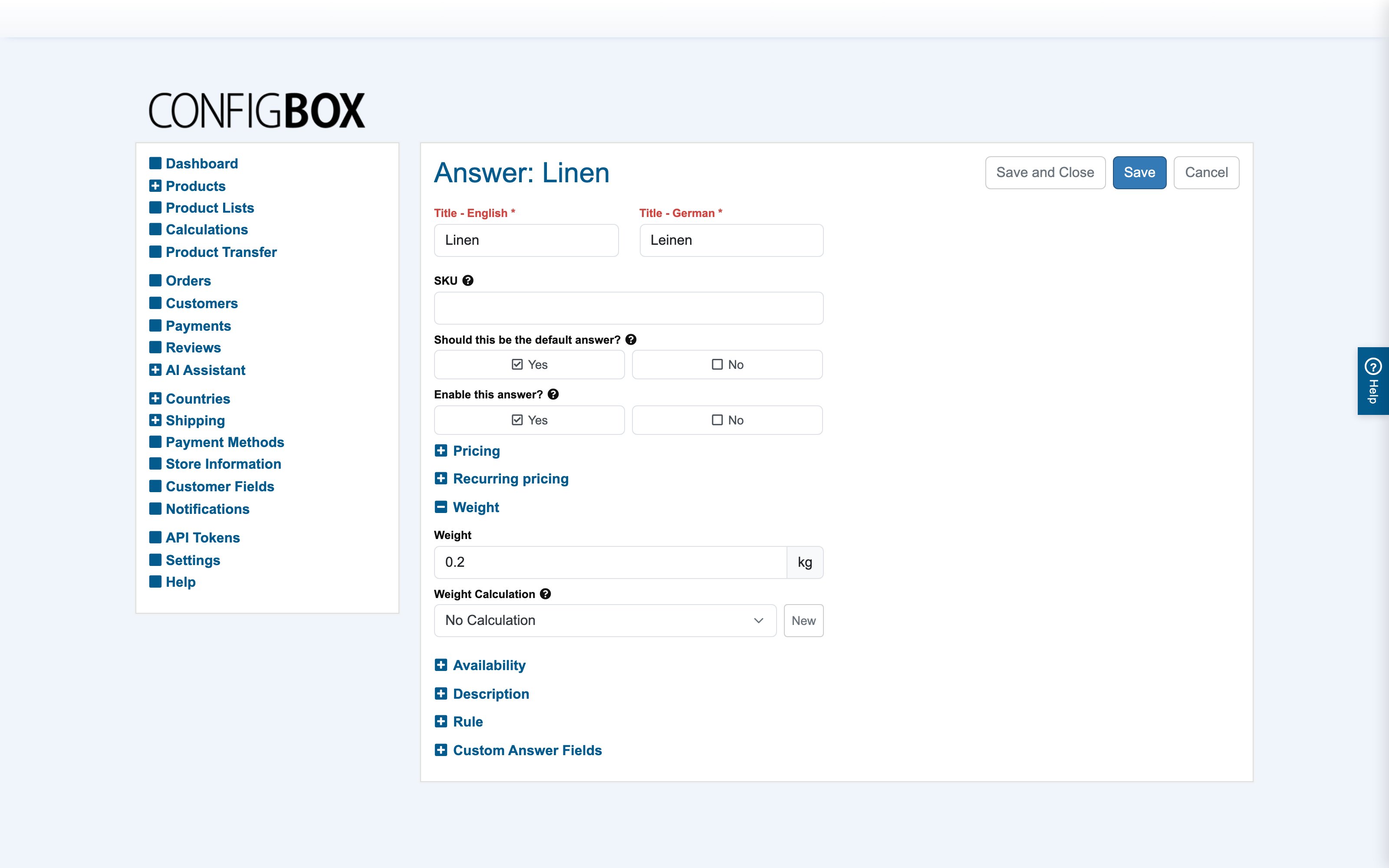
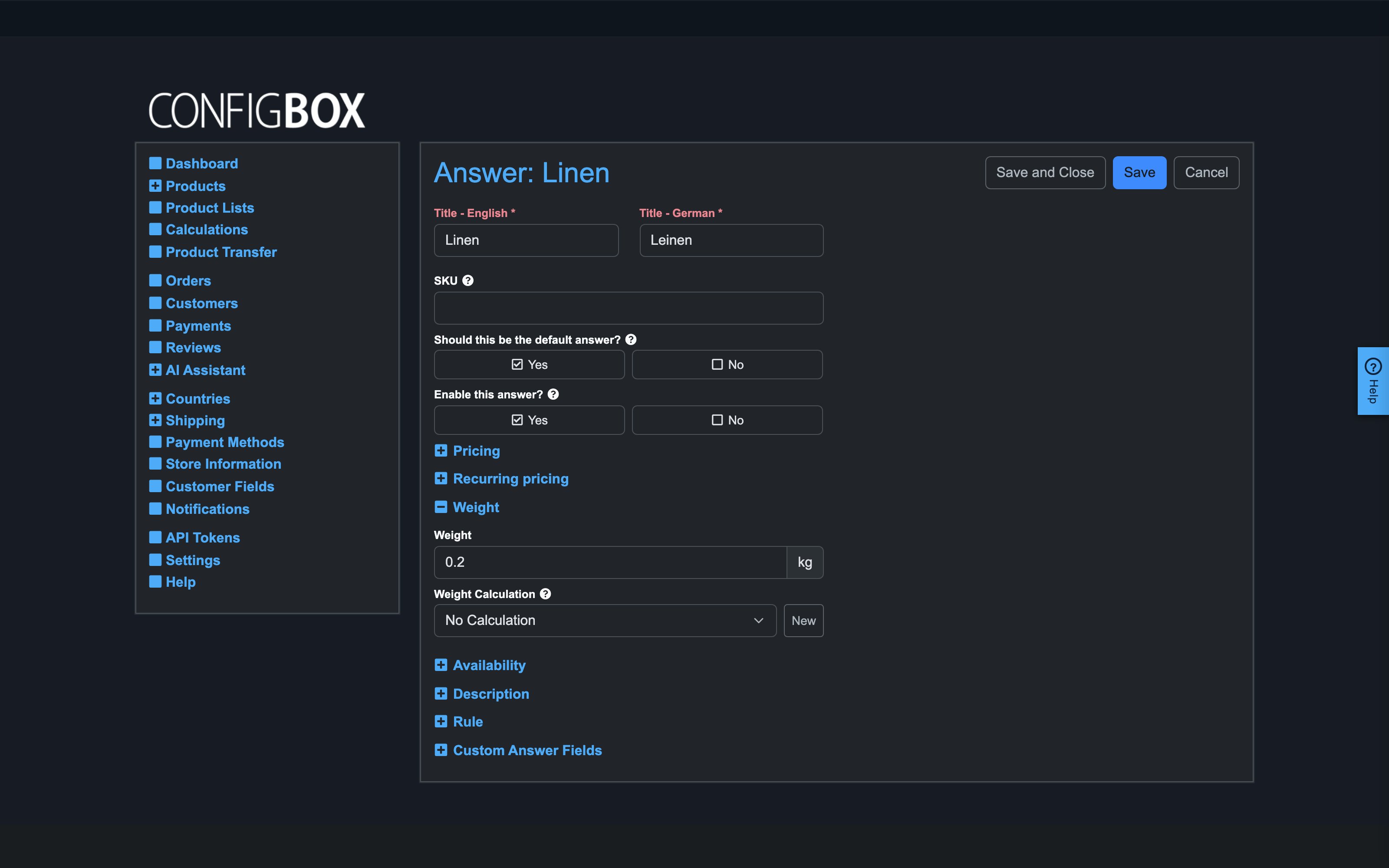
Here the "Linen" fabric answer weighs 0.2 kg (Cotton 0.18, Silk 0.15).
-
Save, and repeat for the answers whose choice changes the shipping weight.
-
Give the product its base/shipping weight on the product form — the fixed weight the item always has before any answer adds to it.
What happens next
At checkout, CBX adds the product's base weight and every selected answer's weight, then the shipping method prices delivery from that total (by weight band and zone). The customer sees the resulting shipping cost in the cart and the live summary if you enabled it.
Good to know
- Weight works just like price: static per answer, or computed by a calculation when the weight depends on the configuration (e.g. area × density). Attach a weight calculation the same way you attach a price one — see build a calculation.
- Keep the unit consistent — the store has one weight unit; mixing grams and kilograms silently wrecks shipping bands.
- Weight is separate from price: an answer can add weight without adding cost, and vice versa.
- No shipping method reacting to weight? Check the method's weight bands in the commerce system, and that shipping isn't disabled in Settings.