Write a code expression
- Version
- 3.x
- Updated
Audience: store admins · Scope: the Code calculation style · Last reviewed: 2026-07-21
What this does — Lets you type a pricing formula instead of assembling it from drag-and-drop chips. It is the same engine as the Formula style with a different way in: quicker for short arithmetic, and the only style that can read the running total of the configuration.
Despite the name, this is not programming. An expression is a line of school arithmetic —
numbers, + - * /, brackets — where some of the numbers are written as keywords that CBX
replaces with live values from the customer's configuration.
Before you start
- Read where prices come from and build a calculation — a code expression is one of the three calculation styles, and is created, saved and attached exactly like the others.
- Have the IDs of the questions and calculations you want to read. Question IDs appear next to
the title in the placeholder drop-downs (
Motor Power (ID: 2)) and in the questions list; calculation IDs are in the Calculations list. - If the formula only reads questions the customer types into, you may not need any keyword at all — the A–D placeholders will do.
Steps
-
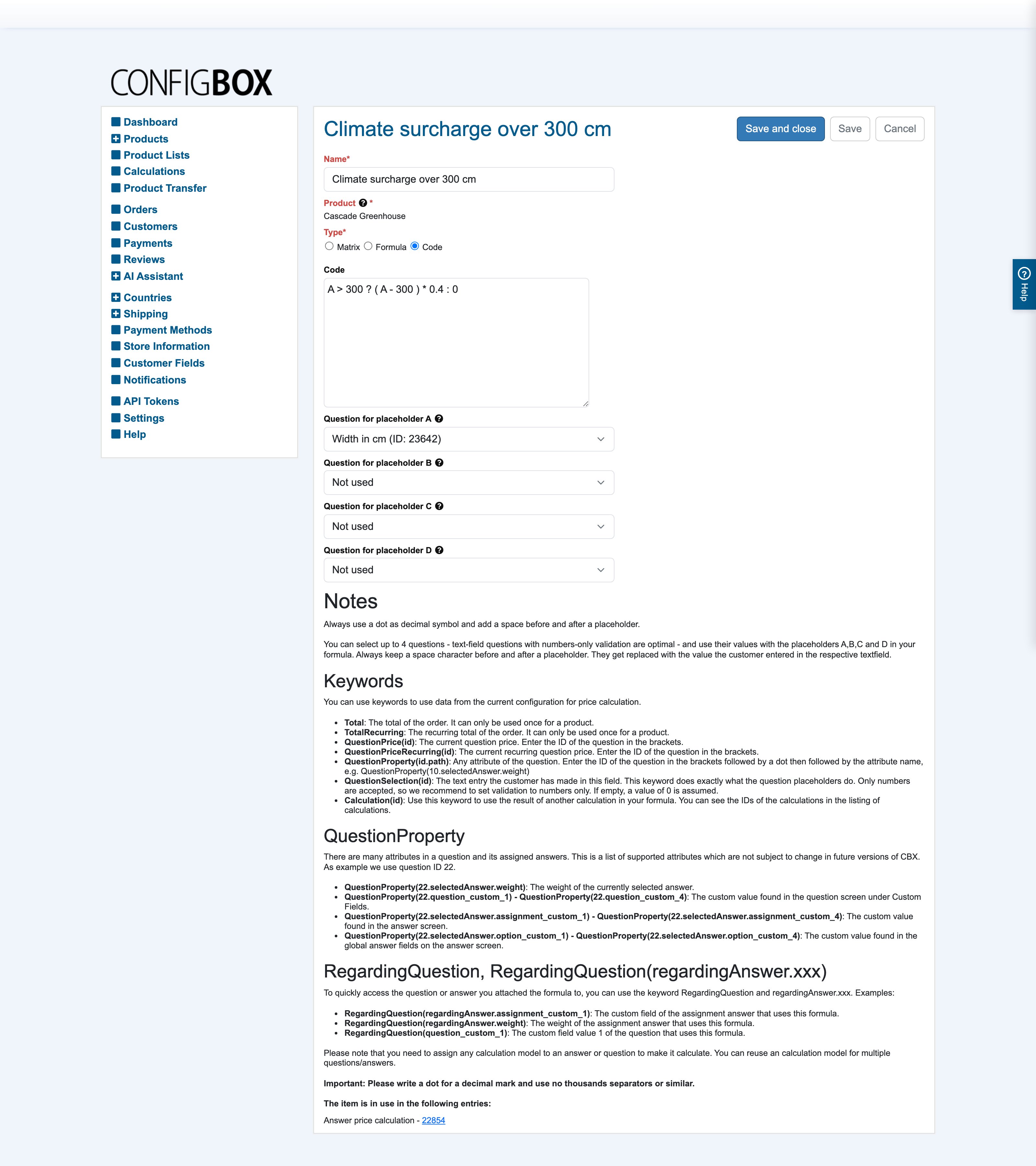
Go to Calculations, click Add, name the calculation, choose the product and pick the style Code.
-
Bind up to four questions to the placeholders A, B, C and D using Question for placeholder A … D. Leave the rest on Not used.
-
Type the expression in the Code box. The screenshot's formula is an area price in square metres: two questions in millimetres bound to A and B, then
A * B / 1000000 * 65 -
Save, then attach it — nothing is calculated until the calculation is set as a question's or answer's Price Calculation (or Recurring Price / Weight Calculation), used as a calculated minimum/maximum, or referenced from a rule or another calculation. See build a calculation.
-
Open the configurator and check the number against a calculator. Always check a code expression live — it is accepted as typed, without a preview.
The three rules that break formulas
The editor's own Notes section states them, and almost every broken expression breaks one:
- A dot is the decimal mark.
0.25, never0,25. - No thousands separators.
1000000, never1 000 000or1,000,000. - A space before and after every placeholder and keyword.
A * B, notA*B. The values are substituted textually, so a missing space glues two numbers together.
Placeholders accept numbers only. Bind them to text-field questions with numbers-only validation,
and an empty field counts as 0.
Keyword reference
Every keyword is replaced with a live value from the configuration the customer is building.
| Keyword | Value it produces |
|---|---|
Total | The running total of the configuration. Once per product only |
TotalRecurring | The running recurring total. Once per product only |
QuestionPrice(id) | The current price of that question |
QuestionPriceRecurring(id) | The current recurring price of that question |
QuestionSelection(id) | What the customer typed into that question — numbers only; empty counts as 0 |
QuestionProperty(id.path) | Any attribute of that question or its selected answer (see below) |
Calculation(id) | The result of another calculation of this product |
QuestionSelection(id) does exactly what an A–D placeholder does. Use the placeholders while you
have four or fewer questions — they read better — and fall back to the keyword beyond that.
QuestionProperty paths
Write the question ID, a dot, then the attribute. Using question 22 as the example:
| Path | What it reads |
|---|---|
QuestionProperty(22.selectedAnswer.weight) | The weight of the answer the customer picked |
QuestionProperty(22.question_custom_1) … _4 | The question's own custom fields (question screen → Custom Fields) |
QuestionProperty(22.selectedAnswer.assignment_custom_1) … _4 | The selected answer's custom fields, from the answer screen |
QuestionProperty(22.selectedAnswer.option_custom_1) … _4 | The selected answer's global custom fields, from the answer screen |
Custom fields are how you attach your own numbers — a material factor, a supplier code, a labour rate — to a question or an answer and price from them, without inventing a hidden question.
Reading the question you are attached to
RegardingQuestion means "whichever question or answer this calculation is attached to". A
calculation written with it can be attached to many questions at once and always reads its own:
| Keyword | What it reads |
|---|---|
RegardingQuestion(question_custom_1) | Custom field 1 of the question using this calculation |
RegardingQuestion(regardingAnswer.weight) | The weight of the answer using this calculation |
RegardingQuestion(regardingAnswer.assignment_custom_1) | Custom field 1 of the answer using this calculation |
This is what turns ten near-identical formulas into one.
Worked examples
Area price. Width and Height are text fields in millimetres, bound to A and B; the rate is €65 per square metre:
A * B / 1000000 * 65
A percentage of the whole configuration. Attach to the question that should carry the surcharge — an insurance or service option, for instance:
Total * .25
The demo store's Phone with Contract product does exactly this, and the recurring twin
TotalRecurring * .25 for the monthly side. Remember the once-per-product limit: only one
calculation in a product may read Total.
Price from a custom field. The material factor sits in custom field 1 of each answer of question 30, and the base rate comes from a text field bound to A:
A * QuestionProperty(30.selectedAnswer.assignment_custom_1)
Composing calculations. Keep pieces small and readable, then combine them:
Calculation(14) + Calculation(15)
Reusable per-question rate. One calculation attached to every answer that carries a rate in its custom field 1, multiplied by the entry in A:
A * RegardingQuestion(regardingAnswer.assignment_custom_1)
Good to know
- Code and Formula are equally powerful for arithmetic — pick whichever you will still
understand in six months. The one thing only Code can do is read
Total/TotalRecurring. - Compose, don't inflate. Several small named calculations referencing each other with
Calculation(id)stay debuggable; one long line does not. - Watch the ID. Keywords address questions by number, so a formula that reads
QuestionProperty(30…)breaks silently if question 30 is deleted. The calculation edit form lists where a calculation is in use; there is no equivalent warning in the other direction. - Author in the base currency and ignore tax. Currency conversion, customer-group overrides and tax are applied on top of the result.
- Copying a product copies its code calculations and re-points every reference.
Troubleshooting
- The price is 0 or blank. A placeholder is bound to a question the customer hasn't reached, or
to one that isn't numbers-only. Empty entries count as
0, and anything multiplied by0is0. - The result is wildly wrong. Look for a missing space around a placeholder, a comma used as a decimal mark, or a thousands separator.
Totalgives a strange number. Check that no second calculation in the same product also usesTotal— it may be used only once per product. Also remember it is the total so far, so a percentage-of-total surcharge should sit on a late page.- Nothing calculates at all. The calculation isn't attached yet. Creating it is only half the job — see step 4.