Manage currencies
- Version
- 3.x
- Updated
Audience: store admins · Scope: the Currencies manager · Last reviewed: 2026-07-20
What this does — Controls which currencies customers can shop in and how amounts convert. Two distinct roles matter here, and mixing them up is the classic mistake:
- Base — the currency you author in. Every price you type anywhere in CBX (products, answers, calculations, shipping) is in the base currency.
- Default — the currency a visitor sees first. Customers can switch between the active currencies.
Steps
-
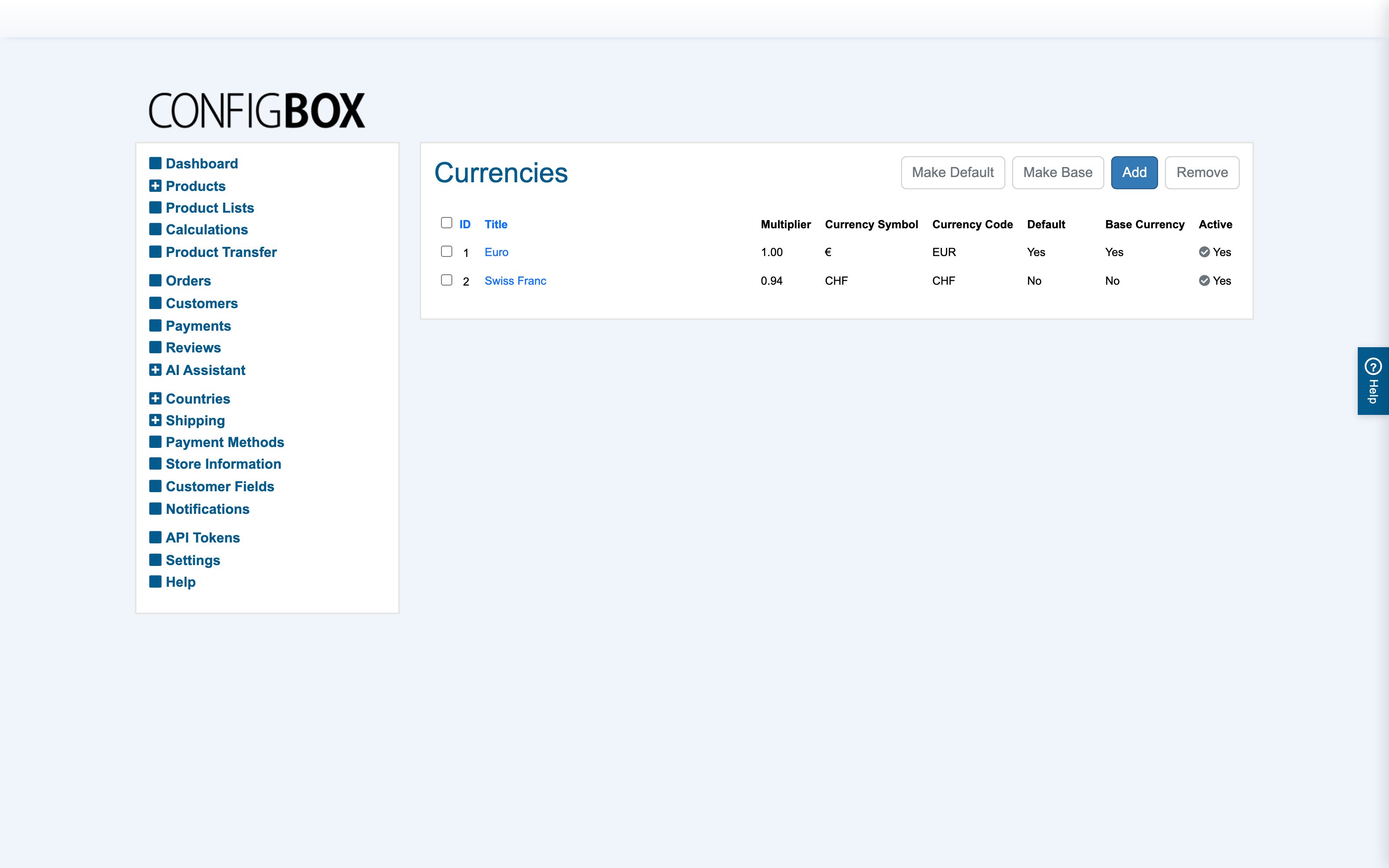
Open Settings → the embedded Currencies manager:
-
To add a currency: Add, then fill Title, Currency Symbol (€, $), Currency Code (ISO, e.g.
EUR), and the Multiplier — the conversion factor from the base currency (base itself is always1). With EUR as base and a rate of 1 € = 1.38 $, USD's multiplier is1.38. -
Set Active to Yes to offer it to customers.
-
Use the list's action buttons on a ticked row: Make Default (what visitors see first) and Make Base (what prices are authored in).
What happens next
Every displayed amount — configurator, cart, checkout, order emails — converts through the multiplier, unless a product/answer carries an explicit price override for that currency (overrides beat conversion; use them for "pretty" round prices in a foreign currency).
Good to know
- Multipliers are not live exchange rates. They stay where you set them — review them on a schedule if you sell in multiple currencies seriously.
- Think twice before changing the base currency on a running store: every entered price keeps its number but changes meaning. Changing the default is harmless.
- Orders snapshot the currency and rate at purchase time — old orders don't move when you update a multiplier.