Set up customer groups
- Version
- 3.x
- Updated
Audience: store admins · Scope: the customer group form · Last reviewed: 2026-07-20
What this does — Customer groups are where your commercial policy lives. One form decides, per segment: do they see tax-inclusive or net prices, may they buy or only request quotes, and which volume discounts apply. Typical setups: one group ("everyone buys"), or a consumer/trade split where consumers check out and trade customers get quotes and negotiated discounts.
Before you start
- Decide your segments and what each may do. Fewer groups is better — every group is a pricing and permissions surface you'll maintain.
- Know which platform (site) user group corresponds to each segment — that link is how logged-in users land in the right CBX group.
Steps
-
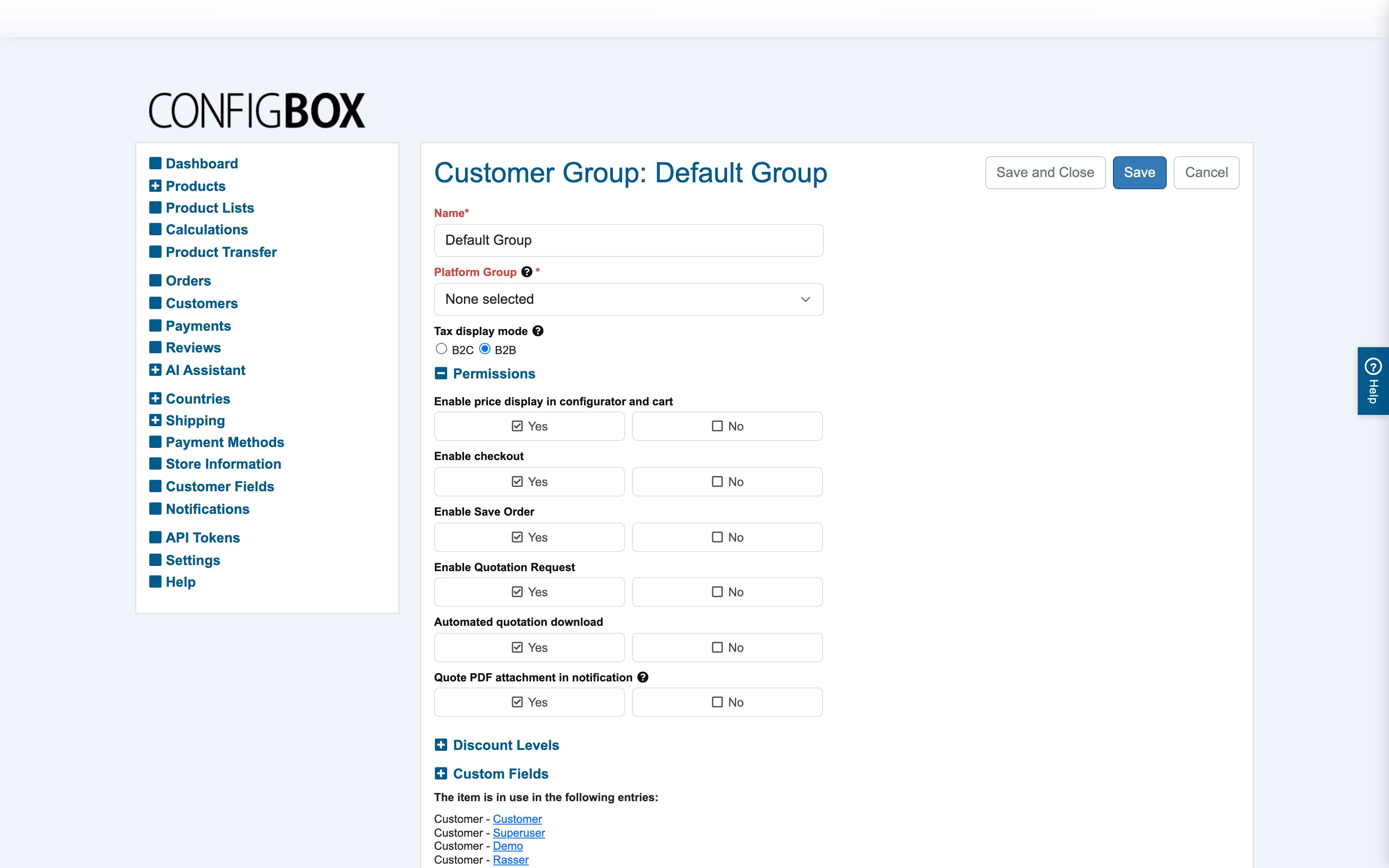
Open Settings and go to the embedded Customer Groups manager; open a group or add one:
-
In the top section:
- Name — for the back office only.
- Platform Group — the site user group that maps here. A logged-in customer's CBX group follows their site account; visitors without an account fall into the default customer group chosen in Settings → Checkout.
- Tax display mode — B2C (prices shown tax-inclusive) or B2B (net prices, tax added at checkout). This one switch changes price display store-wide for the group.
-
In Permissions, shape what the group can do — each is a plain Yes/No:
- Enable price display in configurator and cart — turn off for a browse-only or "prices on request" experience.
- Enable checkout — may they place real orders?
- Enable Save Order — may they save a cart for later?
- Enable Quotation Request — may they ask for a quote instead of buying?
- Automated quotation download / Quote PDF attachment in notification — whether a requested quote is instantly downloadable and/or attached to the email.
-
In Discount Levels, add up to five volume tiers — each is "for net order totals starting at X: a percentage or a fixed amount off, with a label the customer sees". Regular and recurring totals have separate tiers. The highest tier the cart qualifies for applies automatically.
-
Save.
What happens next
Every visitor and customer in the group immediately gets its pricing mode, permissions and discounts — configurator, cart and checkout included. The form's "in use" list at the bottom shows which customers currently sit in the group.
A worked example — consumer/trade split
- Retail (default group): B2C · checkout on · quotations off · no discounts.
- Trade: B2B · checkout on · quotations on with PDF attachment · tiers "from €1,000: 5%", "from €5,000: 10%".
A trade login sees net prices, can order or request a quote, and the cart shows "Volume discount 10%" by itself once the total crosses €5,000.
Good to know
- The default group serves guests. Whatever you set there is your store's public face — check it first when "everyone" reports a pricing oddity.
- Prices can also be pinned per group (price overrides on products and answers) — use overrides for a few special prices, discounts for across-the-board percentages.
- Payment methods can be restricted per group (e.g. invoice payment for trade only) — that's on the payment method form.
- Rules can read the customer's group — so even the configurator can differ per segment (see Rules).