Set up taxes
- Version
- 4.0 preview
- Updated
Audience: store admins · Scope: tax classes + the geography screens · Last reviewed: 2026-07-20
What this does — Sets what tax is charged, where. Two pieces cooperate: tax classes (named rate buckets like Standard and Reduced that products, shipping and payment surcharges point at) and the geography records (which can override a class's rate per place). For most stores this is a fifteen-minute, set-once job.
How the rate is found
For each order line, CBX takes the line's tax class and looks for that class's rate at the customer's place, most specific first:
City → County → State → Country → the class's default rate.
Two country flags trump the chain: VAT free (no VAT for orders to this country) and In EU VAT Area (enables EU B2B handling — a valid foreign VAT ID makes the order reverse-charge, and the order prints the "tax liability is shifted" note).
Steps
-
Define the classes. Open Settings → the embedded Tax Classes manager. Each class has a Name and a Default Tax rate — the fallback when no place overrides it. One Standard class is enough for many stores; add Reduced etc. only if you sell mixed-rate goods.
-
Set place-specific rates where needed. Open Countries, open a country:
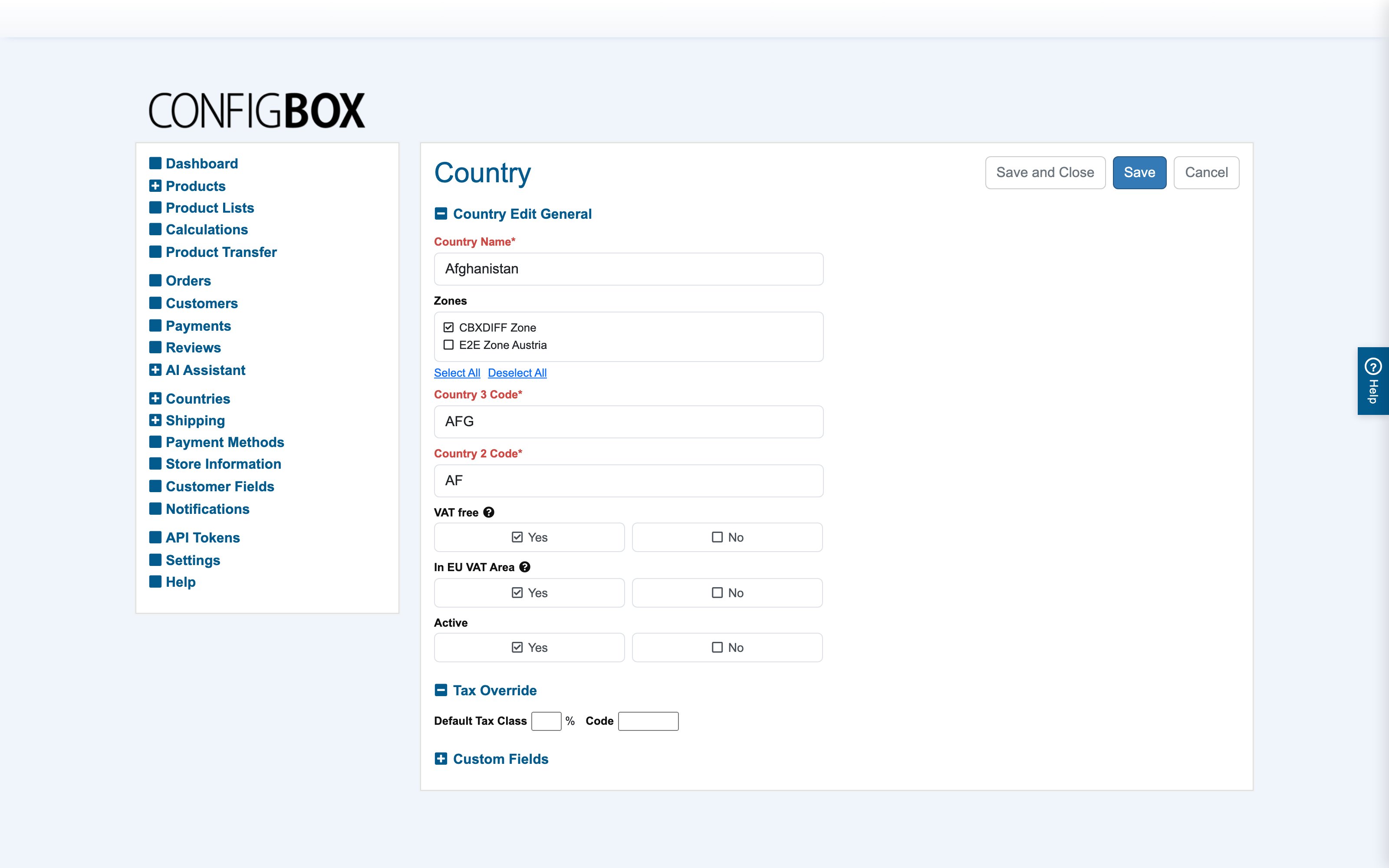
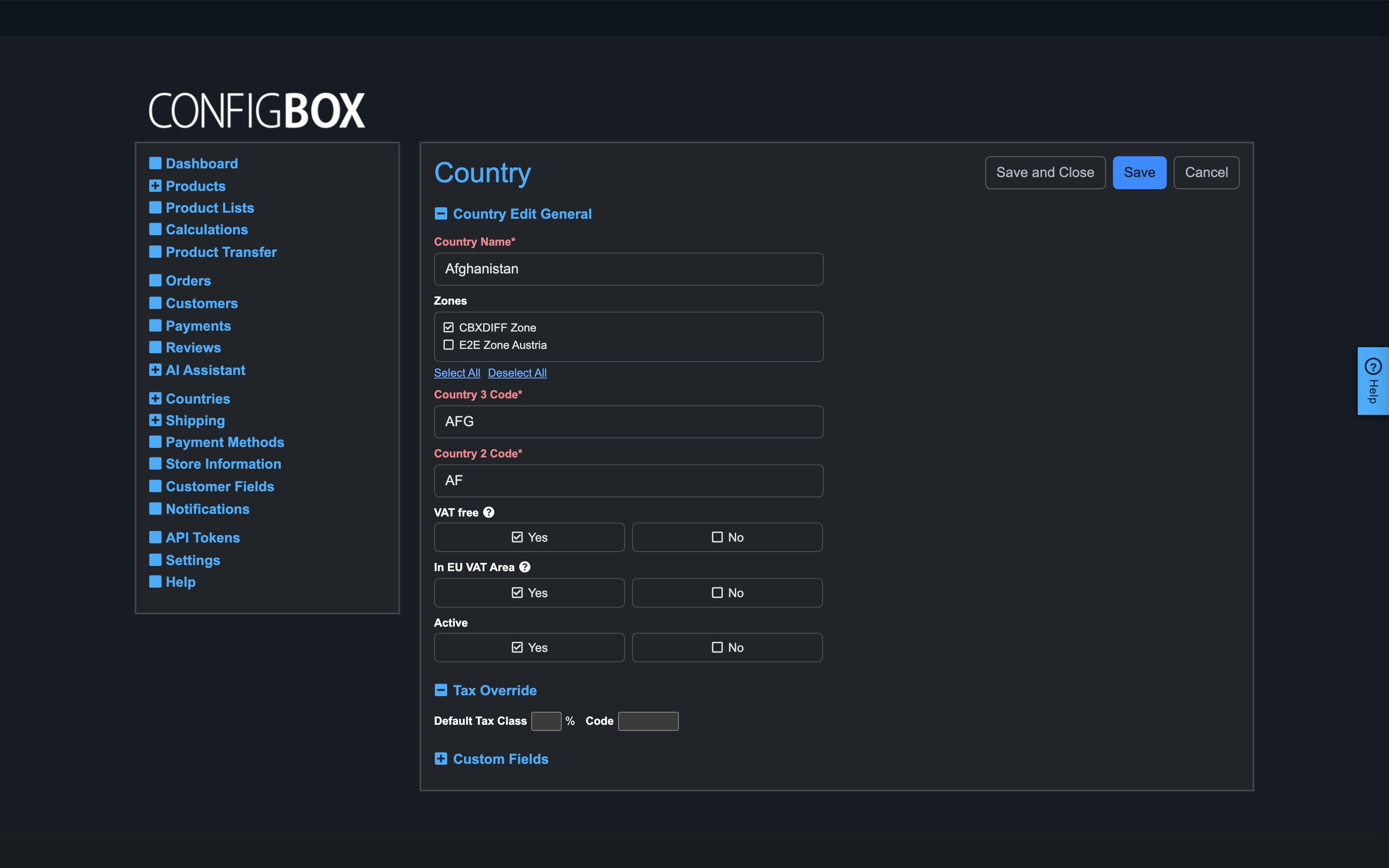
- Tax Override — enter this country's rate for any class (leave empty to inherit the class default).
- VAT free / In EU VAT Area — the special-case flags described above.
- Zones — which shipping zones the country belongs to (that's for shipping, managed here for convenience).
- The same Tax Override section exists on States, Counties and Cities for region-level taxes (US-style setups); populate only the levels you actually need — the address form shows only populated levels.
-
Point things at classes. Products (per pricing section), shipping methods and payment surcharges each carry a Tax Class field — that's the whole wiring.
What happens next
Checkout resolves each line's rate from the buyer's address (before an address is known, the Default Country from Settings → Checkout is assumed — set it to your home market so walk-in visitors see the right prices). Whether prices display net or gross follows the customer group's B2B/B2C mode; the resolution above decides what is charged.
Good to know
- Check the reverse-charge path if you sell B2B in the EU: a test order with a valid foreign VAT ID should come out tax-free with the shifted-liability note on the order.
- The customer's VAT ID lives on their customer record; whether the field is shown/required per flow is the Customer Fields matrix.
- Rates changed here apply to new carts immediately; placed orders keep their snapshotted tax.
- A missing shop country (fresh installs) is flagged on the Dashboard — fix that before anything else tax-related.