Store settings
- Version
- 4.0 preview
- Updated
Audience: store admins · Scope: the store-wide configuration screens · Last reviewed: 2026-07-20
TL;DR — Three screens configure the store globally: Settings (one big, sectioned form of shop-wide switches), Store Information (your company identity, used on invoices, quotes and emails), and Customer Fields (which address/customer fields appear — and are required — in each flow). Languages and the custom-field labels live inside Settings too.
Platform note (Magento 2): only the Settings screen exists on Magento-hosted stores, and it hides the sections that belong to CBX's own checkout (Magento owns cart, checkout and emails there). Store Information and Customer Fields are hidden entirely, and languages follow your Magento store views. See CBX on Magento 2.
Articles
- Keep your store information current — the company identity behind invoices, quotes and emails.
- Tailor the customer fields — decide, per flow, what personal data you collect.
- Tour the Settings sections — a closer look at Invoicing, Selection overview and Languages.
- Manage API tokens — the access tokens external software presents to use your store's API.
The Settings screen
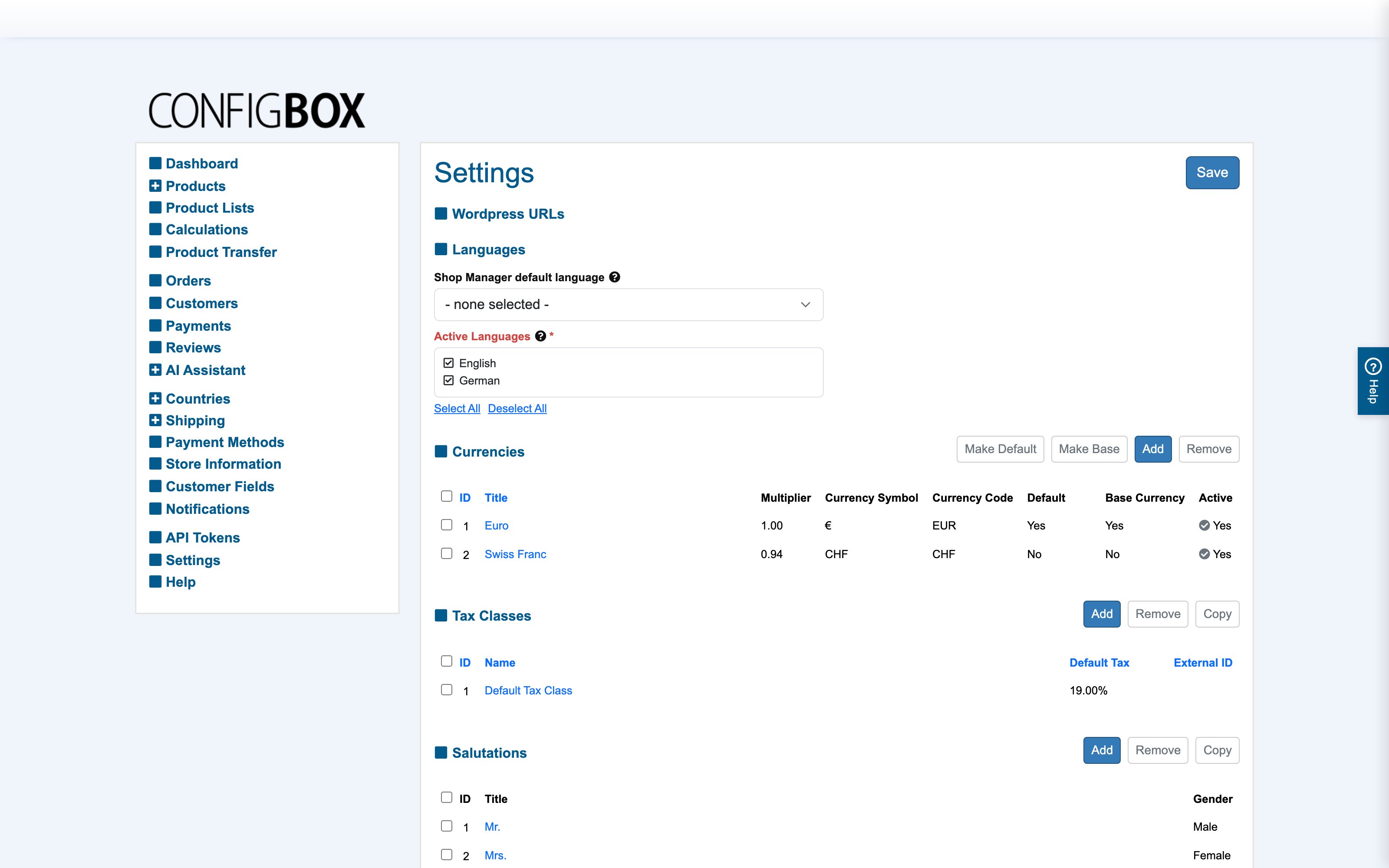
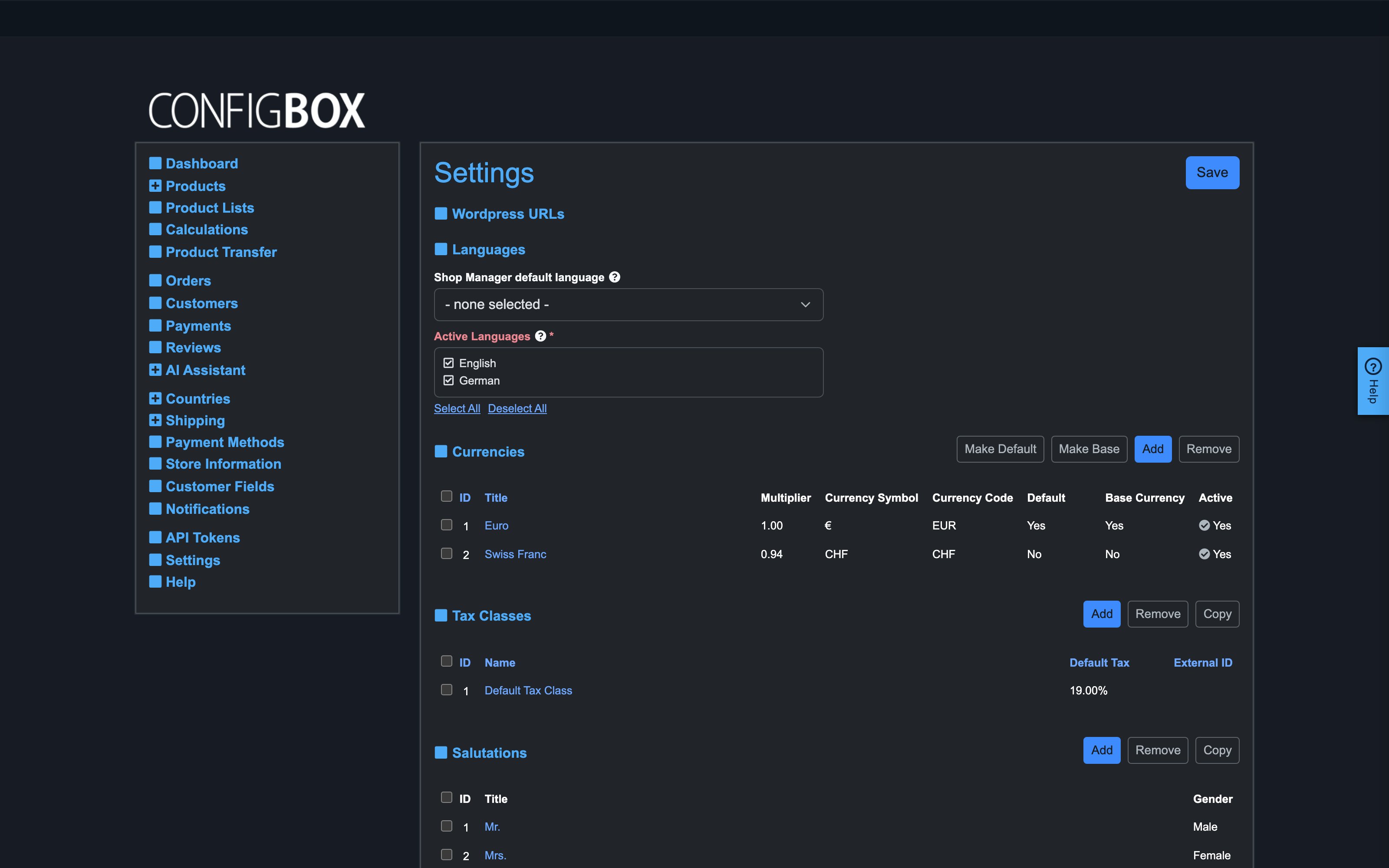
One form, collapsible sections — the ones you'll actually visit:
- Languages — the shop's active languages (every translatable field gets one column per language) and the manager default. The Currencies, Tax Classes, Salutations and Customer Groups managers are embedded here for convenience.
- Checkout — the default customer group and country, guest/registration behavior, the terms/refund-policy agreement gates, whether shipping exists at all (Disable Shipping), SKU display, and the newsletter preselect.
- Invoicing — invoices on/off, when they generate (on order / after payment clearance / manual upload), email delivery, and the invoice number prefix/start.
- Reviews — product reviews on/off and the moderation notification address.
- Configurator — page tabs vs prev/next buttons, whether missing required answers block continuing, cart button placement, the default product image, weight unit, and the back-office-only "show internal names" helpers. Products can override the navigation options individually.
- Selection overview — how detailed the live price summary is (overall, per page, per question, taxes, delivery/payment lines), separately for regular and recurring pricing.
- Custom Fields — the labels for the free-form fields on products, questions, answers and other records; a labeled field becomes usable across forms, rules and calculations.
- Maintenance — how long abandoned guest accounts and un-ordered carts are kept.
- Structured Data & Google Analytics — SEO markup and e-commerce tracking.
- Analysis and Debugging — minified assets, cache busting, performance profiling; only touch these when support asks.
Store Information
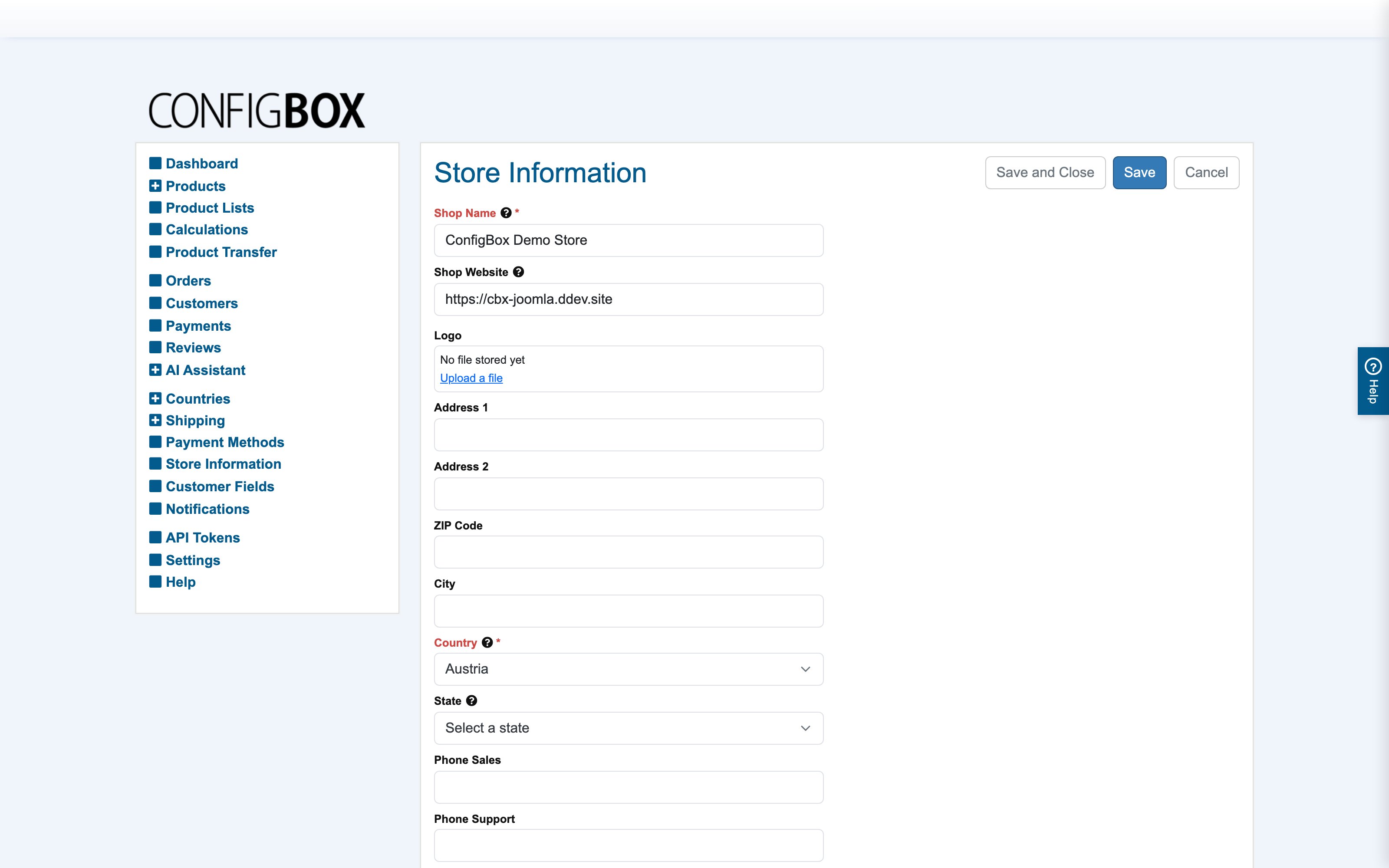
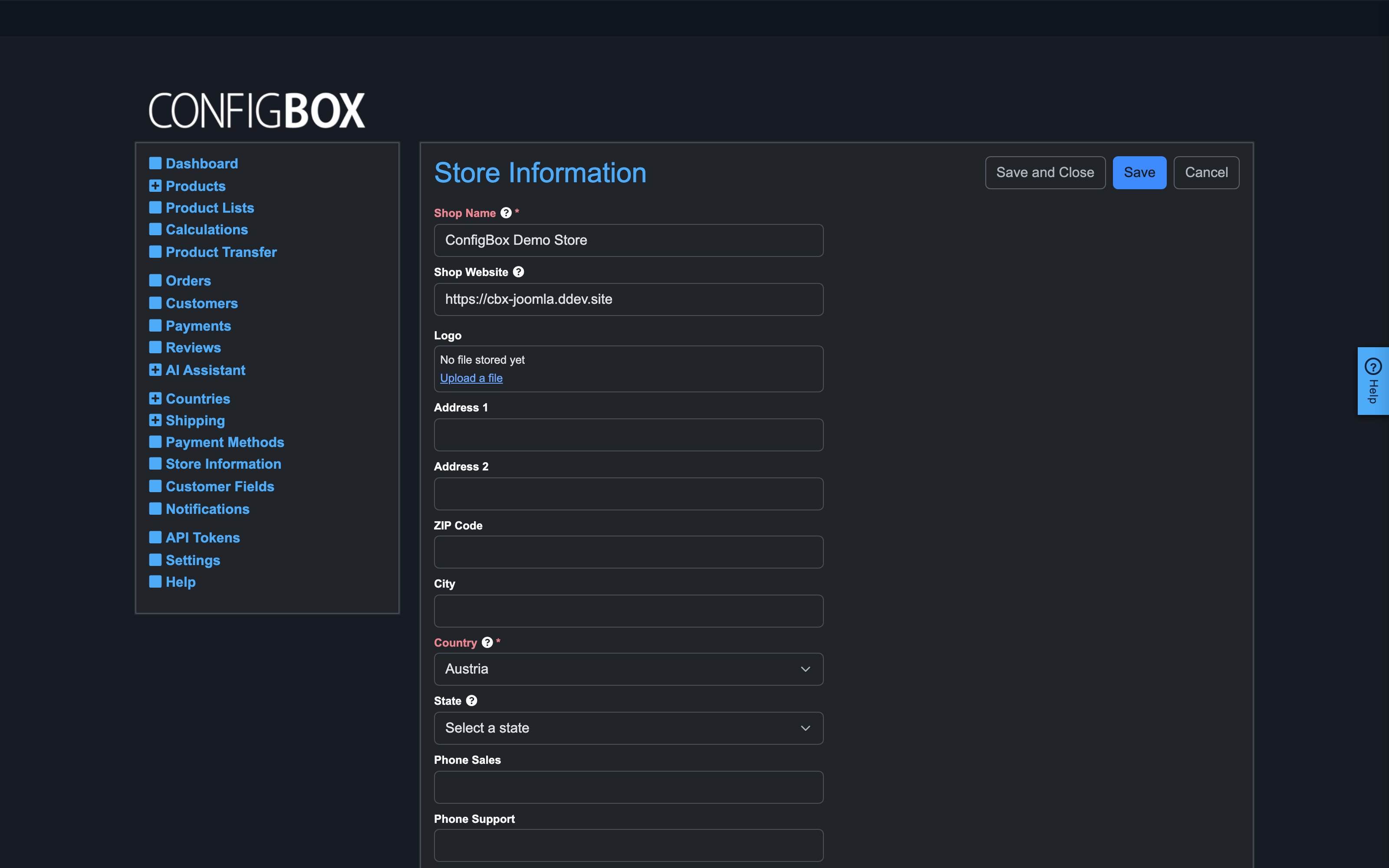
Your company identity: name, logo, address, contact details, bank account, VAT/registration data. These feed the placeholders on invoices, quotations, emails and legal pages — keep them current; a wrong IBAN here ends up on real invoices.
Customer Fields
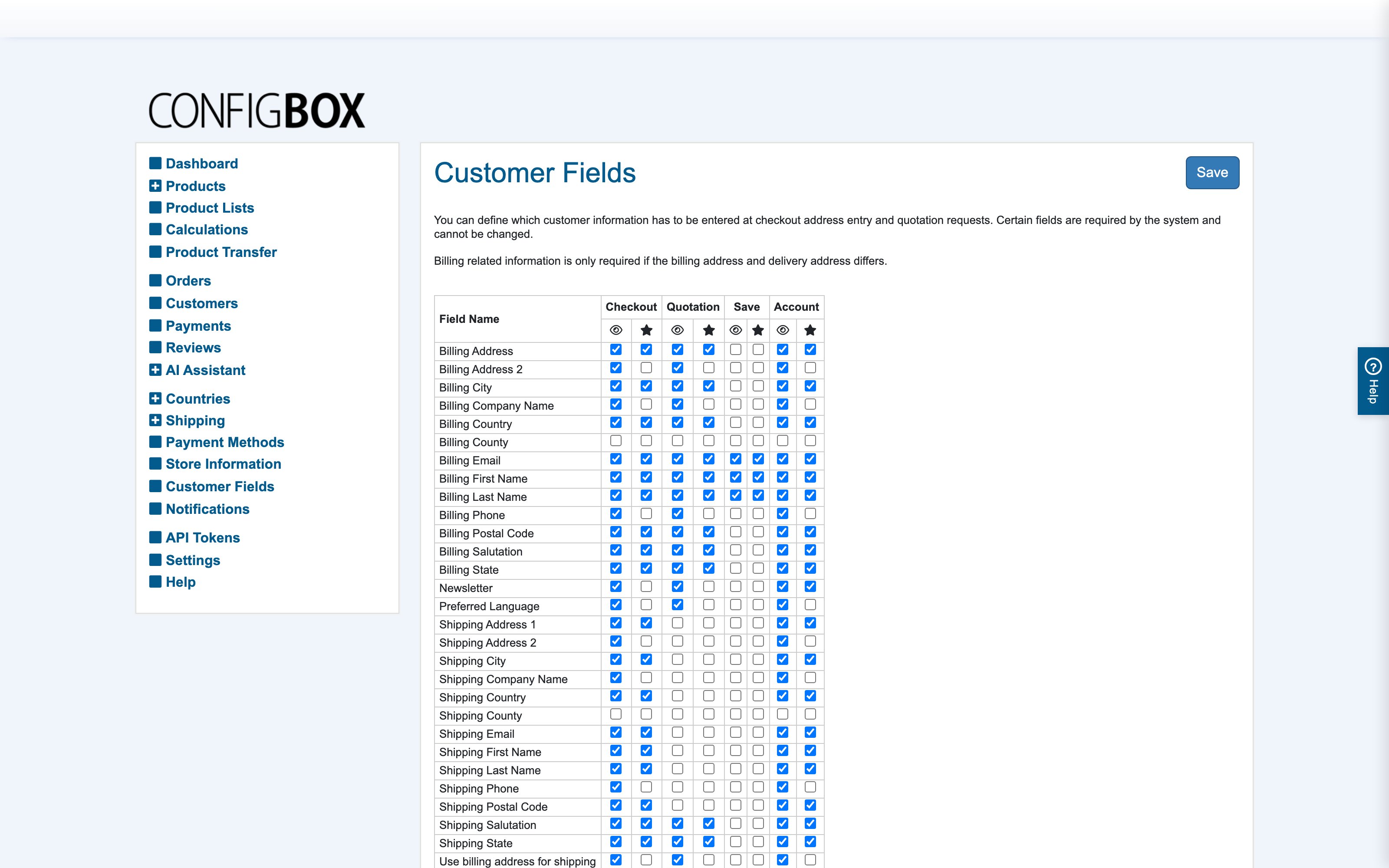
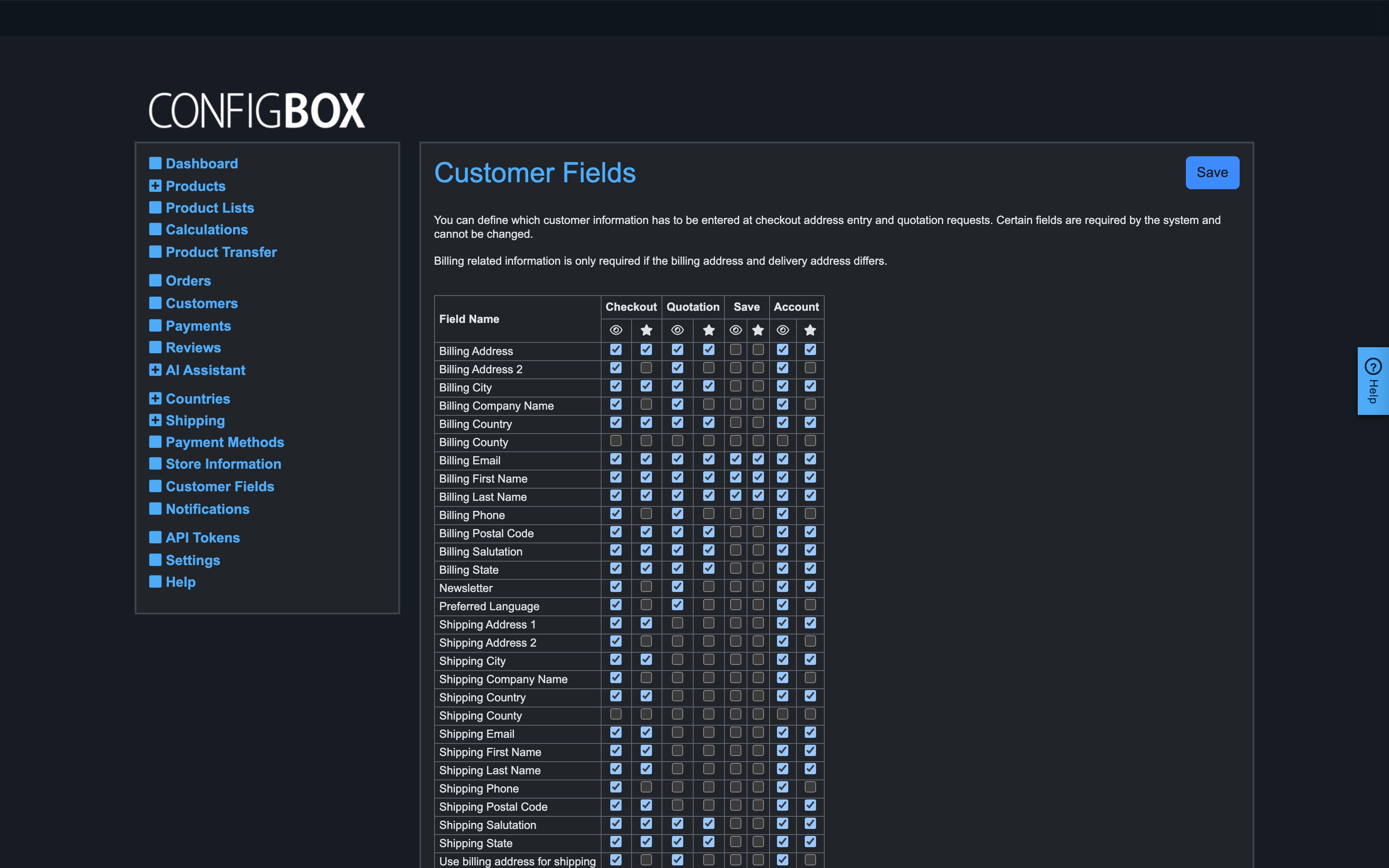
A matrix over every customer/address field: for each of the four flows — Checkout, Quotation, Save Order, Profile — you tick whether the field is shown and whether it is required. This is how you require the VAT number at checkout but not in the profile, or hide the phone field from quotations entirely.
Good to know
- Most Settings entries take effect immediately on the storefront — change, reload, verify.
- Feature-gating switches (shipping, invoicing, reviews, geolocation, analytics) hide whole areas of the admin/storefront when off — if a screen an article mentions is missing, check the corresponding switch here first.