Tour the Settings sections
- Version
- 4.0 preview
- Updated
Audience: store admins · Scope: every section of the Settings screen · Last reviewed: 2026-08-03
What this does — The Settings screen is one long form of collapsible sections holding the store-wide defaults. This article walks all of them, in the order they appear: what the section decides, the switches worth knowing, and where to read more. Anything set here is the default — many of these can be overridden per product.
Open Settings in the CBX menu and expand the section you need:
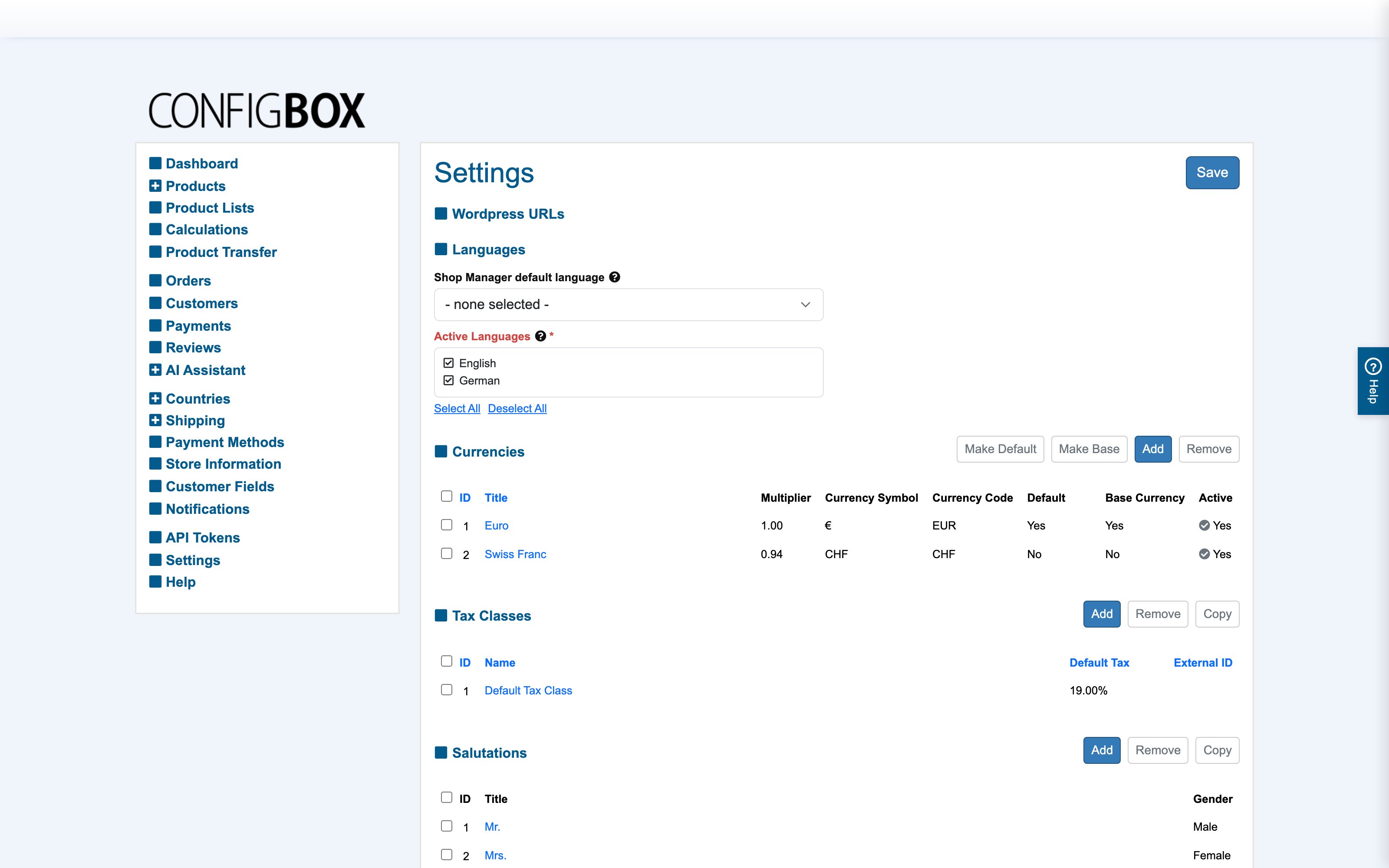
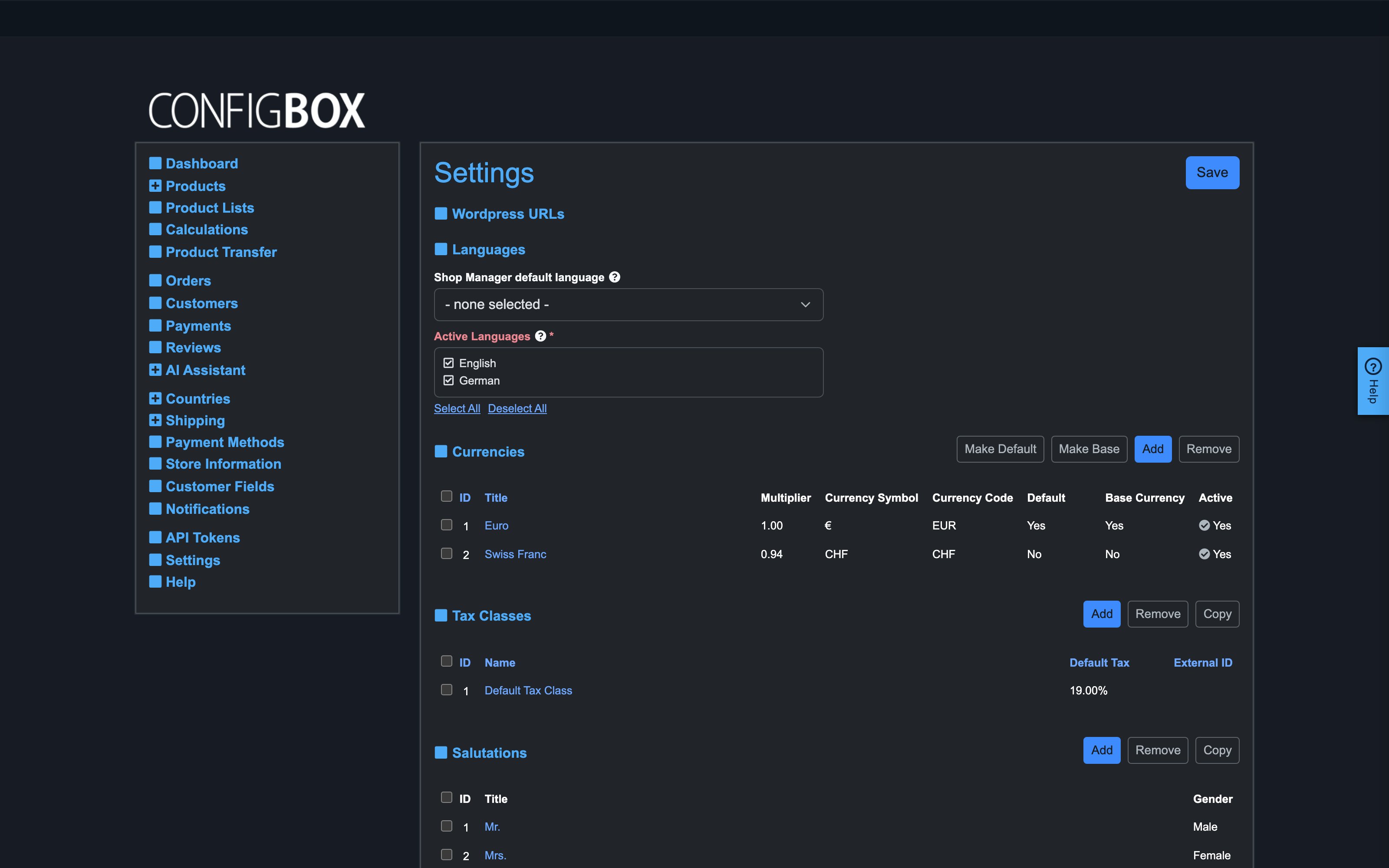
Which section do I need?
The sections fall into five jobs. Find your job, then jump to the section.
| Section | Decides |
|---|---|
| Languages | Which languages the store runs in |
| Checkout | How the cart and checkout behave |
| Invoicing | Whether and when invoices exist |
| Reviews | Whether customers may review products |
| Configurator | How the configurator pages navigate and look |
| Block Headings | The headings above the storefront blocks |
| Selection overview | How detailed the live price summary is |
| IP Geolocation tracking | Guessing a visitor's country from their IP |
| License Key | Your CBX licence |
| Custom Fields | The labels of your own extra fields |
| Maintenance | How long abandoned data is kept |
| Connectors | Payment and shipping connector setup |
| Structured Data and Google Analytics | SEO markup and ecommerce tracking |
| Analysis and Debugging | Asset loading and profiling |
| AI Configurator Assistant | The chat advisor on the storefront |
Languages
The shop-wide language setup:
- The store's active languages — every translatable field (titles, headings, answers) then shows one input per language — and the Shop Manager default language for the back office.
- For convenience, the Currencies, Tax Classes, Salutations and Customer Groups managers are embedded right here, so you can reach them without leaving Settings.
Checkout
How the cart and checkout behave, and what the customer is asked for.
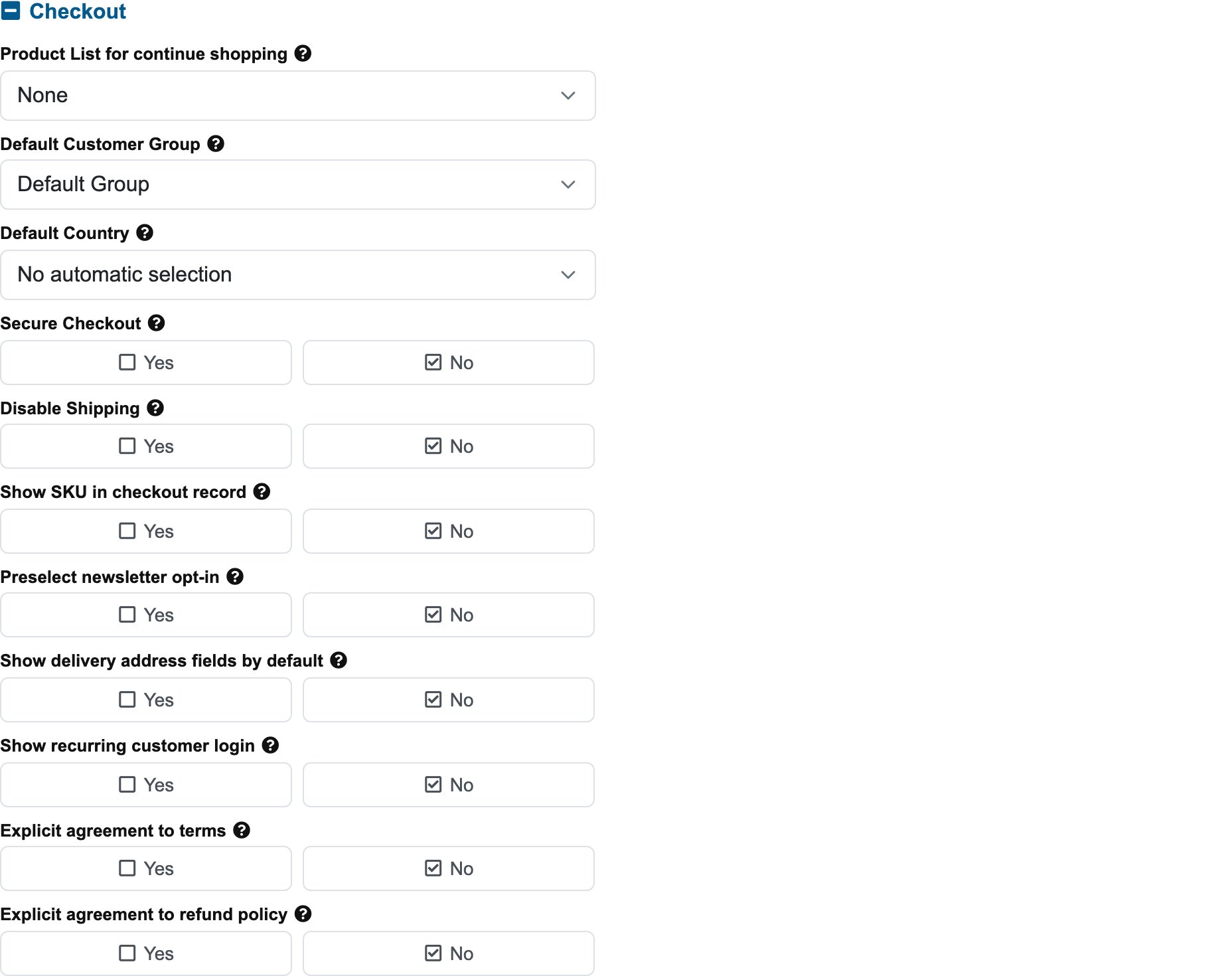
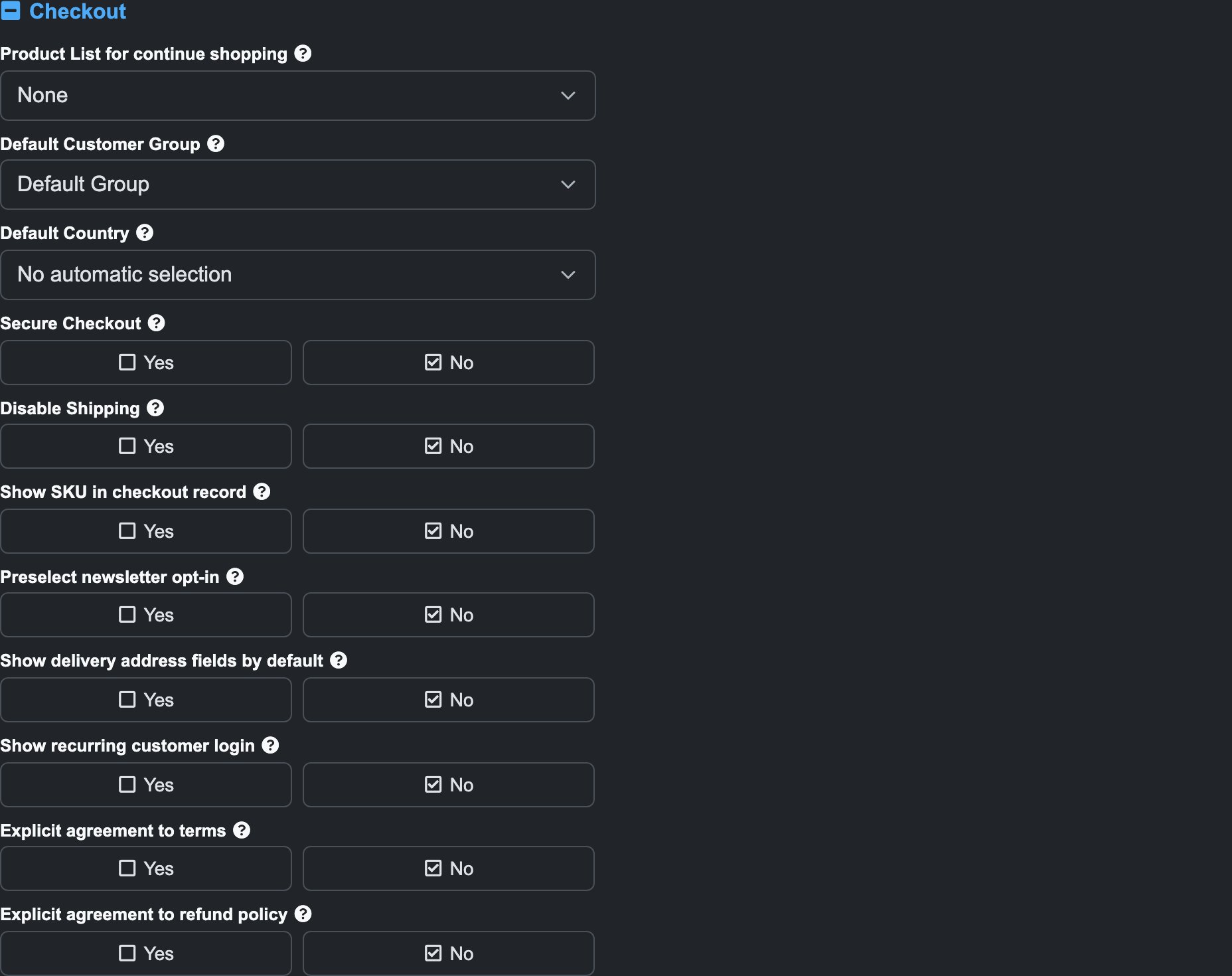
| Setting | What it does |
|---|---|
| Product List for continue shopping | The product list customers return to from "continue shopping" links |
| Default Customer Group | The group a brand-new customer lands in |
| Default Country | The country assumed when detection fails or is unavailable |
| Secure Checkout | Routes checkout over an encrypted connection (needs SSL on the server) |
| Disable Shipping | Turns shipping off across the system — the shipping screens disappear with it |
| Show SKU in checkout record | Shows product and option SKUs in checkout, notification emails and the order record |
| Preselect newsletter opt-in | Ticks the newsletter box for the customer on every form |
| Show delivery address fields by default | Expands the delivery address form; customers can choose "same as billing" to hide it |
| Show recurring customer login | Offers a login form on quotation-request and save-order forms |
| Explicit agreement to terms | Requires ticking the terms before an order can be placed |
| Explicit agreement to refund policy | Same, for the refund policy |
The two explicit agreement switches are the ones to check against your local consumer law before going live.
Invoicing
Controls whether and when invoices exist:
- Invoices on/off, and when they generate — automatically on order, automatically after payment clearance, or manually (you upload the PDF). This choice decides which invoice actions appear on each order.
- Email delivery — whether a released invoice is emailed to the customer automatically.
- Invoice numbering — the prefix and the starting number for your invoice series.
The mode you pick here is exactly what process an order reacts to when it shows (or hides) the invoice buttons.
Reviews
Two settings: whether customers may review products at all, and the email address that is notified when a new review arrives. The product-level switch on each product form overrides the store-wide one, so you can allow reviews generally and suppress them on a single product.
Reviews you receive are moderated on the Reviews screen.
Configurator
How configurator pages navigate and what they show.
| Setting | What it does |
|---|---|
| Show page navigation using tabs | Page tabs above the questions |
| Show page navigation with next and previous buttons | Next/previous buttons below the questions |
| Block continuing if selections are missing | Disables next/finish while required questions are unanswered — overridable per product |
| Show cart button only on last page | Keeps the cart button off the intermediate pages |
| Display conversion table | A currency conversion table below the currency block |
| Default Product Image | Used in lists wherever a product has no image of its own |
| Show internal question names in backend | Useful when several questions share a title |
| Show internal answer names in backend | The same, for answers |
| Weight Unit | The unit shown wherever weights appear |
The two internal names switches only change the back office. Turn them on while building a big configurator — telling three questions called "Colour" apart is much easier with their internal names visible.
Block Headings
The headings above the five storefront blocks — Cart, Currencies, Navigation, Price Overview and Visualization. Each is translatable, so you get one input per active language. Leave one empty to fall back to the built-in heading.
Selection overview on configurator pages
Controls how detailed the live price summary beside the configurator is — the running breakdown the customer watches while choosing.
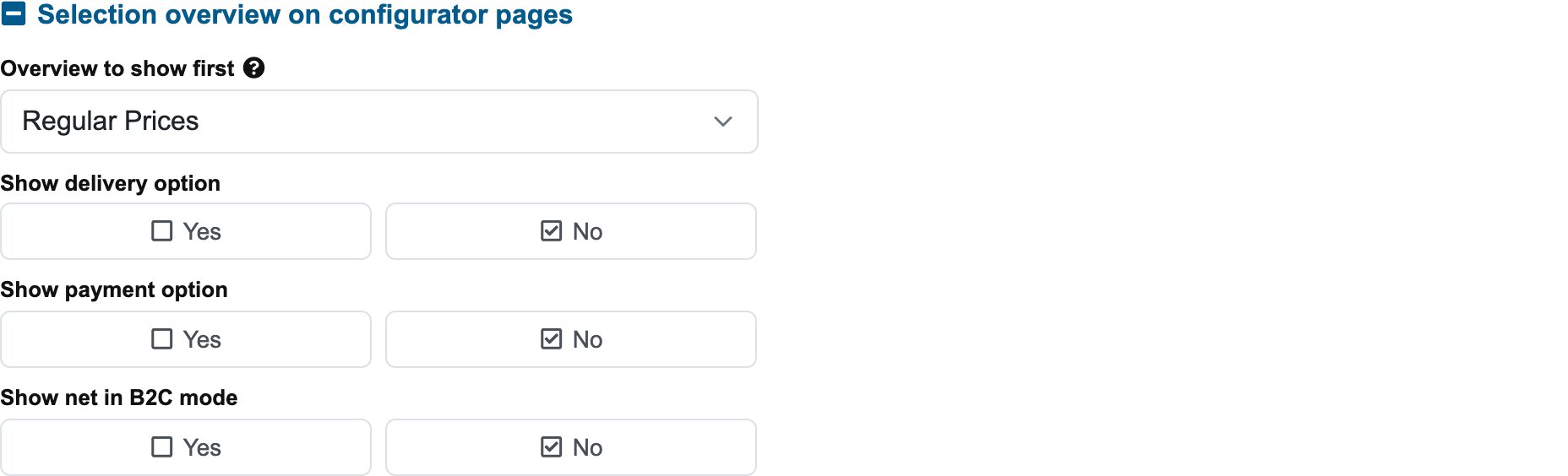
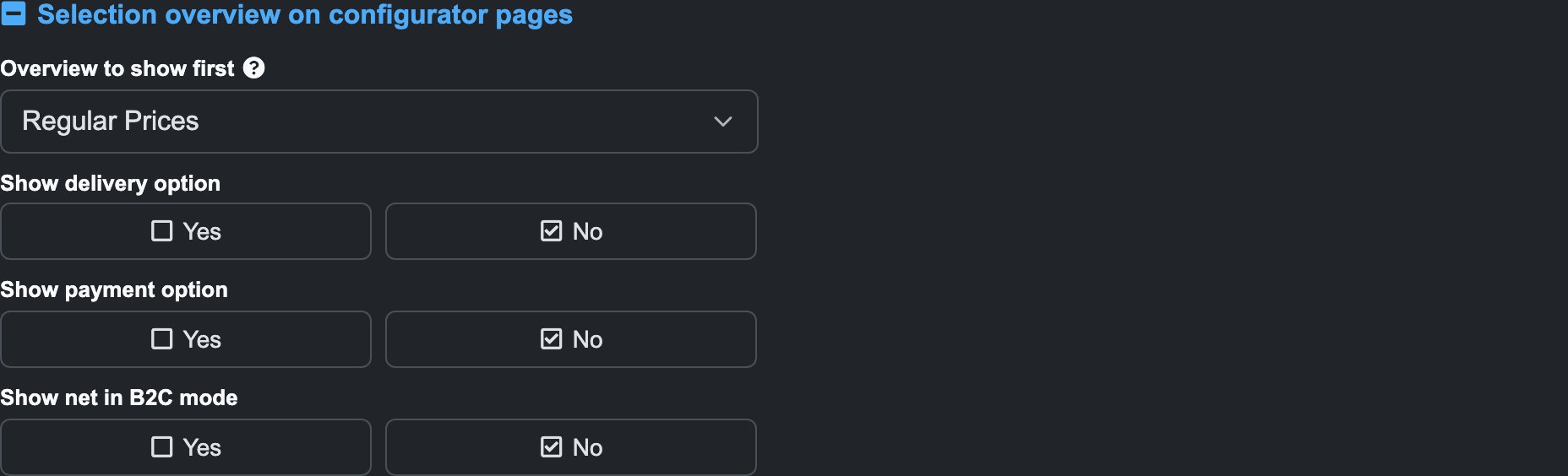
The section itself holds the settings that apply to both overviews:
| Setting | What it does |
|---|---|
| Overview to show first | Which of the two overviews leads, regular or recurring |
| Show delivery option | The delivery line in the summary |
| Show payment option | The payment line |
| Show net in B2C mode | Net amounts even in a gross-priced B2C store |
Below it, Regular Prices and Recurring Prices repeat the same eight switches, so a subscription product can show its recurring breakdown at a different level of detail than its one-off prices — see charge recurring prices:
| Setting | What it does |
|---|---|
| Show overview | The overview as a whole |
| Show Prices | Prices, as opposed to a plain list of selections |
| Show Configurator Pages | Group the lines by configurator page |
| Expand Configurator Pages | Whether those groups start open |
| Show questions | The question titles |
| Show question prices | A price per question |
| Show taxes | The tax lines |
| Show cart button | A cart button inside the overview |
Turn detail up while you're testing pricing, down for a cleaner storefront. Products can also override the overview detail individually.
IP Geolocation tracking
Guesses a visitor's country from their IP so the store can preselect it. Choose the Geolocation Service Type — a local file or the MaxMind web service — and, for the web service, enter your MaxMind User ID and License Key.
This only ever preselects; the customer can always change their country.
License Key
Your License Key, plus License Manager Satellites for multi-site licences. If CBX starts reporting licence problems after a domain change, this is the first place to look.
Custom Fields
CBX gives you spare fields on products, questions, assignments and answers. This section names them — a field stays hidden until you give it a label here.
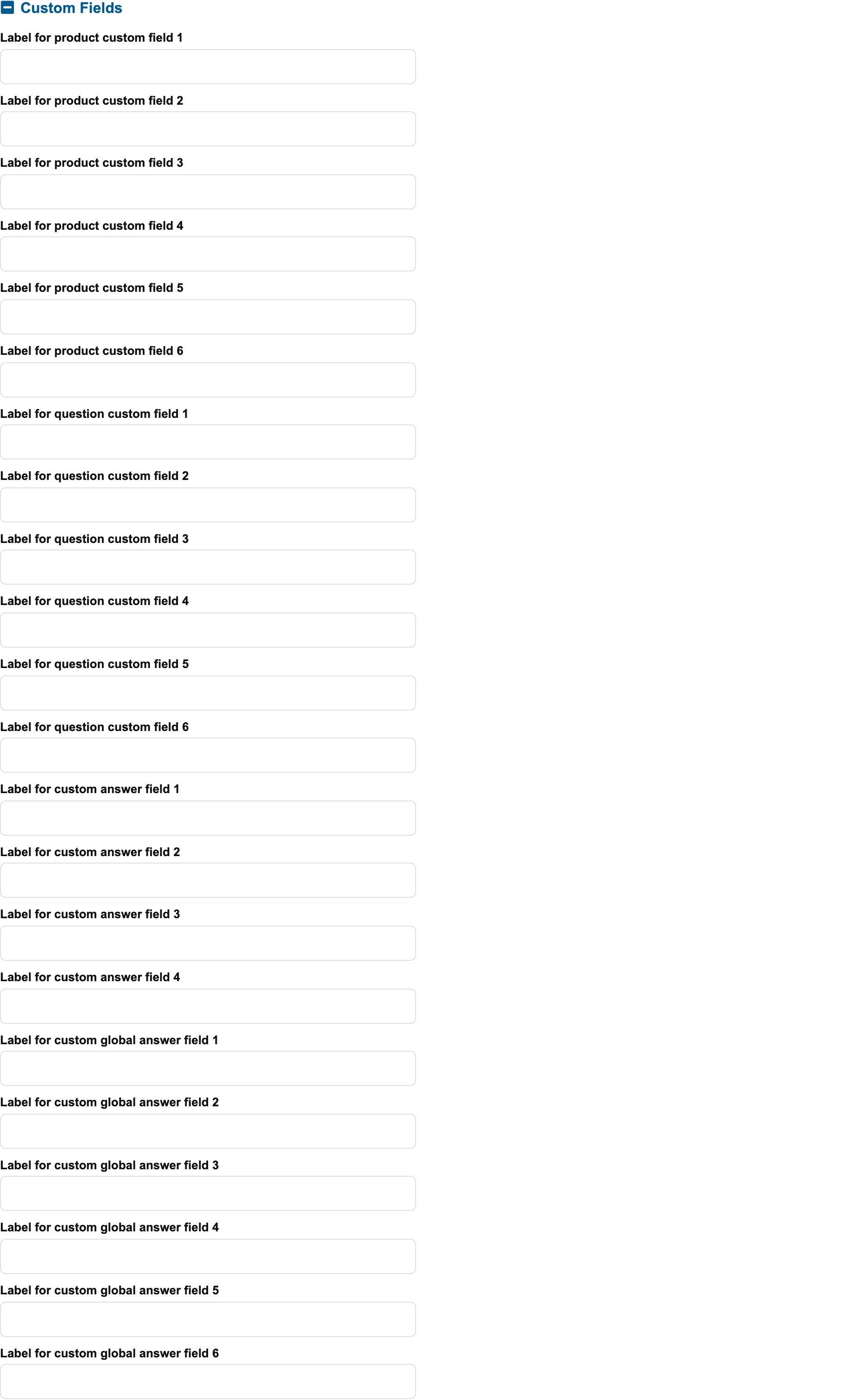
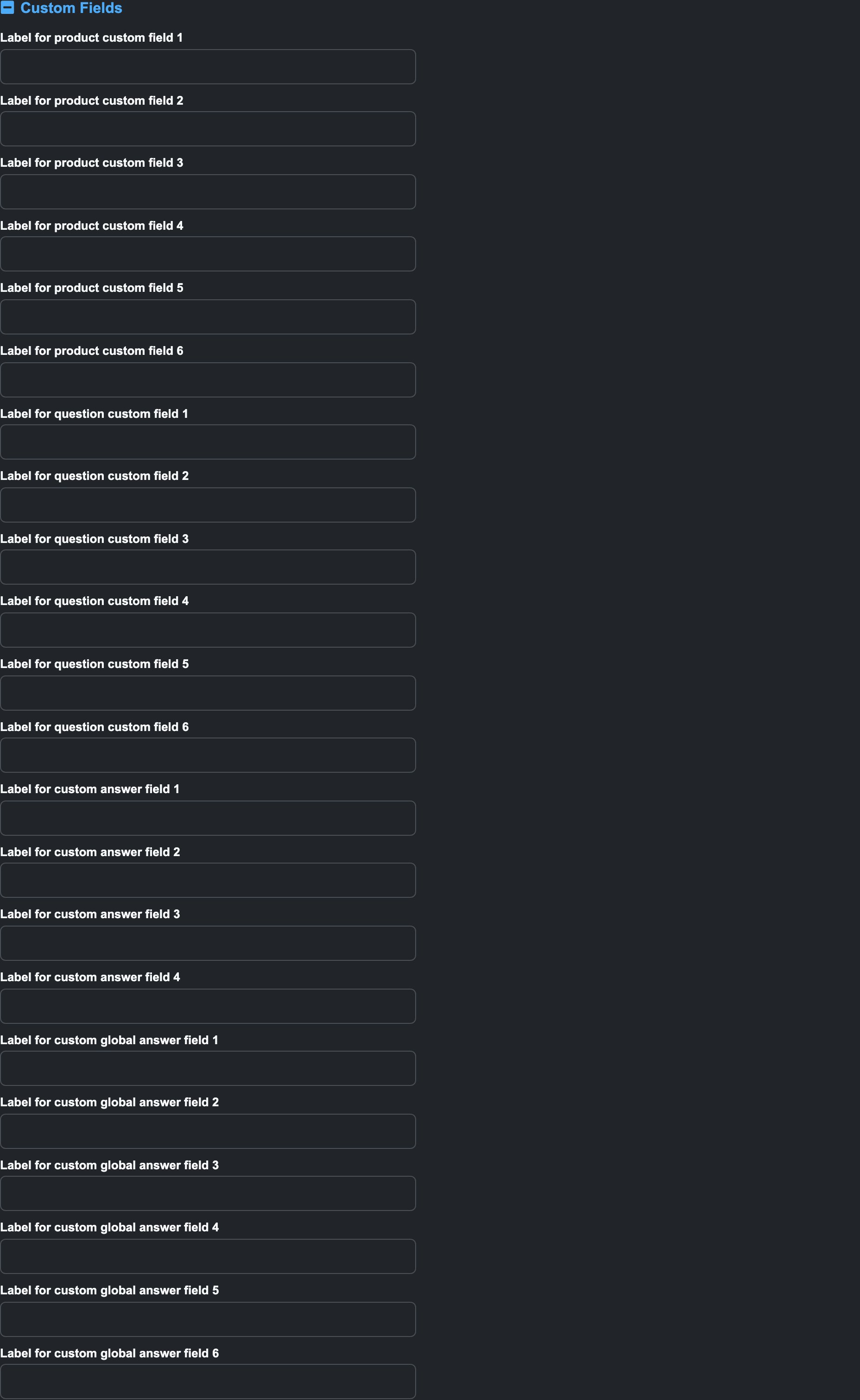
| Slots | Where they appear |
|---|---|
| 6 product fields | The product form |
| 4 question fields + a translatable one | The question form |
| 4 assignment fields | Product-to-list assignments |
| 6 answer fields | The answer rows |
Label a field and it appears on that form; blank the label and it disappears again — the stored values are kept either way. Templates read these to print your own data on the storefront.
Maintenance
How long CBX keeps data that never turned into an order.
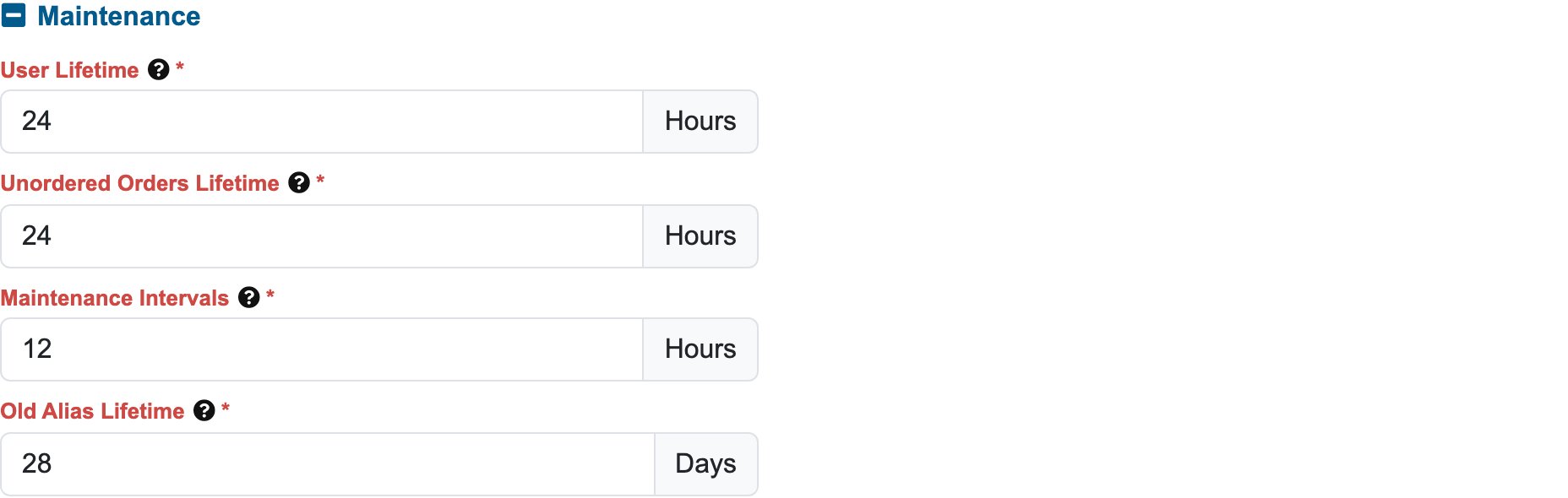
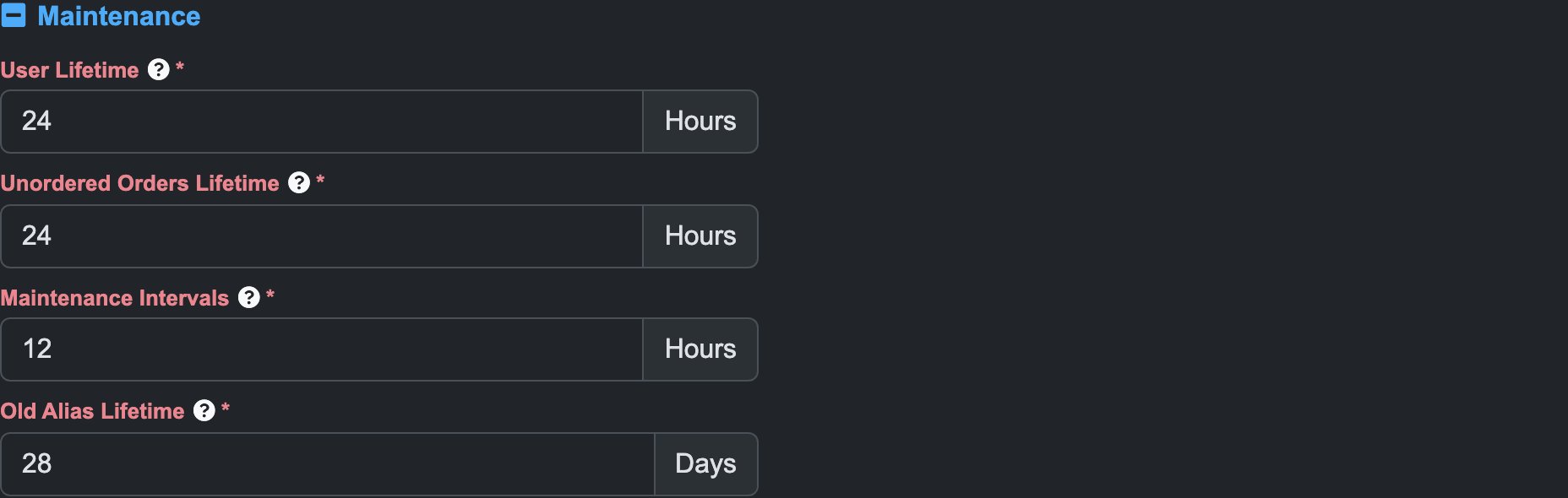
| Setting | What it does |
|---|---|
| User Lifetime | How long unregistered users without orders are kept |
| Unordered Orders Lifetime | How long abandoned (unordered) orders are kept |
| Maintenance Intervals | How often the cleanup runs |
| Old Alias Lifetime | How long old URL aliases still redirect — set this to your search engine's re-indexing interval, 28 days if unsure |
The first two are a housekeeping and a privacy control: they decide how long an abandoned cart with a visitor's data survives.
Connectors
The setup for payment and shipping connectors — each connector contributes its own settings here once it is enabled, so what you see depends on which connectors your store uses.
Structured Data and Google Analytics
Two related jobs, SEO markup and ecommerce tracking.
| Setting | What it does |
|---|---|
| Show Structured Data on Shop-Pages | Emits product structured data for search engines |
| Where should the system show product structured data | Which pages carry it |
| Use Google Analytics Ecommerce Tracking | Basic ecommerce tracking |
| Property Tracking ID | Your GA property |
| Conversion tracking for offline payments | When an offline payment (bank transfer, invoice) counts as a conversion |
| Use Google Analytics Enhanced Ecommerce Tracking | The richer enhanced-ecommerce events |
Analysis and Debugging
Asset loading and profiling. These are the switches to reach for when the storefront misbehaves after a customization.
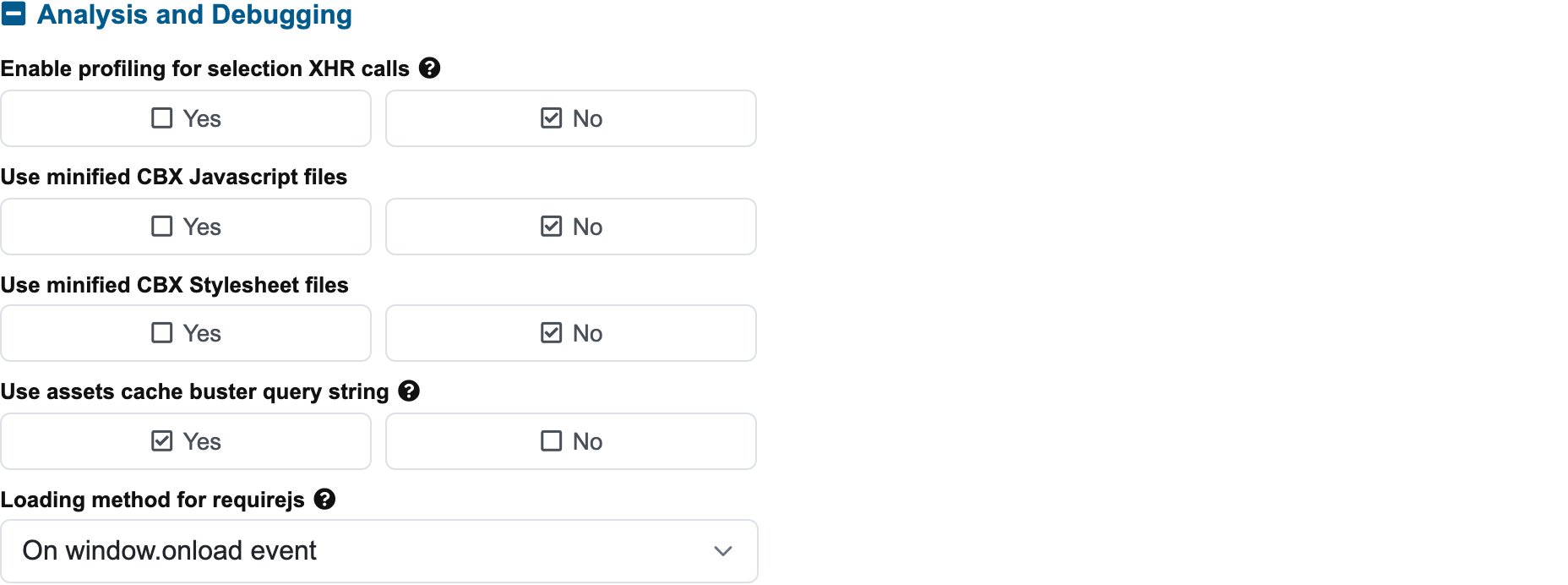
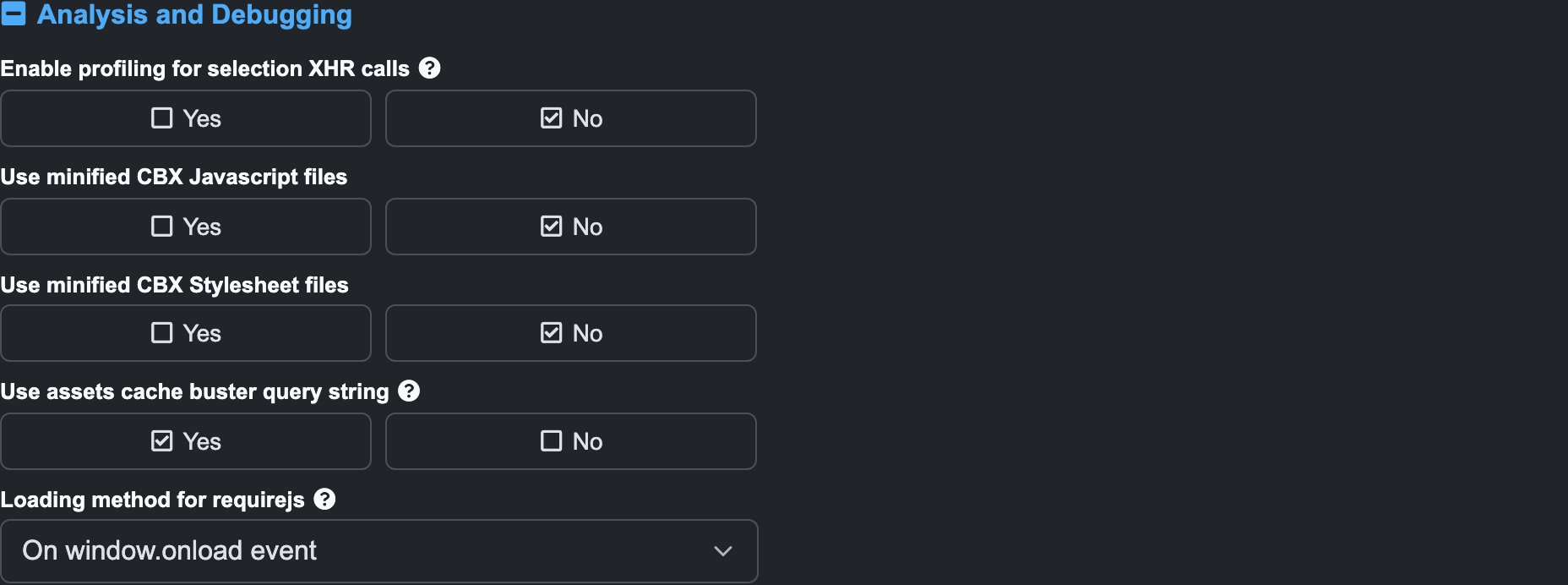
| Setting | What it does |
|---|---|
| Enable profiling for selection XHR calls | Times the calls the configurator makes on every selection |
| Use minified CBX Javascript files | Serve minified JS |
| Use minified CBX Stylesheet files | Serve minified CSS |
| Use assets cache buster query string | Appends a version to asset URLs so browsers pick changes up |
| Loading method for requirejs | How the script loader is attached to the page |
Turning the two minified switches off serves the readable sources — the usual first step when a developer needs to debug the storefront. Turn them back on for production: minified assets are what your customers should be downloading.
AI Configurator Assistant
The chat advisor that helps visitors through the configurator. It needs an Anthropic API key before the panel appears at all.
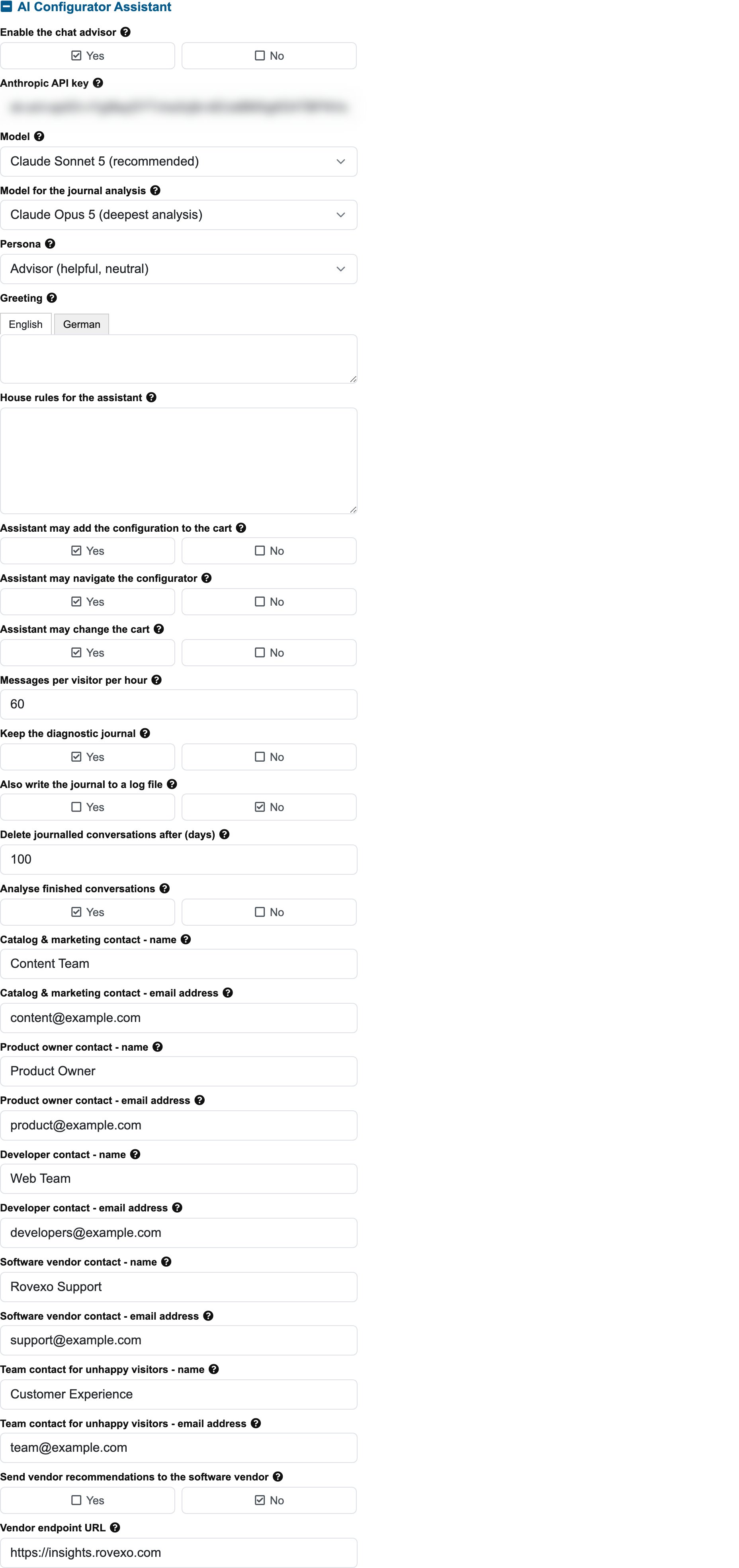
| Setting | What it does |
|---|---|
| Enable the chat advisor | Shows the panel on configurator pages and on the cart |
| Anthropic API key | The key the store uses to reach the Claude API — it never reaches the browser |
| Model | Smaller models are cheaper and faster; larger ones advise better |
| Model for the journal analysis | Used for the lessons and Insights reports, which run rarely |
| Persona | Neutral advisor, sales agent, or technical consultant |
| Greeting | The panel's first message; empty means the default |
| House rules for the assistant | Your own instructions — shop facts, what to emphasise, what never to promise |
| Assistant may add the configuration to the cart | Off means it advises and selects, the visitor completes the purchase |
| Assistant may navigate the configurator | Lets it switch pages and scroll to a question |
| Assistant may change the cart | Lets it change a line's quantity, remove it, copy it or reopen it — the same things the cart's own buttons do. It always asks before removing |
| Messages per visitor per hour | A lid on API spend |
| Keep the diagnostic journal | Records conversations for the Conversation Journal |
| Also write the journal to a log file | Mirrors each turn into a log file as well; off by default |
| Delete journalled conversations after (days) | The journal stores what visitors typed — this is the retention limit |
| Analyse finished conversations | Lets the scheduled task write the lessons-learned review |
| Contact name and email address — for catalog & marketing, the product owner, the developer, the software vendor, and unhappy visitors | Who each group of the assistant's recommendations is sent to. Leave a group empty and nothing breaks; only its send button is disabled. See Work the recommendations |
Two of these deserve a deliberate decision rather than a default. The API key is a spending credential — anyone holding it can spend on your account. And the journal stores what visitors typed, so the retention setting is a privacy decision, not just housekeeping.
Good to know
- Most Settings entries take effect immediately — change, reload the storefront, verify.
- Feature switches (shipping, invoicing, reviews) hide whole areas of the admin and storefront when off; if a screen an article mentions is missing, check its switch here first.
- On WordPress an extra Wordpress URLs section appears at the top, holding the URL segments for the cart and account pages.
- Two related screens sit beside Settings: Store Information (your company identity on documents) and Customer Fields (which personal data each flow collects).