Build a calculation
- Version
- 4.0 preview
- Updated
Audience: store admins · Scope: creating a calculation and attaching it · Last reviewed: 2026-07-20
What this does — Creates a named formula that turns the customer's current selections into a number, and wires it into a price (or weight, or an input bound). Example built below: an area price — entry in Width × entry in Height × 0.20.
Before you start
- Read where prices come from so the calculation lands in the right place.
- The questions the formula reads must exist.
Steps
-
Go to Calculations, click Add, name the calculation (you'll pick it by this name later), choose the product it belongs to and the style Formula.
-
Build the expression in the editor:
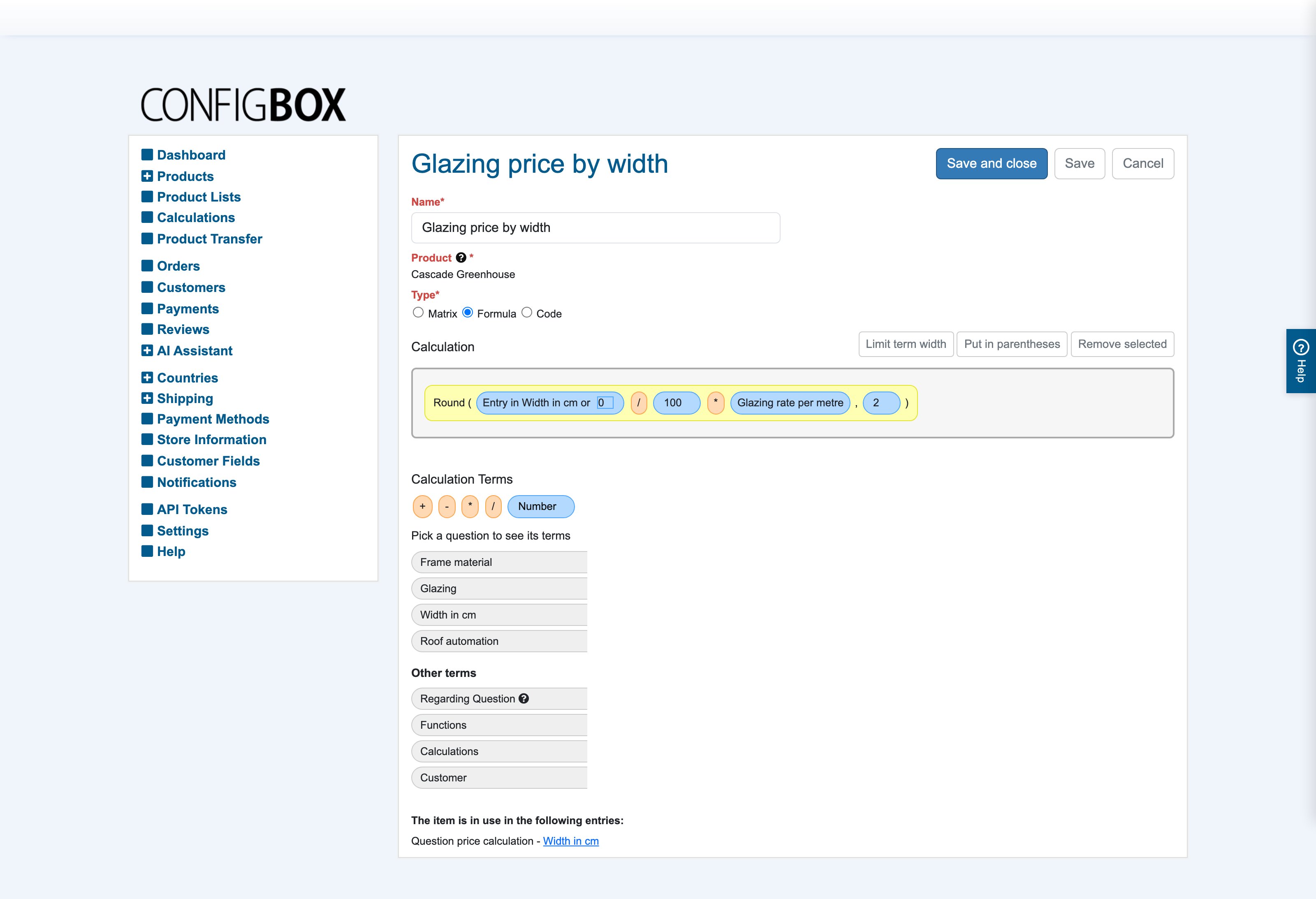
- Drag Calculation Terms into the Calculation area: the arithmetic chips
(+ − * /), a Number chip (type its value, e.g.
0.20), and terms from the tabs:- Questions — pick a question to drag in its Entry (what the customer
entered/selected), its price, or its custom fields. Each question term has a small
"or …" box — the fallback value used while the question has no entry yet; set it
(usually
0or1) so the price never shows blank. - Calculations — the result of another calculation of this product; this is how you compose small readable pieces instead of one monster formula.
- Customer — values from the customer's group, for segment-dependent math.
- Functions — Round, Lowest value, Highest value (and any store-specific extras): each parameter is a slot you drop further terms into.
- Questions — pick a question to drag in its Entry (what the customer
entered/selected), its price, or its custom fields. Each question term has a small
"or …" box — the fallback value used while the question has no entry yet; set it
(usually
- Arrange chips left-to-right; normal arithmetic precedence applies, and Put in parentheses groups selected chips. Remove selected deletes; Limit term width compacts long chips.
- Drag Calculation Terms into the Calculation area: the arithmetic chips
(+ − * /), a Number chip (type its value, e.g.
-
Save.
-
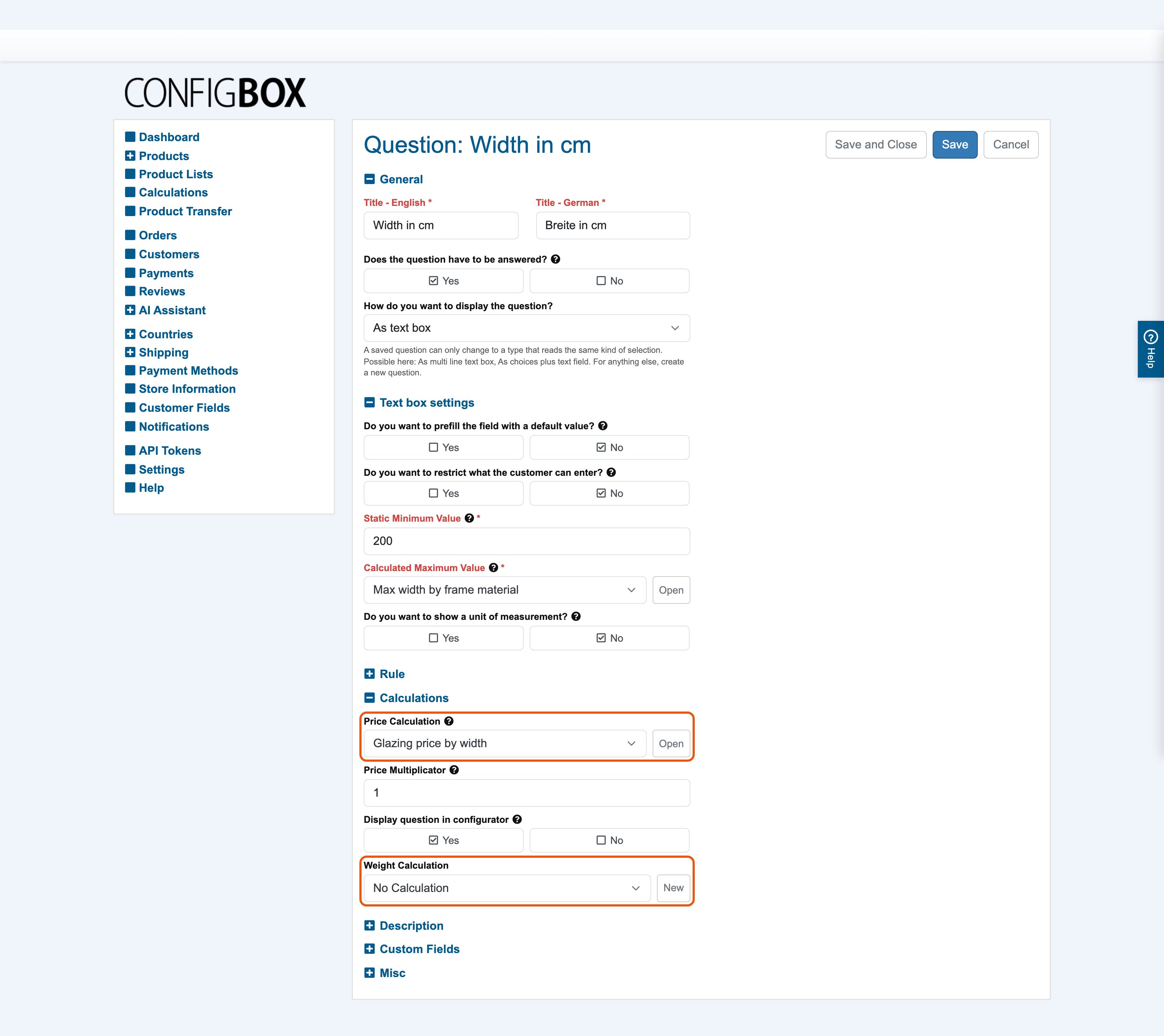
Attach it — nothing happens until you do:
- Open the question → Calculations section, or the answer → Pricing section with Calculated price set to Yes → pick the calculation as its Price Calculation (or Recurring Price / Weight Calculation; on an answer those sit in its Recurring pricing section, behind its own Calculated recurring price switch, and its Weight section), or
- use it as a Calculated Minimum/Maximum Value on a numeric question, or
- reference it from a rule ("Results of calculations") or from another calculation.
-
Check it live: open the configurator, change the inputs, watch the price move.
The special "Regarding Question" term
In the Questions tab, Regarding Question means "whatever question this calculation is
attached to". A calculation built with it (e.g. Entry in Regarding Question × 2.5) can be
attached to many questions at once and always reads its own question — one formula instead of
ten near-copies.
When Formula isn't the right style
- Code — a typed expression, faster for totals-based math ("12% of the running total") and
for formulas easier typed than dragged: bind questions to placeholders
A–Dand writeA * B / 1000000 * 65. Keywords give access to totals, question entries/prices and other calculations. → Write a code expression - Matrix — a lookup table when pricing is a table: choose what keys the rows and columns (a question's value or a calculation's result), fill the grid (or import an Excel file), and pick the matching mode — exact value, or round up/down to the next bracket. Multipliers can scale the looked-up cell by a quantity question or another calculation. → Price with a matrix
All three styles attach identically (step 4) and can reference each other.
Good to know
- Compose, don't inflate: several small named calculations referencing each other stay debuggable; one giant formula doesn't.
- Calculations recompute on every selection change — very deep chains can slow the configurator.
- The calculation edit form lists where it is in use — check before changing shared pieces.
- Copying a product copies its calculations and re-points every reference automatically.
- Author in the base currency; never bake tax or currency conversion into a formula.