Price with a lookup matrix
- Version
- 4.0 preview
- Updated
Audience: store admins · Scope: the Matrix calculation style · Last reviewed: 2026-07-21
What this does — Turns a price table you already have — a supplier price list, a size grid, a quantity-discount ladder — into a working price, without writing a single formula. You choose what the rows and the columns stand for, fill in the cells, and CBX looks up the cell that matches the customer's configuration.
Reach for a matrix whenever pricing is a table. Trying to express a price table as arithmetic is where formulas turn unreadable.
Before you start
- Read where prices come from and build a calculation — a matrix is one of the three calculation styles and is created, saved and attached exactly like the others.
- Decide the two inputs that drive the price, and have the questions they come from already built. A matrix can use one input or two — never more.
- Have your price table to hand. If it lives in Excel, keep it open: you can import it.
Steps
-
Go to Calculations, click Add, name the calculation, choose the product and pick the style Matrix.
-
Say what the rows and columns stand for. Above and to the left of the grid, each axis shows its current setting followed by a change link. Hover change to open the axis picker:
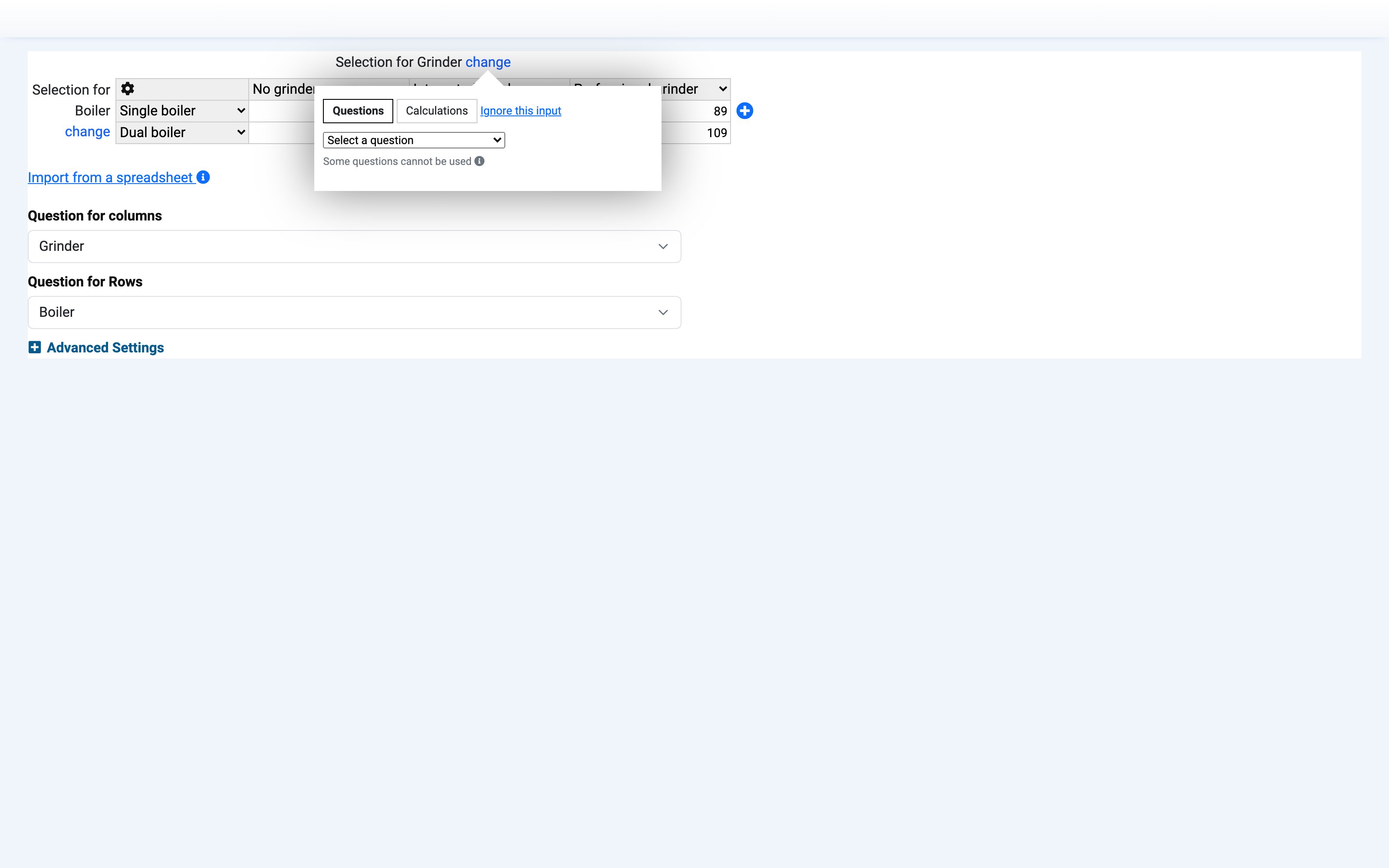
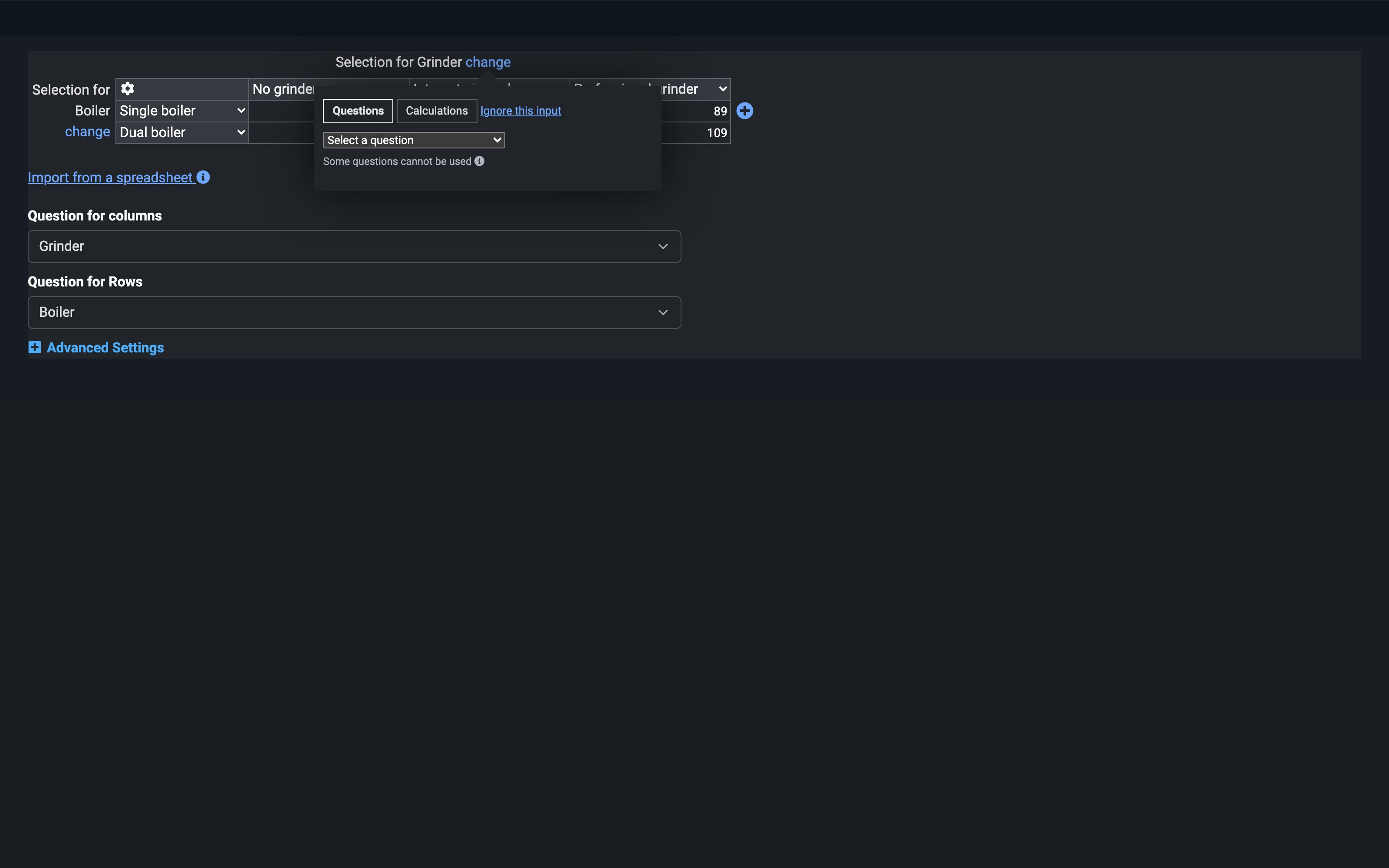
- Questions — pick a question. This is the usual choice.
- Calculations — use the result of another calculation of this product as the axis. Use this when the real driver is computed rather than entered (area, total weight, running total).
- Ignore this input — collapse that axis. A matrix with one axis ignored becomes a simple one-dimensional lookup list.
The axis label then tells you what CBX will read:
Label What it means Entry in <question>The number the customer typed — the grid headers are numbers you fill in Selection for <question>The answer the customer picked — the grid headers become answer drop-downs Result of calculation <name>The value another calculation produced Ignored This axis isn't used You cannot mix the two within one axis — an axis is either a question, a calculation, or ignored.
-
Fill the grid. Type the price into each cell. The blue + button to the right of the grid adds a column; the one below adds a row.
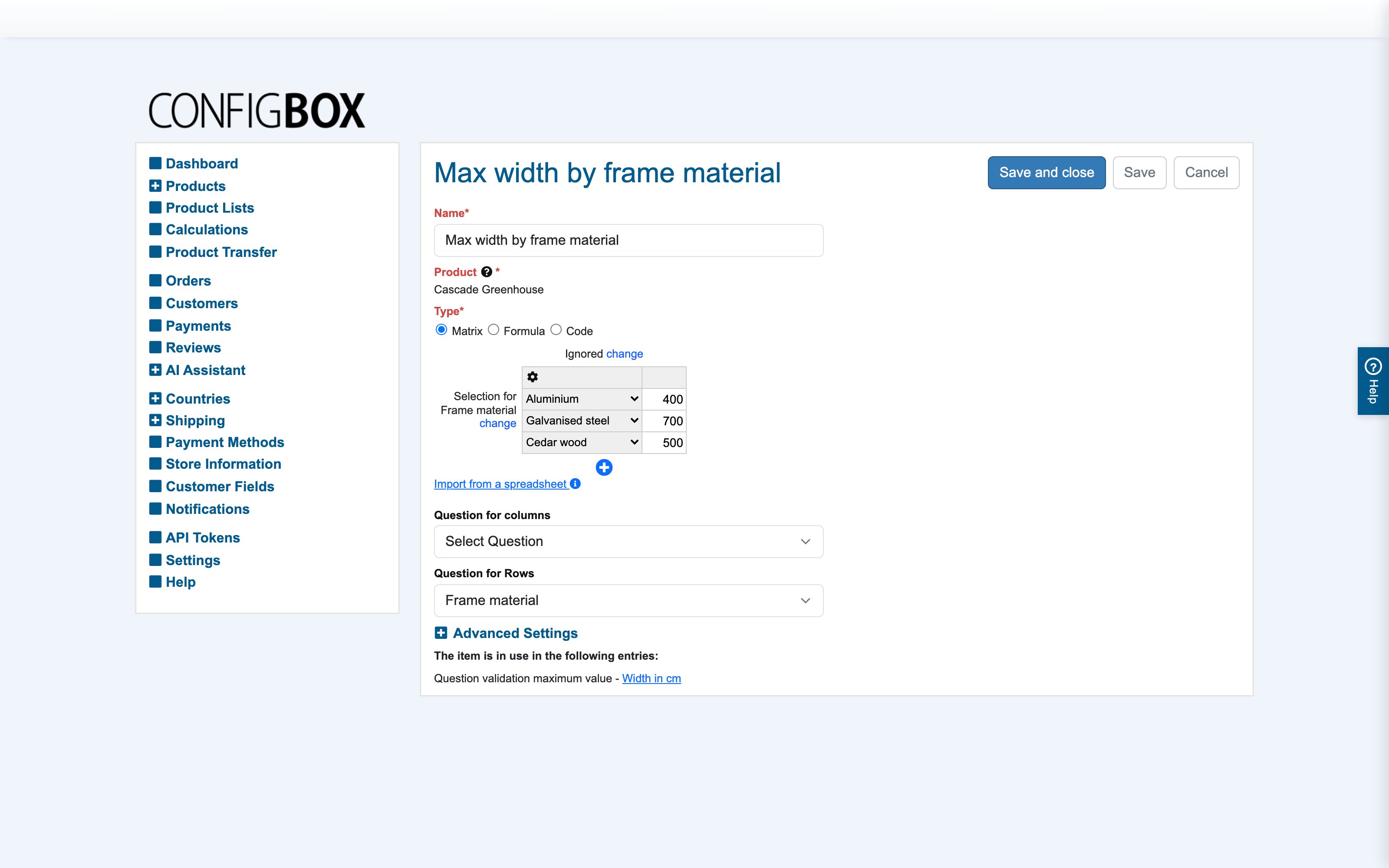
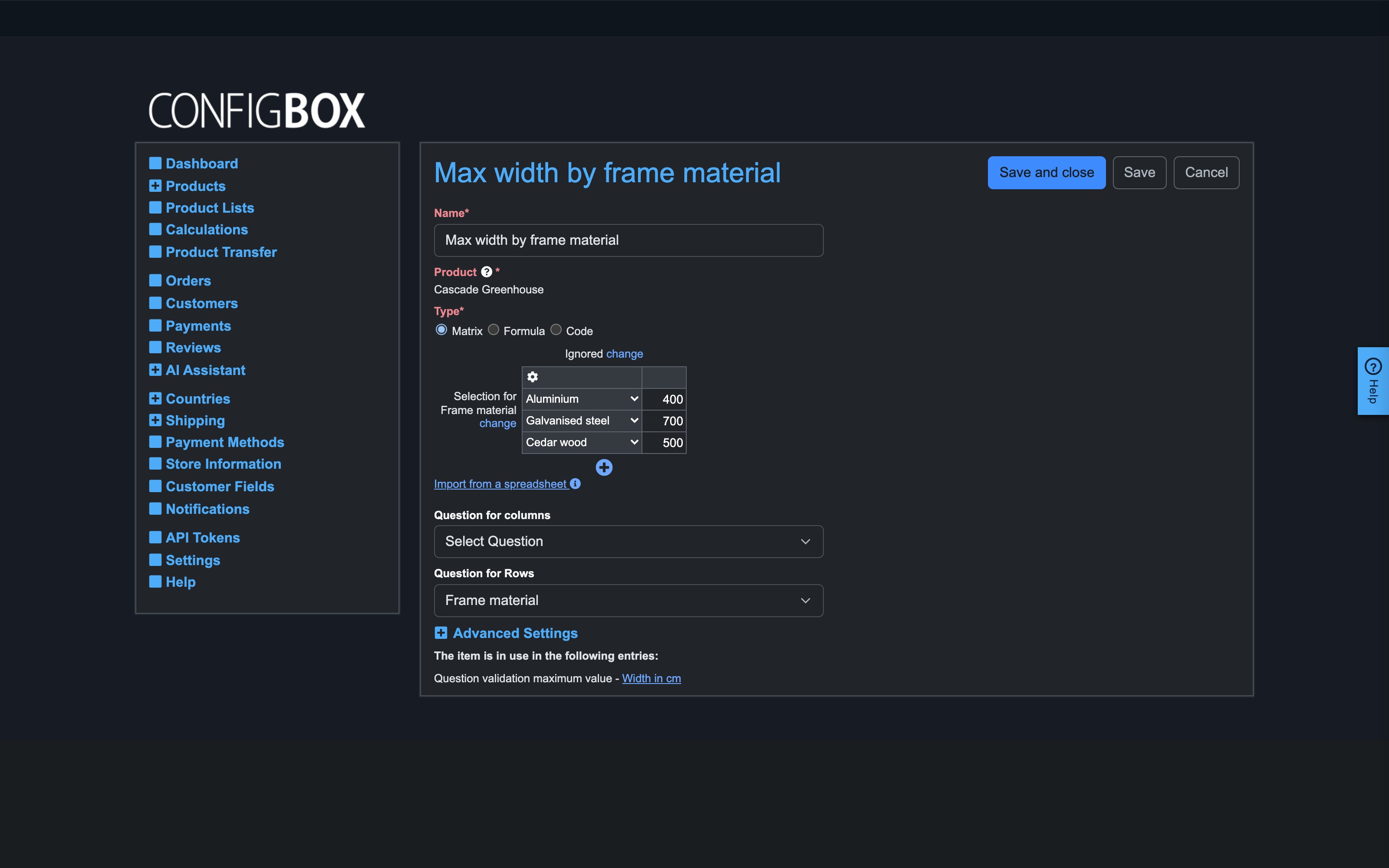
The gear icon in the grid's top-left corner shows the edit icons — drag handles for reordering rows and columns, and an × on each header to delete it. Grey header cells are the parameters (the values looked up); white cells are the results.
Write numbers with a dot as the decimal mark and no thousands separators.
-
Or import the table from a spreadsheet. Click Import from a spreadsheet and pick an
.xlsor.xlsxfile. The first row and the first column go into the grey parameter cells — except on an axis whose question has predefined answers, where the parameters come from the answers themselves and the file's first row/column is ignored. Everything else fills the value cells.Importing replaces the whole grid, so import before hand-editing, not after.
-
Set the lookup behaviour under Advanced Settings (collapsed by default):
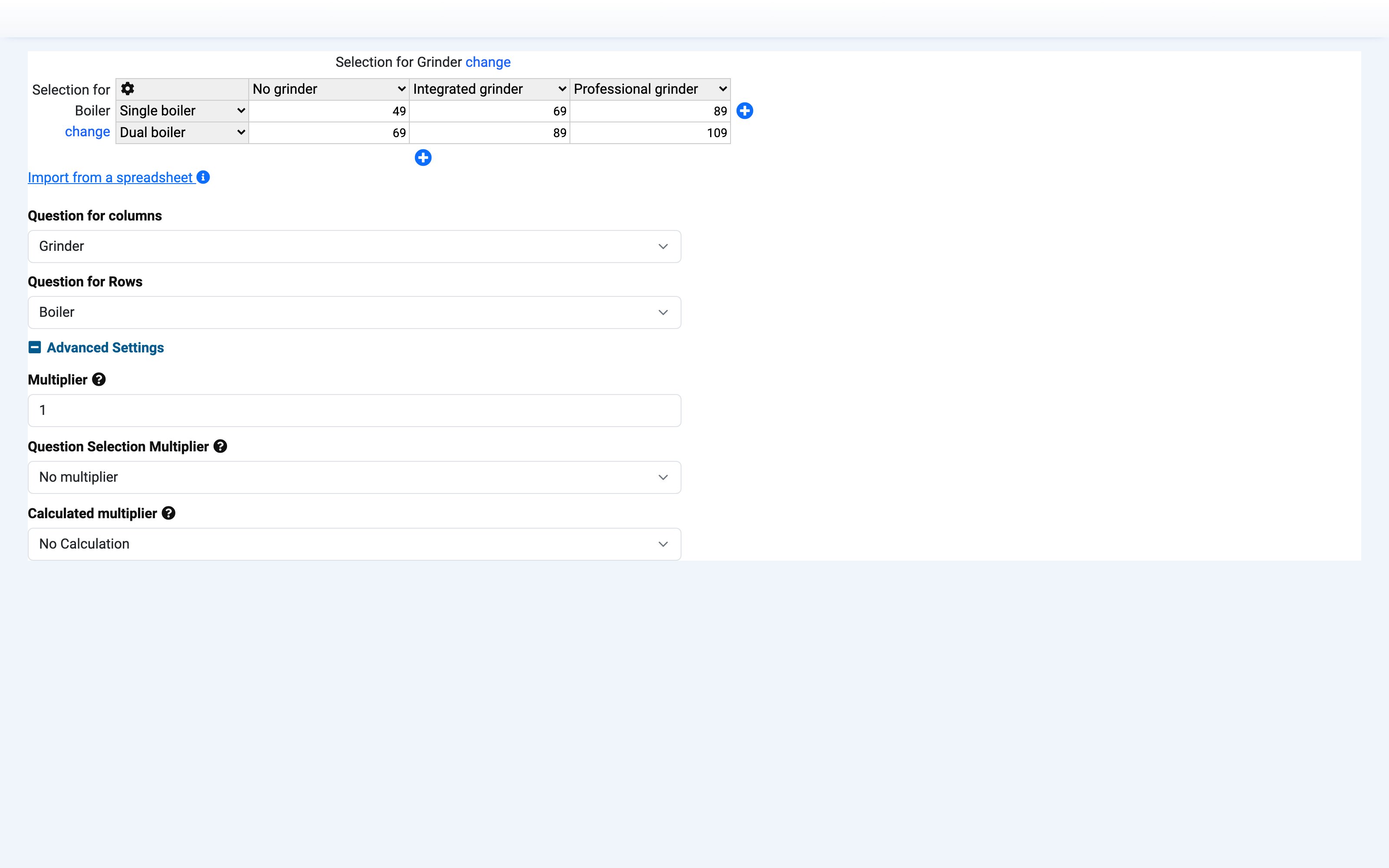
Setting What it does Lookup Value What to do when the customer's value falls between two rows/columns — Exact Value, Next higher value (the default) or Next lower value Round Values to Rounds the customer's value up before looking it up — 1to whole numbers,10to full tens, and so on. Only applies when Lookup Value is Exact ValueMultiplier Multiplies the looked-up cell by a fixed number — the usual way to enter supplier prices and add your margin on top Question Selection Multiplier Multiplies the result by the customer's entry in a question you pick — how you turn a per-unit table into a line total Calculated multiplier Same idea, but the multiplier is another calculation's result -
Save, then attach it — a calculation does nothing until it is used. Open the question → Calculations, or the answer → Pricing with Calculated price set to Yes → set it as the Price Calculation (or Recurring Price / Weight Calculation), or reference it from a rule or another calculation. See build a calculation for the attachment step in full.
-
Open the configurator and change both inputs. Watch the price step from bracket to bracket.
How a value is looked up
For each axis, CBX takes the customer's value and finds the matching header:
- an exact header match always wins;
- otherwise Lookup Value decides which neighbour to use.
Take a width table with columns 10, 20, 30, 40, 50 and a customer who enters 25:
| Lookup Value | Column used |
|---|---|
| Next higher value | 30 — the customer never pays less than the bracket they fall into |
| Next lower value | 20 — the customer keeps the cheaper bracket they have reached |
| Exact Value | none — unless Round Values to brings 25 onto a header first |
Then the same happens on the other axis, and the cell where the chosen row and column meet is the result — multiplied by any multipliers you set.
Values outside the table clamp to the nearest edge: an entry below the first header uses the first, an entry above the last uses the last. Give your table a top row that is deliberately generous, or add a rule that stops the customer going past it.
Recipes
Quantity discount ladder. Rows = the quantity question, columns = ignored (or a variant question). Fill the rows with the discount or unit price that applies from that quantity onward, and set Lookup Value to Next lower value — a customer ordering 700 keeps the 500 rate until they reach 1000. That is exactly how the demo store's Discount by copies matrix works.
Size grid. Rows = the height question, columns = the width question, cells = the finished price. Set Lookup Value to Next higher value so an in-between size is charged at the next size up.
Answer × answer grid. Both axes are questions with predefined answers (material × finish, for example). The headers become answer drop-downs, no numbers involved, and every combination gets its own price.
Supplier list with margin. Import the supplier's spreadsheet untouched and put your markup in
Multiplier (1.35 for 35%). When the supplier sends a new list, re-import and the margin
survives.
Per-unit table. Keep the table as a unit price and set Question Selection Multiplier to the quantity question, rather than baking quantity into the grid.
Good to know
- A matrix is product-scoped, like every calculation. Copying the product copies its matrices and re-points the references.
- Grey parameter cells accept numbers only, on a numeric axis. If you need text keys, drive that axis from a question with predefined answers instead.
- Keep tables sorted — the drag handles under the gear icon exist for exactly this. An out-of-order table still looks up correctly, but it becomes very hard for a human to check.
- Author in the base currency and ignore tax. Currency conversion, customer-group overrides and tax are applied on top of the result.
- The calculation edit form lists where it is in use — check that before editing a shared table.
Troubleshooting
- The price doesn't move. The calculation is probably not attached yet (step 6), or the axis question is on a page the customer hasn't reached.
- Every configuration gets the same price. One axis is likely set to Ignored, or the question you picked isn't the one the customer is answering.
- The price jumps at the wrong point. Check Lookup Value — next higher and next lower shift every bracket boundary by one step.
- Round Values to seems to do nothing. It only applies with Exact Value; with either next mode it is ignored by design.
- The import filled the wrong cells. On an axis whose question has predefined answers the file's first row/column is ignored — strip that header from the sheet, or expect it to be dropped.