Run CBX on a WordPress site
- Version
- 3.x
- Updated
Audience: store admins on WordPress-hosted stores · Scope: the few things that work differently on WordPress · Last reviewed: 2026-07-25
What this does — Shows you where CBX lives in the WordPress admin and how CBX content appears on your site's pages. Everything else in this guide — products, rules, pricing, commerce, orders — works exactly the same whether your store runs on WordPress, Joomla or Magento, so this is the only WordPress-specific article you need.
Before you start
- You need a WordPress account with permission to edit pages — that's the level CBX requires for its admin screens. If you don't have one, ask whoever runs your site.
Log in and find CBX
-
Open your site's address followed by
/wp-adminand sign in with your WordPress username and password.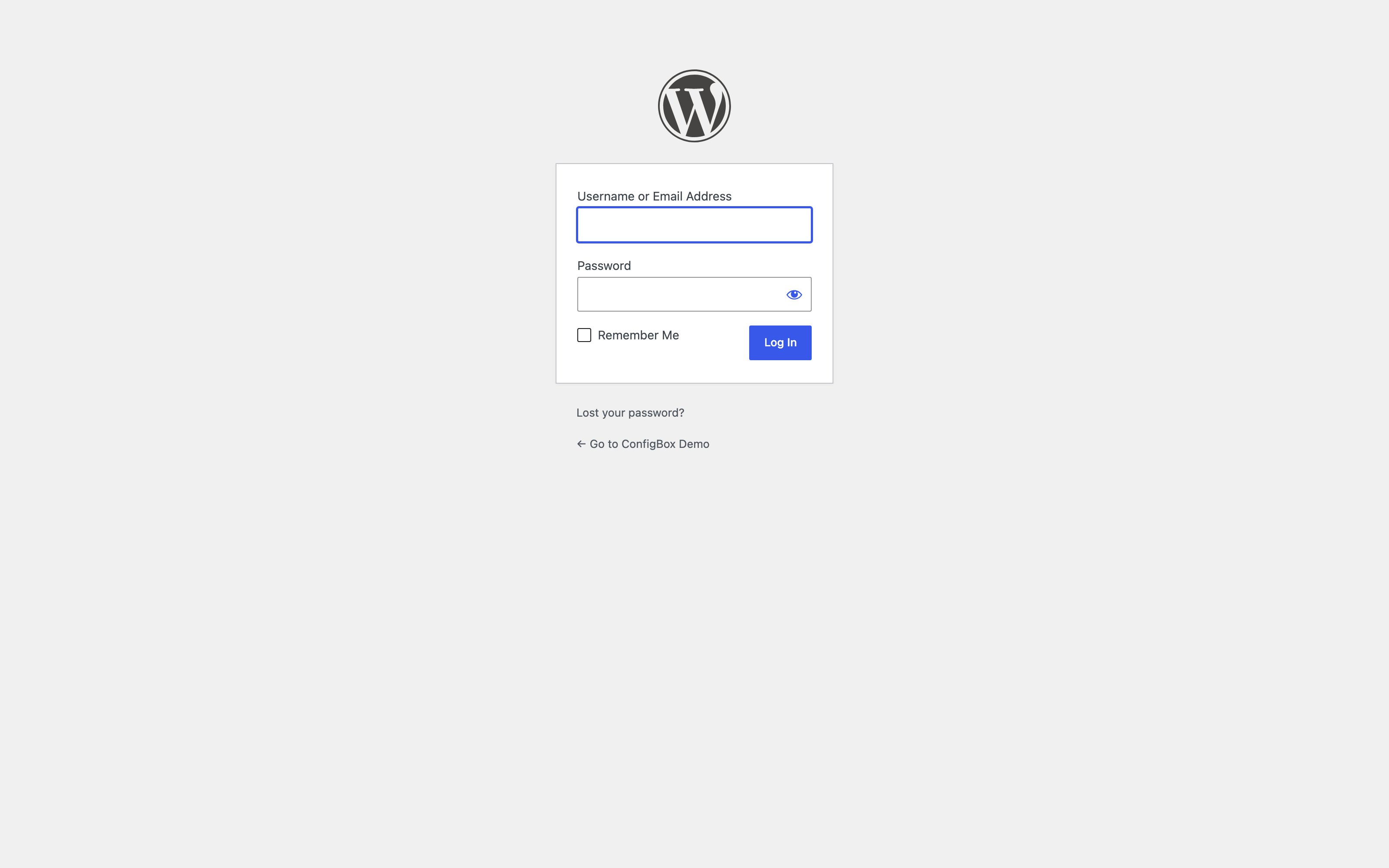
-
In the left admin menu, click CBX. You land on the CBX Dashboard, with the CBX menu on the left of its screen:
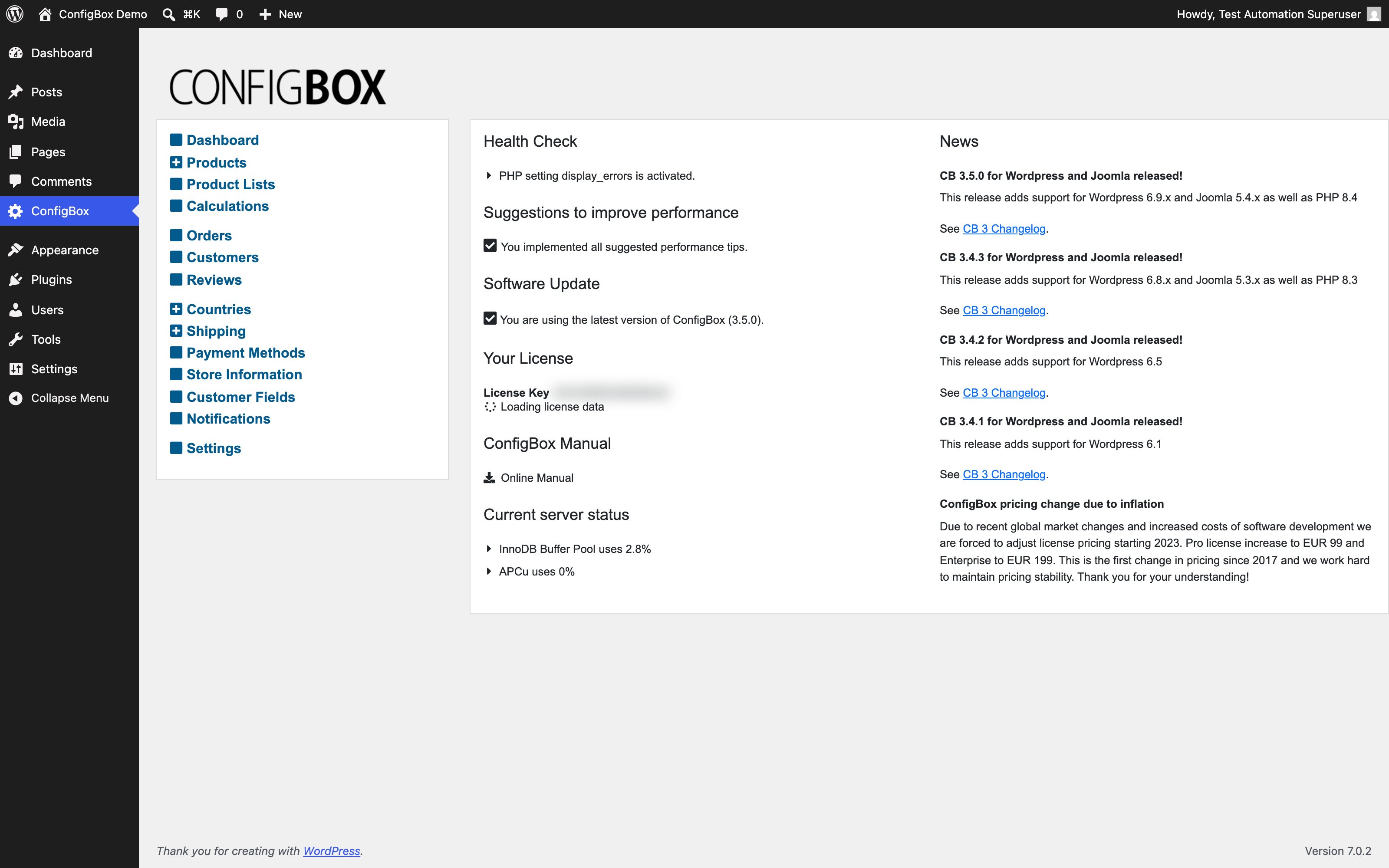
From here on, the screens are identical to every other CBX store — when an article in this guide says "go to Products" or "open Settings", it means this CBX menu.
How CBX appears on your site
Your storefront pages (the product list, the configurator, cart, checkout, the customer's account area) are served by the CBX plugin — you don't have to build them. Two things are useful to know:
-
CBX keeps WordPress in sync by itself. For every product list, product and configurator page you create in the CBX menu, the plugin maintains a matching WordPress entry behind the scenes — that is what gives them real addresses on your site (the cart and account area get their own, too). You never edit these entries directly; manage everything in the CBX menu and the pages follow.
-
You can also place CBX on any ordinary WordPress page with the
configboxshortcode. Paste one of these into the page editor:Put on the page… Shortcode A product list [configbox view="productlist" id="1"]One product's configurator [configbox view="product" id="12"]A single configurator page [configbox view="configuratorpage" id="1"]The cart [configbox view="cart"]The checkout [configbox view="checkout"]The customer account area [configbox view="user"]The
idis the product list's, product's or configurator page's ID — you see it in the respective CBX list screen. Useconfiguratorpageonly when you deliberately want one step of a configurator on a page of your own; normallyproductis what you want, because it brings the whole configurator with it.Shortcodes written for older CBX versions keep working:
productlistingis still accepted as the old spelling ofproductlist. Useproductlistin anything new.
What happens next
You know where everything lives — from here, the rest of the guide applies unchanged. Continue with Work the list and edit screens, then build your first product.
Good to know
- One login, one customer. Your customers use their normal WordPress accounts; CBX picks the login up automatically — someone who fills a cart as a guest and then logs in keeps their cart.
- Multilingual sites translate CBX's own texts (product names, questions, answers) in the CBX edit screens — the flag icons next to translatable fields — while your WordPress translation plugin handles the ordinary WP pages around them.
- CBX settings are not under WordPress → Settings. They live at CBX → Settings, inside the CBX menu.
- Command-line tools for your developer or host. CBX ships maintenance commands for
WP-CLI (
wp configbox …), and a developer can add store-specific ones (an order export for your ERP, say) that appear aswp configbox custom …. Nothing you need day to day — just know it exists when your developer asks. For developers →docs/technical/com_configbox_cli_commands.md. - Running WooCommerce as well? CBX does not feed the WooCommerce cart and checkout — it brings its own, and that is what this guide describes. The two can coexist on one site, but a configured CBX product goes through the CBX checkout. If you need it to reach WooCommerce instead, talk to Rovexo before you plan your store.
Troubleshooting
- No CBX entry in the admin menu? Your account lacks the page-editing permission CBX requires, or the CBX plugin is deactivated under Plugins — ask your site administrator.
- A page shows the shortcode text instead of the store? The shortcode sits in a formatted block (a code or quote block) rather than a plain paragraph or a Shortcode block — or the CBX plugin is deactivated under Plugins.
- The page says
Unknown shortcode? Theviewvalue is misspelled — compare it letter by letter with the table above. - The page is blank where the store should be? The
idpoints at a record that no longer exists or isn't published. Open the matching CBX list screen and check the ID.