Run CBX on a Joomla site
- Version
- 3.x
- Updated
Audience: store admins on Joomla-hosted stores · Scope: the few things that are specific to Joomla · Last reviewed: 2026-07-21
What this does — Shows you where CBX lives in the Joomla administrator and how your storefront pages get built, which on Joomla means menu items. Everything else in this guide — products, rules, pricing, commerce, orders — is the same on every host, and its screenshots are taken from a Joomla store, so the rest of the guide will look exactly like your own admin.
Before you start
- You need a Joomla account with access to the administrator and to the CBX component. If you don't have one, ask whoever runs your site.
Log in and find CBX
-
Open your site's address followed by
/administratorand sign in.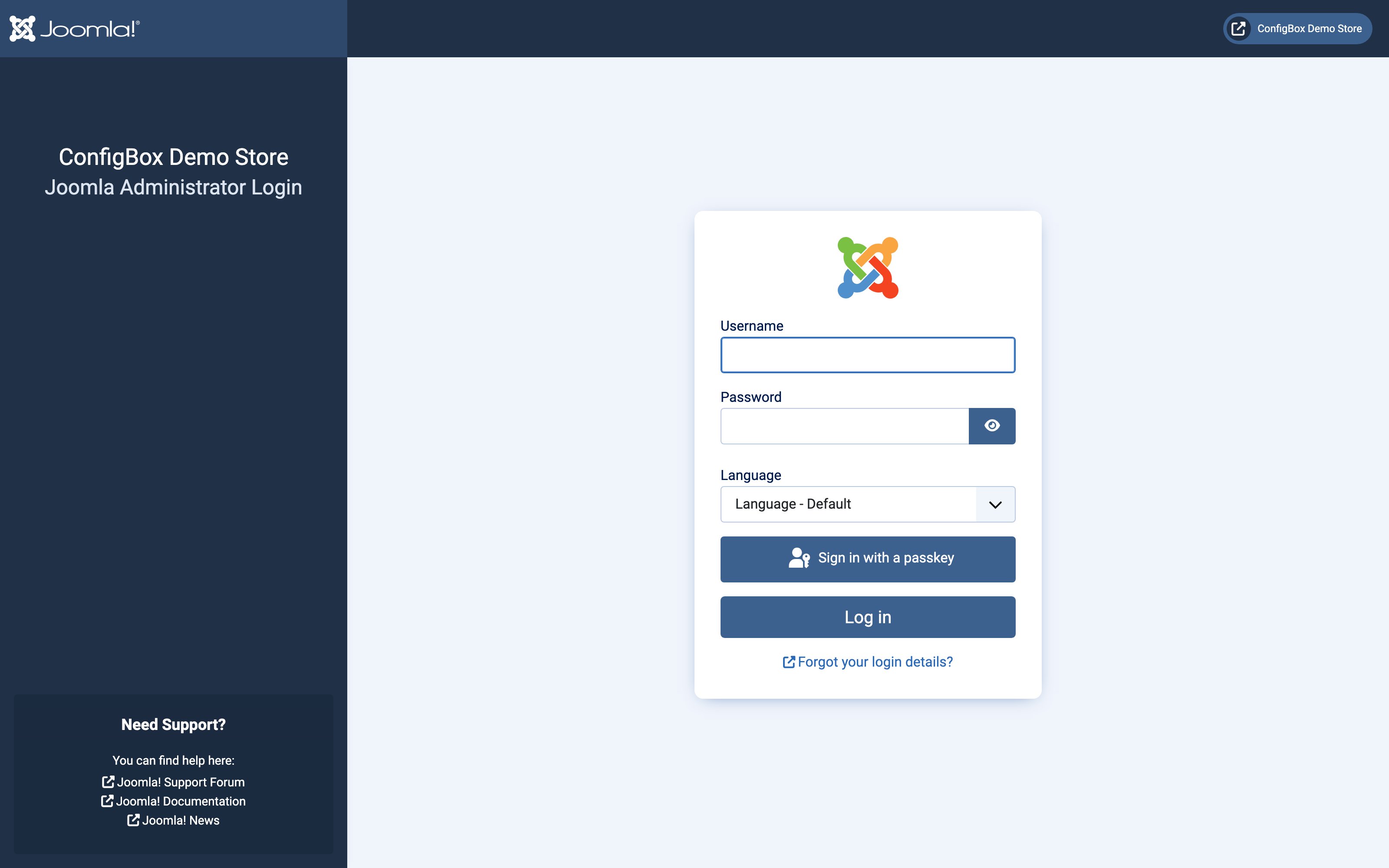
-
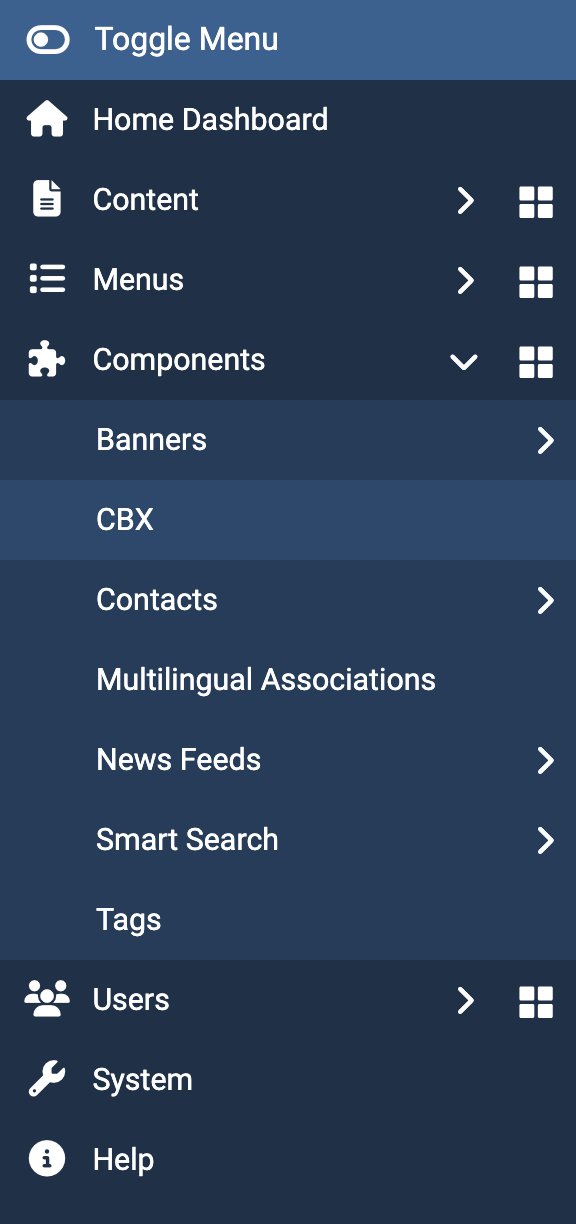
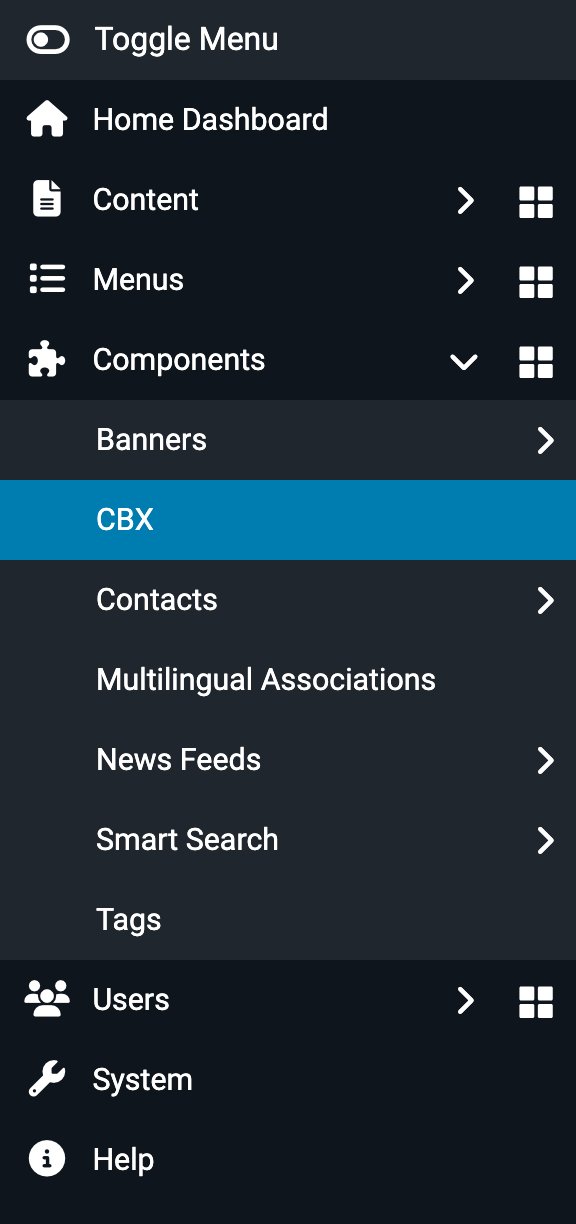
In the sidebar, open Components and choose CBX.
-
You land on the CBX Dashboard, with the CBX menu on the left of its screen — the menu the rest of this guide refers to.
From here on, when an article says "go to Products" or "open Settings", it means that CBX menu, not Joomla's.
Build your storefront with menu items
Products, product lists, the cart and the account area only reach your visitors once a Joomla menu item points at them. This is the one job that works differently on other hosts, where a shortcode or a catalog product does the same job.
-
Go to Menus →
<your menu>→ Add New Menu Item. -
Give it a Title, then next to Menu Item Type click Select.
-
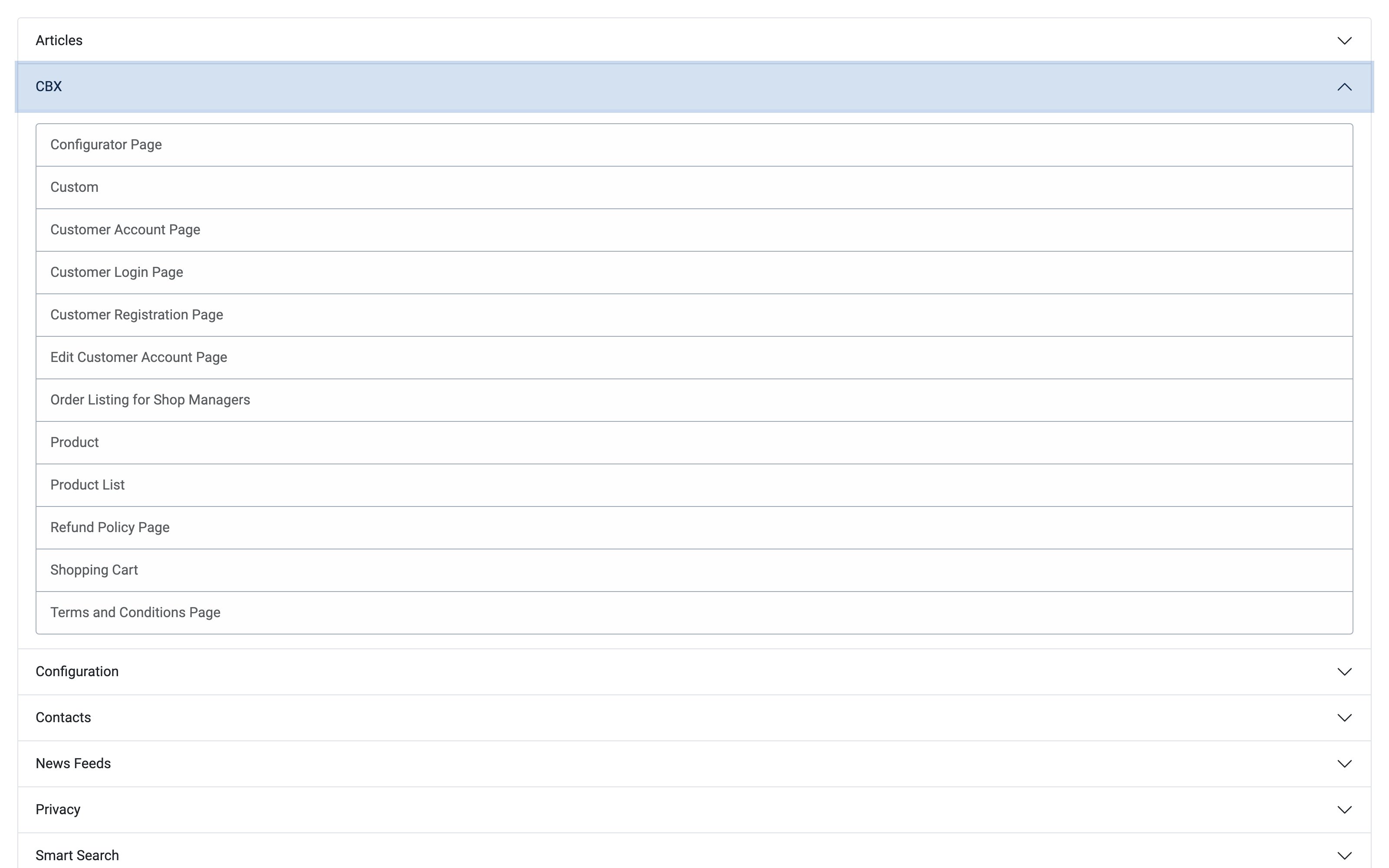
Open the CBX group and pick a type:
-
Fill in whatever the type asks for — a Product List item asks which list, a Product item which product.
-
Save.
What each type is for
| Menu Item Type | Use it for |
|---|---|
| Product List | Your shop page — one of the lists you built under Product Lists |
| Product | A landing page for one specific product |
| Configurator Page | A configurator step on its own page |
| Shopping Cart | The cart |
| Customer Account Page | The customer's account — orders, quotations, addresses |
| Customer Login Page / Customer Registration Page / Edit Customer Account Page | The individual account screens, when you want them separately reachable |
| Order Listing for Shop Managers | An order list on the front end, for your shop managers |
| Terms and Conditions Page / Refund Policy Page | The legal pages the checkout links to |
| Custom | An anchor for a custom page built for you by a developer |
Most stores need surprisingly few. A Product List item, a Shopping Cart item and a Customer Account Page item are usually the whole set: products and their configurator steps get their addresses underneath the product list automatically, so you do not need a menu item per product or per configurator page. Add a Product or Configurator Page item only when you want something to live somewhere else in your site structure.
There is no Checkout menu item type — customers reach the checkout from the cart.
Clean URLs
Joomla decides how your addresses look, under System → Global Configuration → Site → SEO.
With Joomla's Search Engine Friendly URLs turned on, a configurator page reads like
/en/demo-products/car/motor.html; with it off, everything still works but you get long
index.php?option=… addresses instead.
Those readable path segments come from the SEF Segment field on each product and page — see Add a product. It is per language, and it must be unique: if you reuse one, CBX refuses to save and tells you which product already has it.
What else gets installed
Installing CBX adds a few Joomla extensions besides the component itself. You don't need to configure them, but it helps to recognise them:
| Extension | Where | What it does |
|---|---|---|
| System - CBX | System → Plugins | Lets CBX run on your site — leave it enabled |
| User - CBX | System → Plugins | Keeps Joomla accounts and CBX customers in step |
| Authentication - CBX | System → Plugins | Lets customers sign in during checkout |
| CBX - Console commands | System → Plugins | Command-line tools for your developer or host |
| CBX Currencies | Content → Site Modules | An optional currency switcher you can publish in a template position |
Good to know
- One login for your customers. Shoppers use their normal Joomla account; someone who fills a cart as a guest and then logs in keeps that cart.
- Multilingual sites: CBX translates its own texts (product names, questions, answers, SEF segments) in its edit screens — the flag icons next to translatable fields — while Joomla handles the menus and pages around them. Give each language its own set of CBX menu items, as the demo store does.
- Your template wraps CBX. The configurator, cart and checkout render inside your normal template, so they inherit its fonts, colours and content width. A cramped configurator is nearly always the template's width, not a CBX setting.
- CBX settings are not in Joomla's Global Configuration. They live at CBX → Settings.
Troubleshooting
- No CBX under Components? Your account lacks access to the component, or the extension isn't installed — ask your site administrator.
- A storefront page shows "not found" or lands on the wrong page? The menu item for that view is missing or unpublished. Check Menus for a published item of the matching type.
- URLs look like
index.php?option=com_configbox&…? Joomla's Search Engine Friendly URLs are off — turn them on in Global Configuration → Site → SEO. - CBX refuses to save a product because the SEF segment is taken? Another product already uses that segment in that language. Open the product's Others section and enter a different one.