Add a product
- Version
- 3.x
- Updated
Audience: store admins · Scope: the product form · Last reviewed: 2026-07-20
What this does — Creates the root record of a configurable product: what it's called, where it appears, what it looks like, and what it costs before any options are added. Pages, questions and answers come afterwards.
Before you start
- Know the product's name in every active shop language, its starting price, and which product list(s) it should appear in.
- Have a product image ready (used on lists and the detail page).
Steps
-
Go to Products and click Add product at the bottom of the tree (or tick an existing product and use Copy for a head start).
-
Fill the General section:
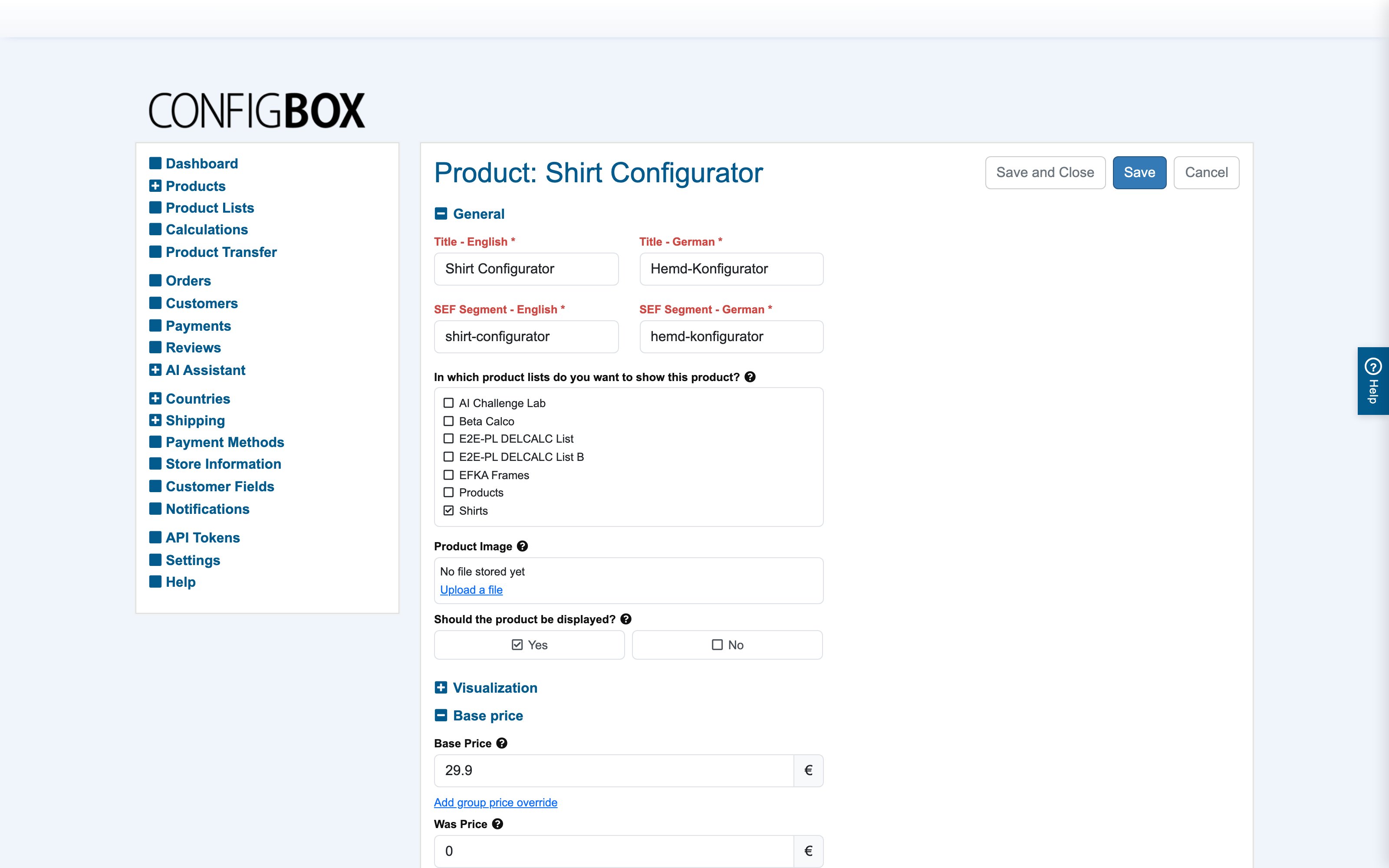
- Title — per language; shown everywhere the product appears.
- SEF Segment — per language; the product's URL slug (e.g.
shirt-configurator). - In which product lists do you want to show this product? — tick the catalogs that should carry it. A product in no list is only reachable by direct link.
- Product Image — upload the main image. File fields show the current file with Replace file and a Delete file at save tick.
- Should the product be displayed? — the master visibility switch. Keep it on No while building; flip to Yes to go live.
-
In Visualization, pick what customers see while configuring: No visualization, Composite Image (2D layered preview — set the Base image here, per-answer overlays come later on the answers), or ShapeDiver (3D).
-
In Base price, set the starting price before any options, and the product's tax class. A parallel Base price Recurring section exists for subscription-style pricing — leave it empty unless you sell recurring.
-
Skim the display sections — each has sensible defaults you can tune later:
- Display in product detail page — detail-page type, long description, detail panes on/off.
- Display in product listings — the buy/details buttons on list tiles, reviews on/off, short listing description.
- Display in configurator — per-product overrides for tab/button navigation, whether continuing is blocked while required answers are missing, and the cart button placement. Each can defer to the global default from Settings.
-
Save.
What happens next
The product appears in the tree — now add its pages and questions. Once displayed is on Yes, it is live in every list you ticked.
Good to know
- Price display extras: Was Price shows a struck-through before-price; Price Label (e.g. "from") and Custom Price Text (e.g. "Call for quote") adjust how the price reads.
- Custom fields (in their own section) are free-form product attributes whose labels you define once in Settings — useful with rules, calculations and templates; ignore them until you need them.
- Copying a product copies everything — pages, questions, answers, rules, calculations — and re-points all internal references to the copy. It is the recommended way to build variants.