Manage product lists
- Version
- 3.x
- Updated
Audience: store admins · Scope: the Product Lists screen · Last reviewed: 2026-07-20
What this does — Product lists are the catalogs customers browse ("Demo Products" in the demo store). A list decides which products appear together and in what order; a product can sit in several lists, and a list typically backs one storefront page.
Platform note: on Magento 2 product lists don't exist — Magento's own catalog plays that role, so the menu entry is absent by design. On Joomla and WordPress a list becomes a storefront page only when something points at it: on Joomla create a menu item of type CBX → Product List; on WordPress the plugin maintains a page per list automatically, and you can also place one on any page with the
[configbox view="productlist" id="…"]shortcode. See CBX on Joomla and CBX on WordPress.
Steps
-
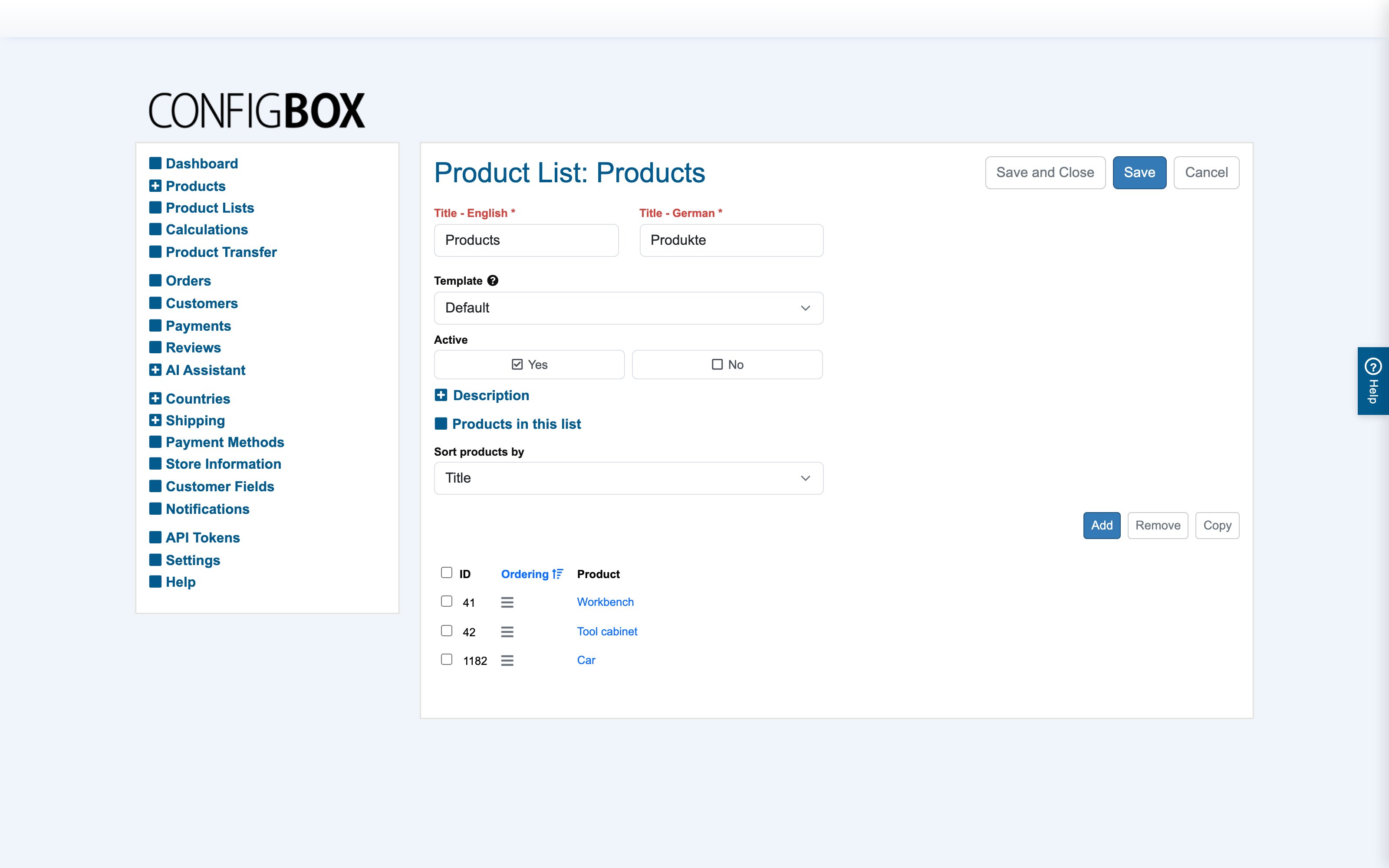
Go to Product Lists, open a list or Add:
-
The fields:
- Title per language, and an optional Description shown atop the list page.
- Template — the layout that renders this list (Default unless your site has custom layouts).
- Active — live or not.
- Sort products by — Title (alphabetical) or manual: with manual sorting, drag the rows in Products in this list into the order you want on the storefront.
-
Manage membership from either side, whichever is handier:
- here: Add / Remove products in the Products in this list table, or
- on the product form: tick the lists under "In which product lists do you want to show this product?".
-
Save.
What happens next
The storefront list page reflects membership and order immediately. Each tile shows the product's image, title, price block and (if enabled) review stars — what the tile offers (buy/details buttons, short description) is set per product in its Display in productlistings section.
Good to know
- A product in no list is reachable only by direct link — fine for hidden or link-only offers, usually an oversight otherwise.
- Settings → Checkout → Product List for continue shopping picks the list customers return to after adding to cart — point it at your main catalog.
- Lists are also a scoping device in the back office: the product tree's filter dropdown narrows to one list.