Add product detail panes
- Version
- 3.x
- Updated
Audience: store admins · Scope: the Product Detail Panes of one product · Last reviewed: 2026-07-23
What this does — Detail panes are the titled information blocks shown on a product's storefront detail page — specifications, care instructions, delivery terms, anything a buyer wants to read before configuring. Each pane is a heading plus rich-text content; a product can have several.
Before you start
- Have the product created.
- Write the copy for each pane, in every active language.
Steps
-
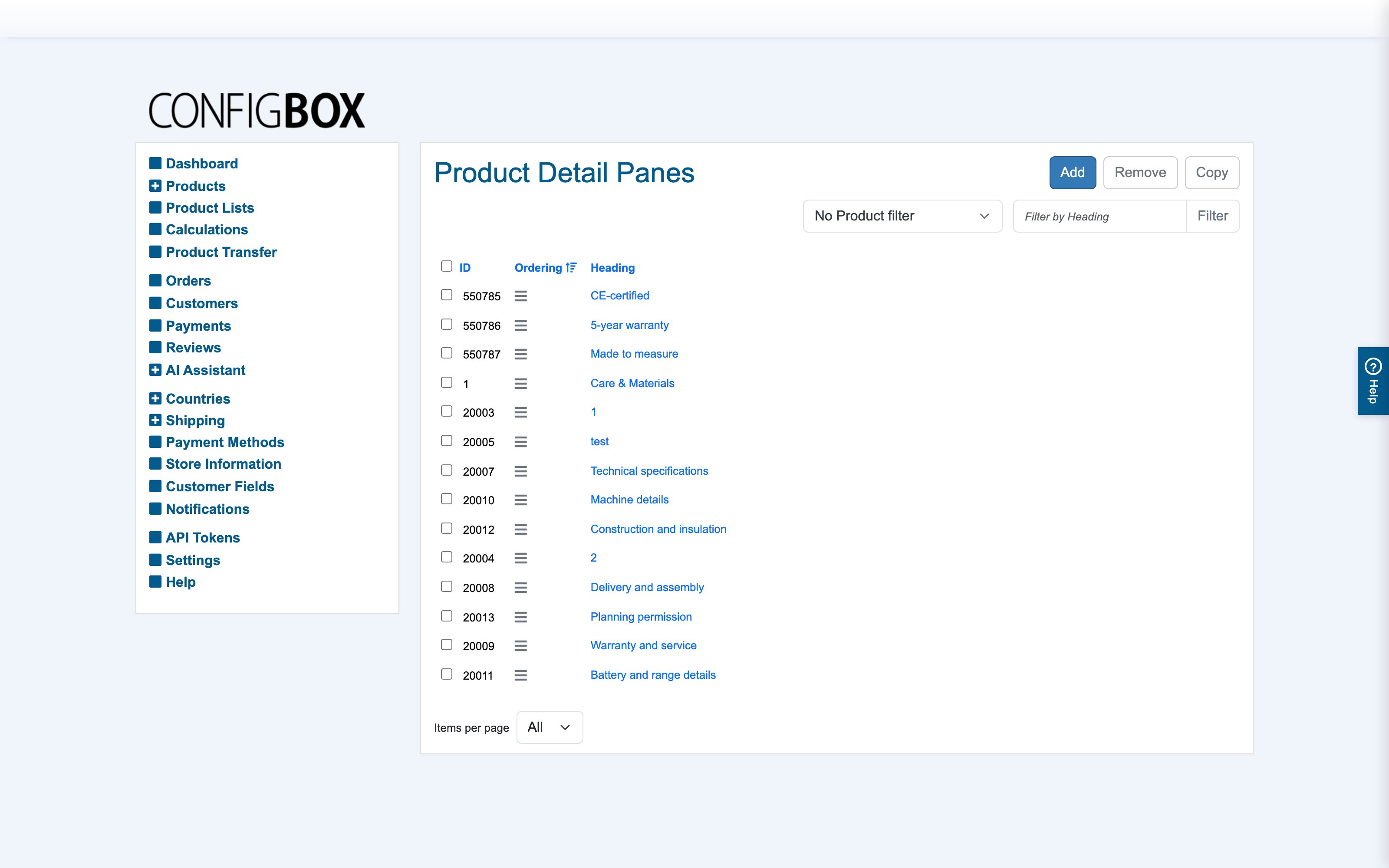
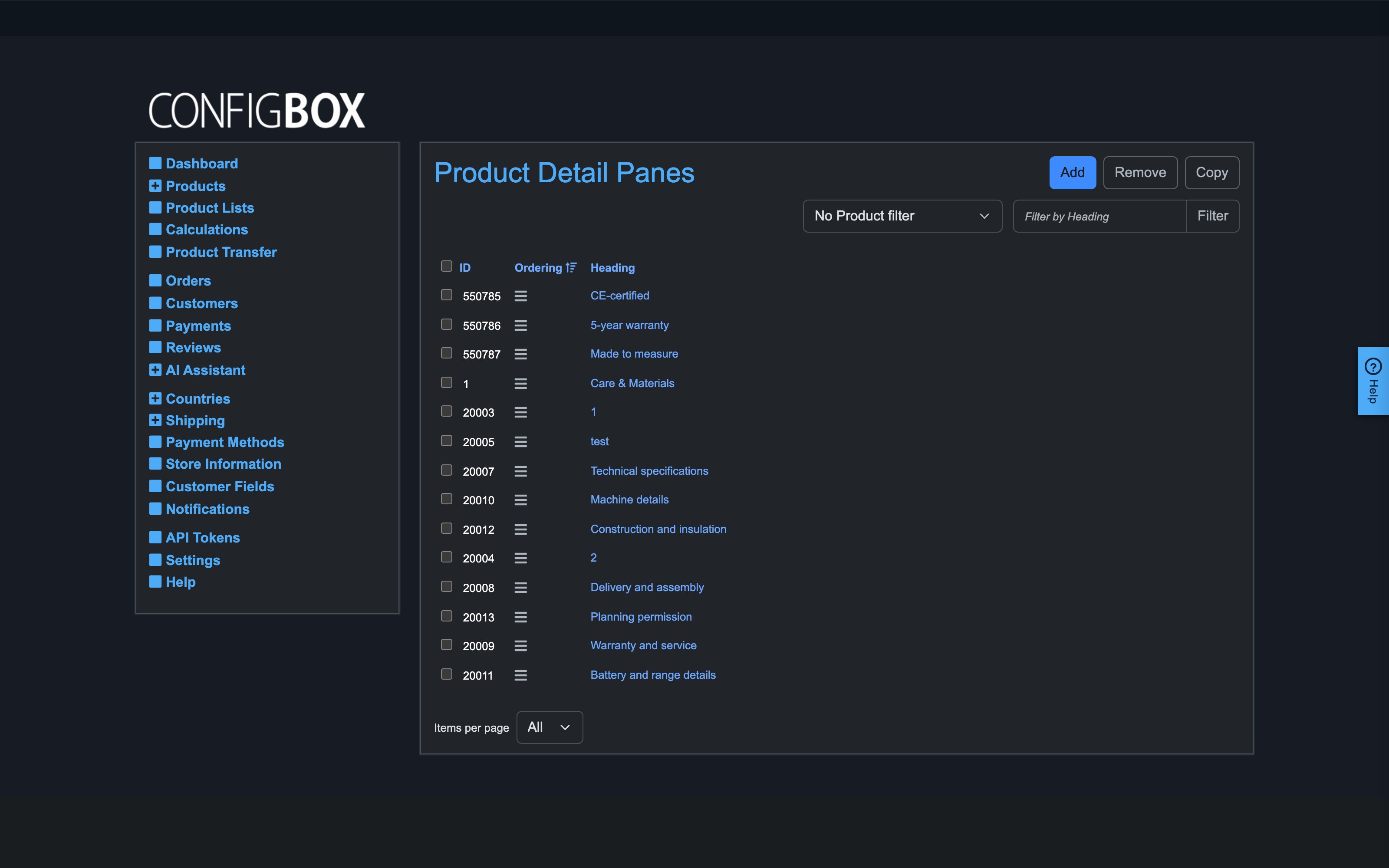
Open Products → Product Detail Panes in the CBX menu. The list has Add, Remove and Copy, a product filter and a Filter by Heading box, and shows each pane's ID, ordering handle and Heading:
-
Pick the product from the filter dropdown (so a new pane attaches to it), then click Add — or open an existing pane's heading to edit it.
-
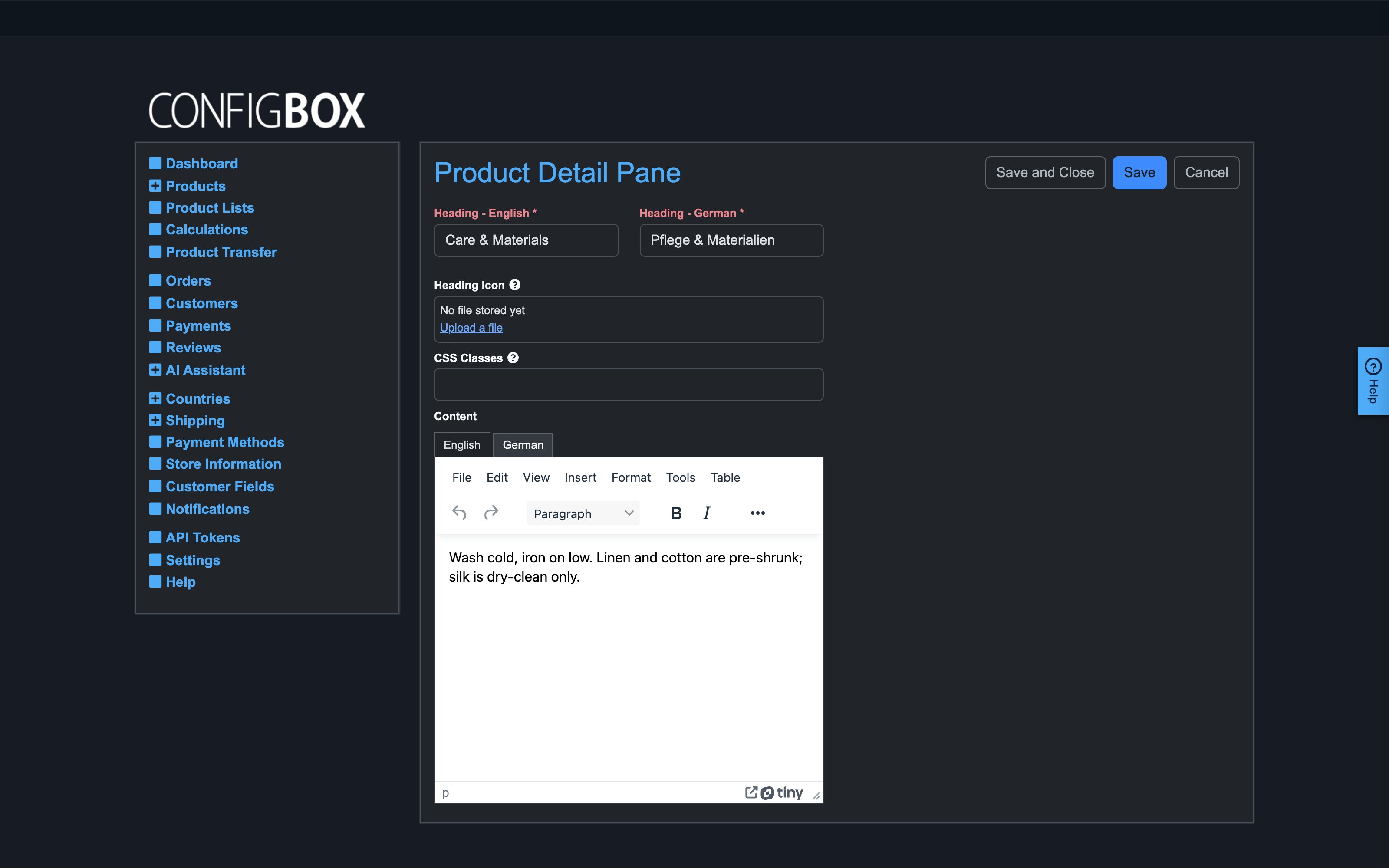
Fill the Product Detail Pane form:
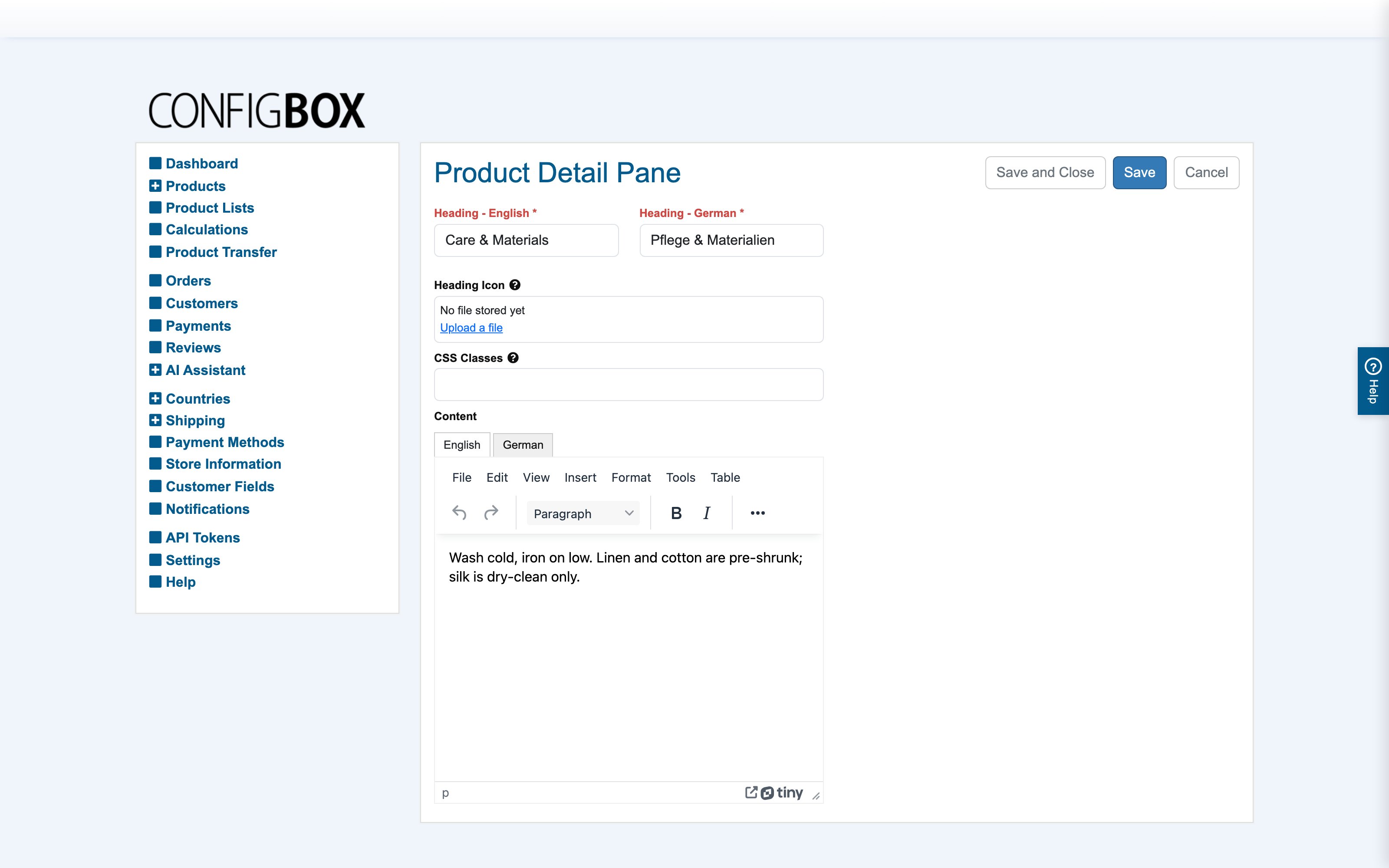
- Heading — per language, required; the pane's title on the storefront.
- Heading Icon — optional; Upload a file for a small decorative symbol beside the heading.
- CSS Classes — optional styling hooks for a web developer; leave blank otherwise.
- Content — the body, per language, in a full HTML editor (headings, lists, links, tables).
-
Save, and drag the rows in the list into the order the panes should appear on the page.
What happens next
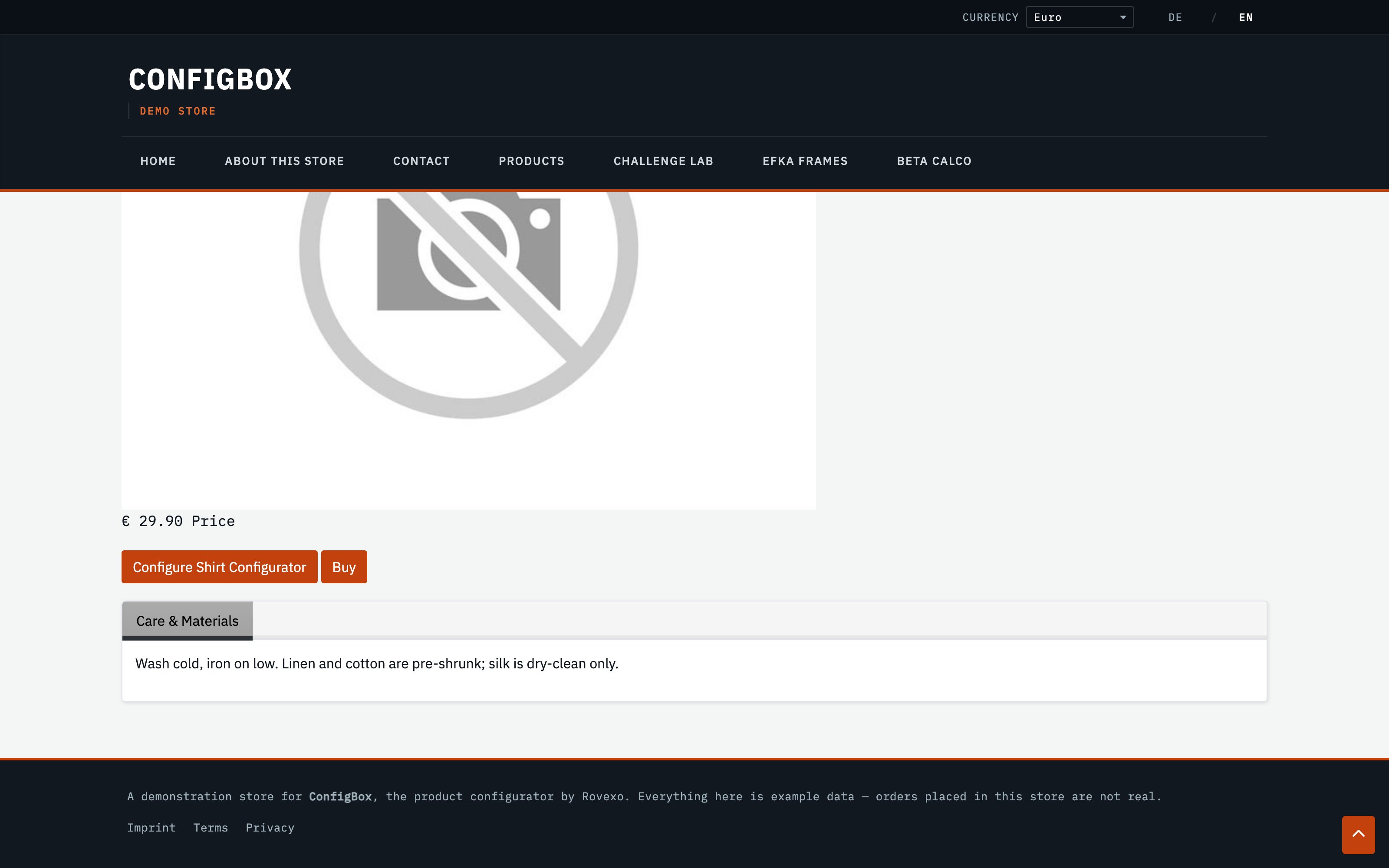
The panes render on the product's detail page, below the product image and configure/buy buttons — here, a "Care & Materials" pane on the Shirt Configurator:
Good to know
- Panes belong to one product. Use Copy to reuse a pane's structure on another product, then repoint and re-edit it — the copies are independent.
- Content is translatable: each active language gets its own tab in the Content editor, so the pane reads correctly in every storefront language.
- Panes are informational only — they don't affect price or configuration. For choices that change the product, use pages and questions instead.