Add pages and questions
- Version
- 3.x
- Updated
Audience: store admins · Scope: pages and the question form · Last reviewed: 2026-07-20
What this does — Gives your product its configuration steps (pages) and the inputs on them (questions). After this, choice questions still need answers.
Before you start
- Sketch the flow on paper first: which steps, in which order, which inputs on each. Restructuring later works, but a five-minute sketch saves an hour of dragging.
- Create the product first.
Add a page
- In Products, expand your product and add a page (or open an existing one).
- Give it a Title per language (the step's tab label), an optional Description (intro text on the step), and keep Active on. Ordering controls the step sequence.
- Save.
Add a question
-
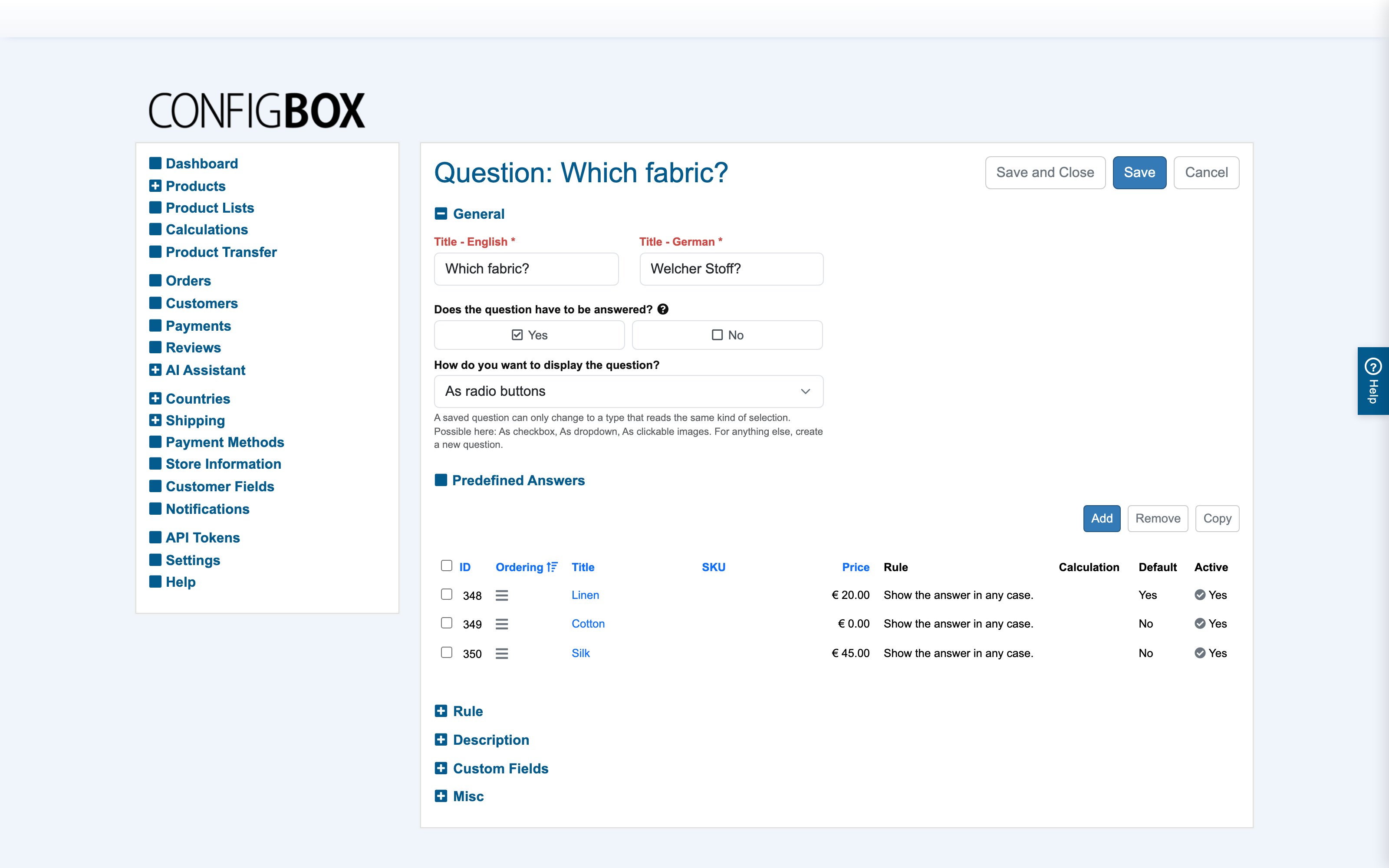
Expand the page in the tree and add a question. The question form opens:
-
In General:
- Title — per language; the question text customers see.
- Does the question have to be answered? — Yes makes it required; combined with the product/global setting, customers can be blocked from continuing while it's unanswered.
- How do you want to display the question? — the question type (see the table below). This choice decides which further sections the form shows. Choose it carefully: once the question is saved, the type is fixed - its rules, calculations and settings depend on it - and the form only offers a change to a type that reads the same kind of selection (radio buttons, dropdown, clickable images and checkbox among themselves; text box, multi-line text box and choices plus text among themselves). For any other type, create a new question.
-
Fill the type-specific settings (only the relevant ones appear — see the table).
-
Save. For choice-type questions, the Predefined Answers section is where you add the answers.
The question types
| Type | Customer sees | Typical use |
|---|---|---|
| Radio buttons | one-of-N choices, all visible | short choice lists |
| Dropdown | one-of-N in a select box | long choice lists |
| Checkbox | a single on/off tick | include/exclude a feature |
| Clickable images | picture grid, single or multi select | visual choices (colors, designs) |
| Text box | a one-line input, optional unit suffix | names, dimensions, quantities |
| Multi-line text box | a larger text area | notes, engraving text |
| Slider | a draggable slider synced to a number field | dimensions within a range |
| Calendar | a date picker | delivery/booking dates |
| Color picker | a free color choice | custom colors |
| RAL color picker | the standardized RAL swatch catalog | industrial colors |
| File upload | drag-and-drop upload | customer artwork, documents |
| Choices + text field | predefined values plus a custom entry | "pick one or type your own" |
Type-specific settings worth knowing:
- Text-style types (text box, slider, …): prefill a default value; restrict input (e.g. integers only); set minimum/maximum either as static values or calculated by a calculation (so a limit can depend on other selections); show a unit next to the field.
- Slider: the number of steps.
- Calendar: first day of week and how far into the past/future dates may lie.
- File upload: allowed extensions, allowed file kinds, maximum size.
What happens next
Pages and questions appear in the configurator immediately (for a displayed product). Questions on a page render in their Ordering; required ones gate navigation if blocking is enabled.
Good to know
- Internal Name — an admin-only label for the question, invaluable once a product has dozens of questions. Enable "show internal names" in Settings to see them across the back office.
- The Rule section on this form is where conditional visibility attaches — build a rule.
- The Calculations section is where computed pricing attaches — where prices come from.
- Show in Overview controls whether the question appears in the live price/selection summary beside the configurator.
- A question's Image and Description (with a display method: inline, tooltip …) add help content customers see with the question.