Work the list and edit screens
- Version
- 4.0 preview
- Updated
Audience: store admins · Scope: the screen conventions shared across all of CBX · Last reviewed: 2026-07-20
What this does — Teaches you the two screen types that make up nearly all of CBX. Learn them once and every other article gets shorter: "open the record, change the field, save."
List screens
Open any menu entry (say Settings → Currencies, shown here) and you get a list:
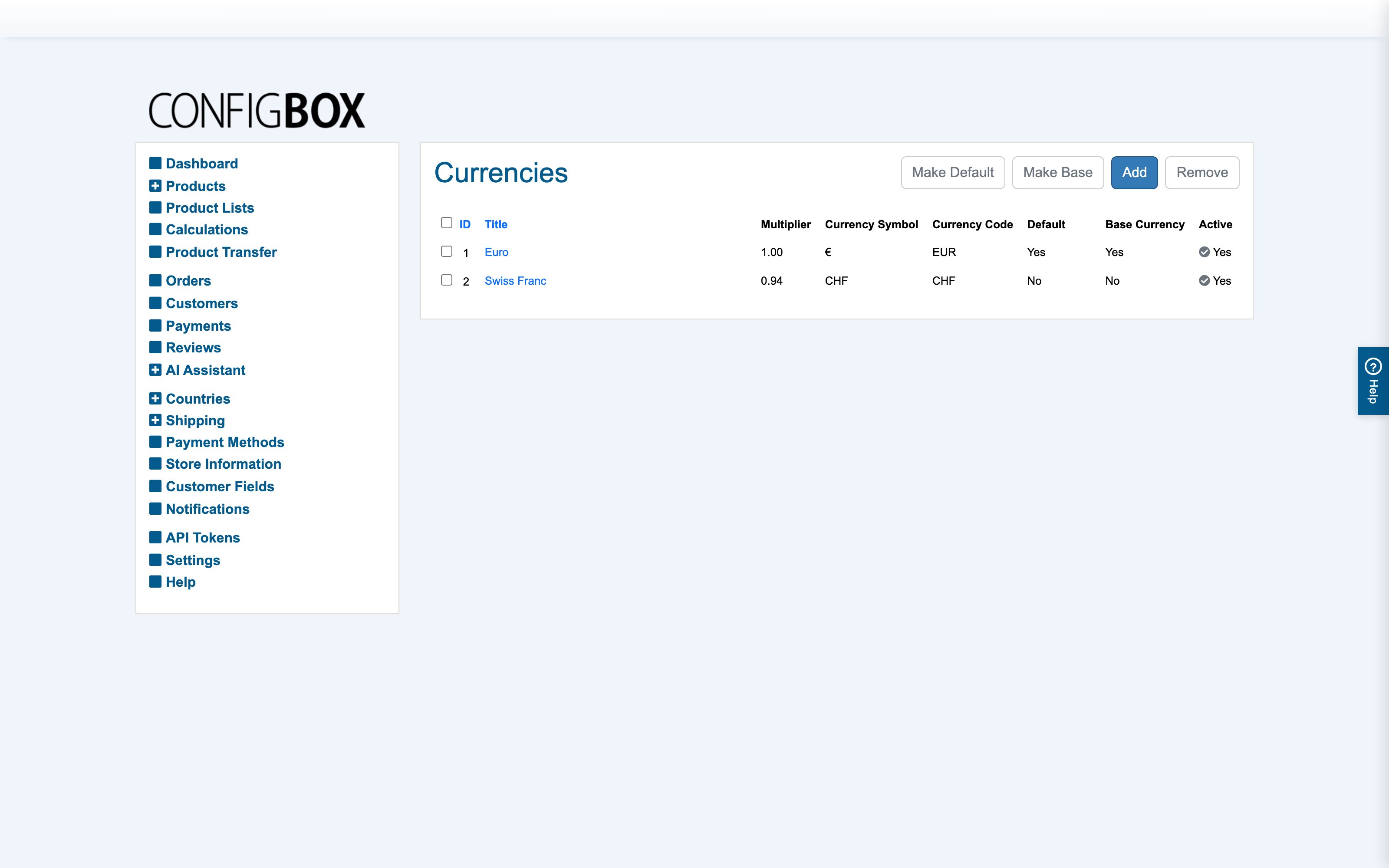
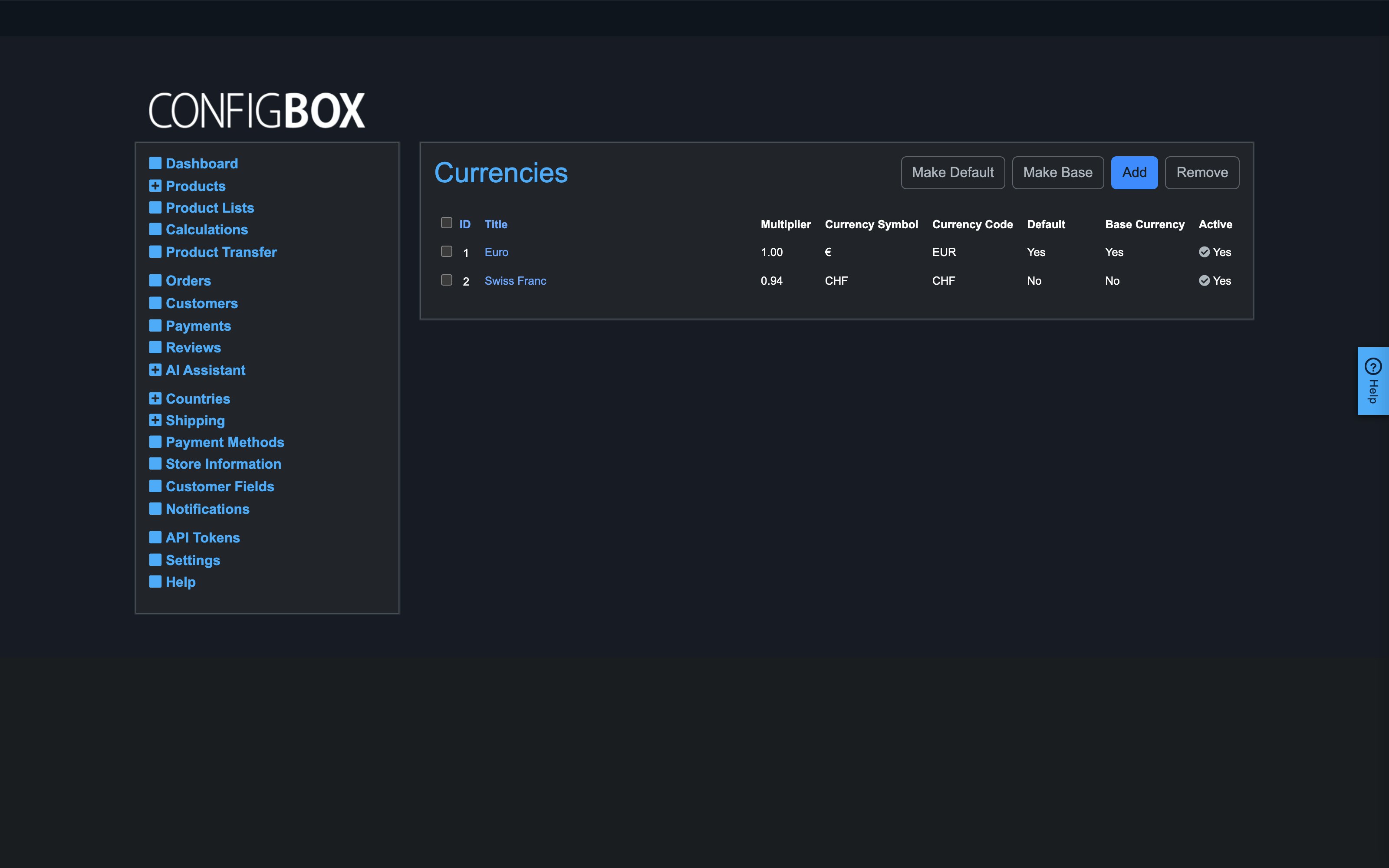
- Open a record by clicking its title link (here: Euro).
- Add creates a new record; Remove deletes the ones you've ticked. Tick the box in the header row to select everything on the page.
- Active — the green check in a row toggles the record live/not live directly from the list. Inactive records stay in place but stop appearing on the storefront.
- Sort by clicking a column heading (where offered). Lists that support manual ordering show a drag handle in an Ordering column — drag rows to set the storefront order.
- Larger lists (orders, customers, products) add search boxes and filters above the table — type or pick, and the list narrows immediately.
- Some lists have extra action buttons for their domain — here Make Default and Make Base act on the ticked currency. They always act on your current selection.
- Copy (on lists that offer it, e.g. products) duplicates the ticked records with everything attached — the fastest way to create similar things.
Edit forms
Opening or adding a record shows the edit form:
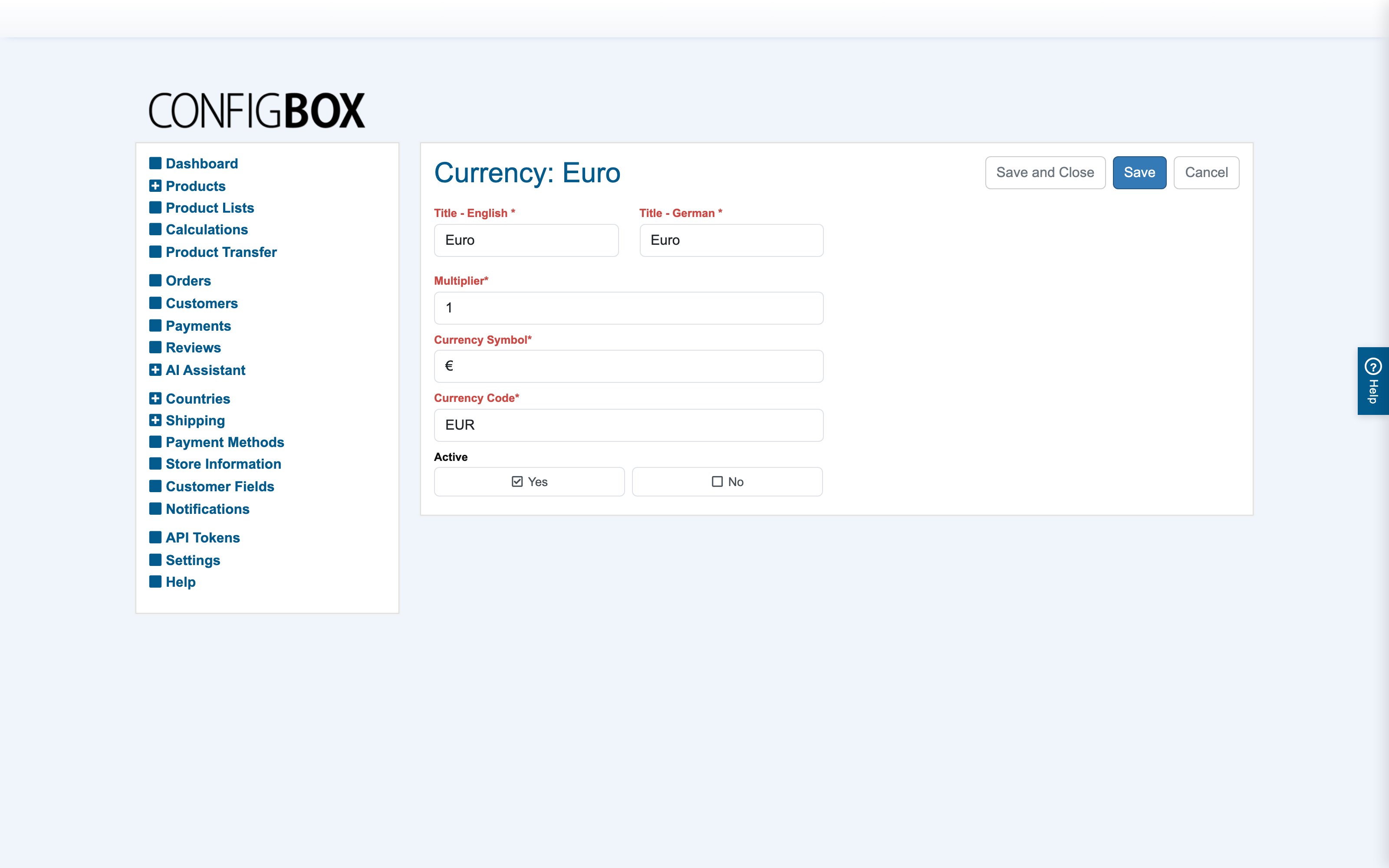
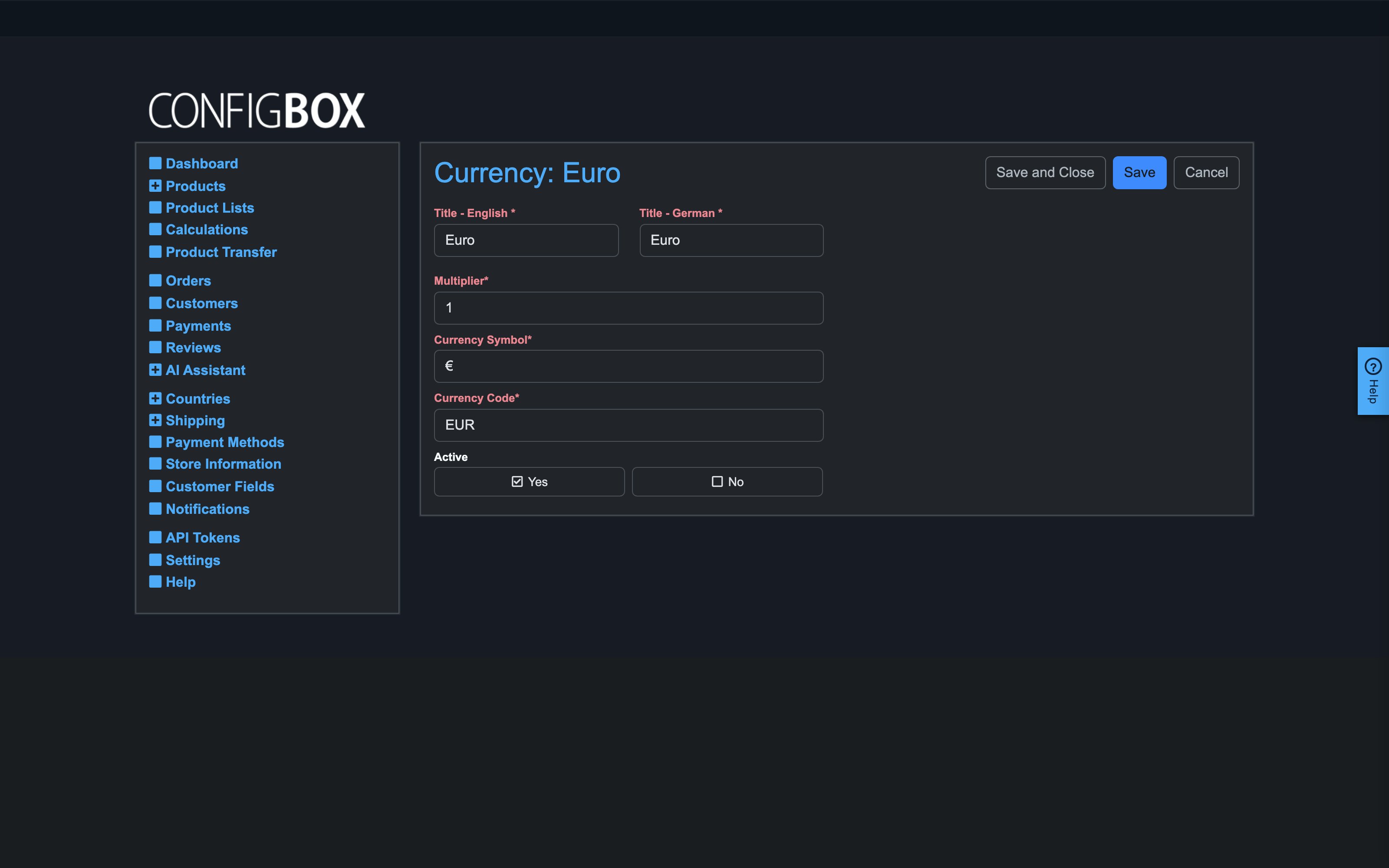
- The buttons sit at the top right: Save (stay on the form), Save and Close (back to the list), Cancel (discard), Help. Nothing is stored until you save.
- Required fields are marked with a red label and
*. Saving with one empty highlights it. - Yes/No choices render as two tick boxes — exactly one is active.
- Long forms (products, questions, the Settings screen) group fields into collapsible sections — click a section heading to open or close it. If you don't see a field an article mentions, its section is probably folded shut.
Translatable fields and languages
Fields your customers see (titles, descriptions, labels) exist once per active shop language, side by side — in the screenshot above: Title - English and Title - German. Fill each language; what a customer sees follows the language they browse in. Which languages appear here is set by the Active Languages in Settings — adding a language there adds a column to every translatable field in the store.
Good to know
- Deleting is guarded. CBX blocks deleting records that other things still depend on (e.g. an answer referenced by a rule) and tells you what's in the way — deactivate instead if you just want something off the storefront.
- Inactive ≠ deleted. Unpublishing a product, page, question or answer hides it from customers but keeps everything (including its role in old orders) intact.
- Numeric fields follow your shop's decimal convention — enter prices the way the form shows them.