Process an order
- Version
- 3.x
- Updated
Audience: back-office staff · Scope: one order, from arrival to shipped · Last reviewed: 2026-07-20
What this does — Walks the everyday order routine: open the order, check what was bought, move it through its statuses (which sends the emails), and generate the paperwork.
Before you start
- Know your store's invoicing mode (set in Settings): invoices generate automatically on order, automatically once payment is cleared, or only when you upload one — it decides which invoice actions you'll see on the order.
Steps
-
Go to Orders. Narrow the list with the customer search, the two date filters or the status dropdown, and click the order's Display link.
-
Read the order:
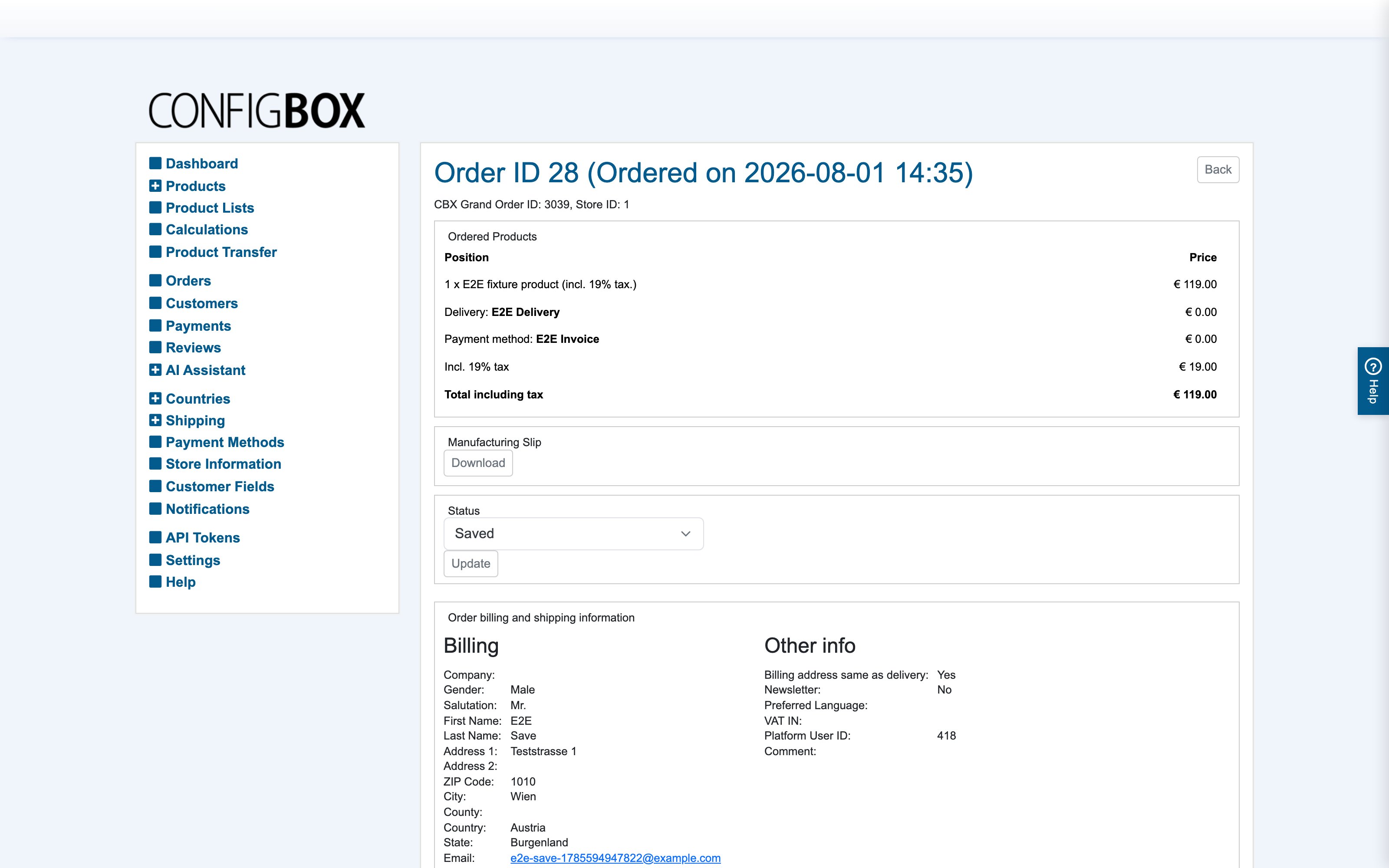
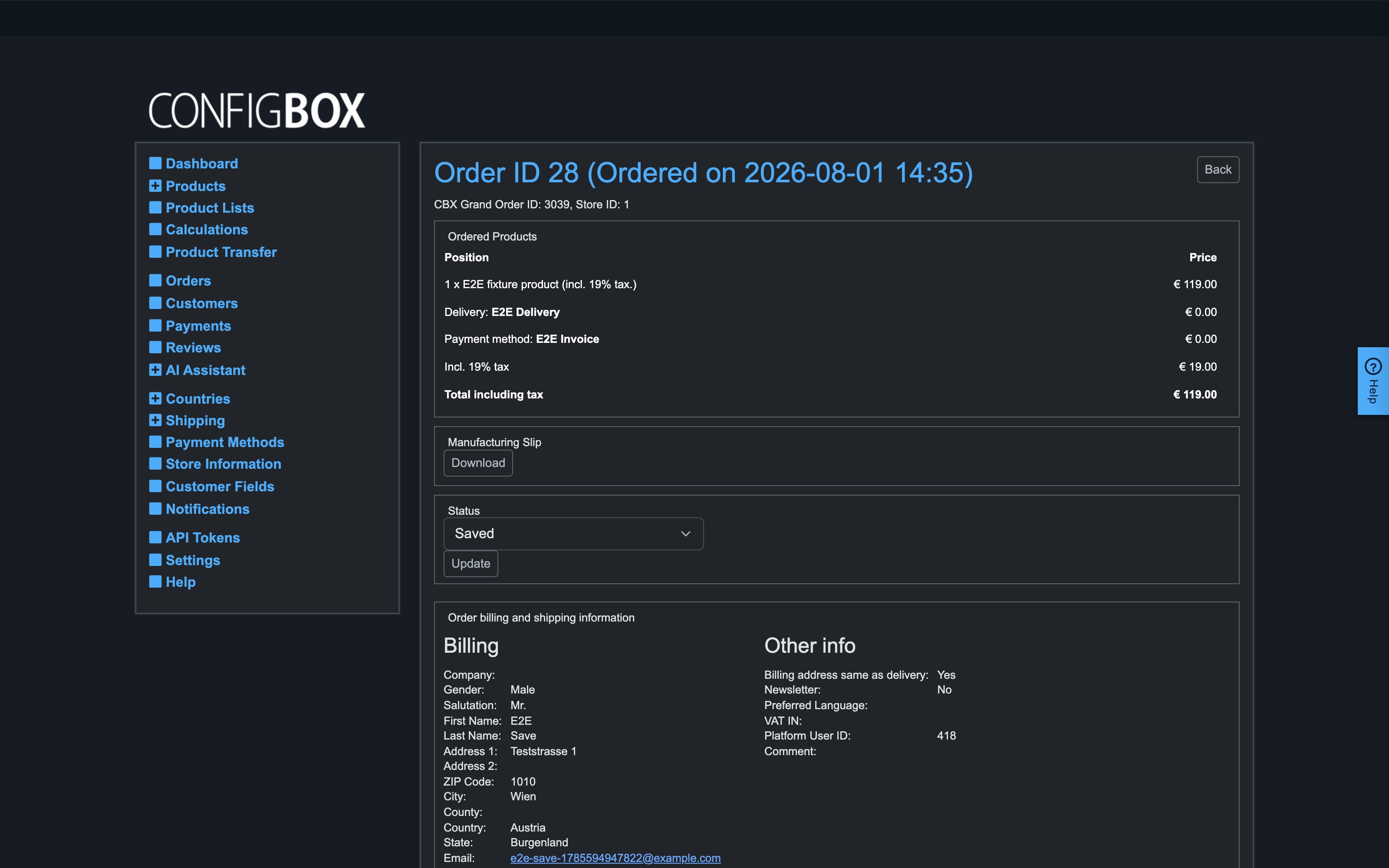
- Ordered Products — each position with quantity and price; Details unfolds the full configuration of that position, exactly as the customer built it.
- Below the positions: the subtotal, the delivery method and cost, the payment method and any surcharge, and the total including tax. Tax notes (e.g. the reverse-charge line for VAT-free B2B orders) appear here too.
- The customer's billing and delivery addresses are shown as placed — an order is a frozen snapshot, so later catalog or account changes never alter it. (Correct account data on the customer record instead; the order keeps its own copy.)
-
Drive it forward in the Status panel: pick the new status and click Update. Typical path: Ordered → Paid → Confirmed → Shipped — payment providers with instant confirmation set Paid automatically; for bank transfer you set it yourself when the money arrives. Each change can fire the matching notification email to customer and shop manager.
-
Paperwork:
- Invoice — depending on the invoicing mode: download the generated invoice, generate & release it after clearance, or upload your own PDF. Released invoices can also be emailed automatically (a Settings switch).
- Manufacturing Slip → Download — the production/packing PDF for the workshop: every position with its full configuration, printable on demand.
What happens next
The customer sees status progress in the emails you trigger; production works from the slip; the order stays as the permanent record of exactly what was sold at what price.
Good to know
- Quotations and saved carts live in the same list (statuses Quotation requested, Quotation sent, Saved) — the quote flow issues a quotation PDF rather than an invoice.
- Cancelling/refunding is a status change too — with its own notification templates.
- If an expected email didn't go out, check Notifications: there must be an active template tied to that status with "send" enabled.
- Rows with "No customer account" are guest checkouts mid-flow; abandoned ones are cleaned up automatically after the lifetime set in Settings → Maintenance.