Manage customers
- Version
- 3.x
- Updated
Audience: store admins, back-office staff · Scope: the Customers screen · Last reviewed: 2026-07-20
What this does — The customer record is the account behind orders: addresses, contact data, VAT number, language, and — commercially decisive — the customer group. Here you fix typos, upgrade someone to the trade group, or link a store customer to their site login.
Steps
-
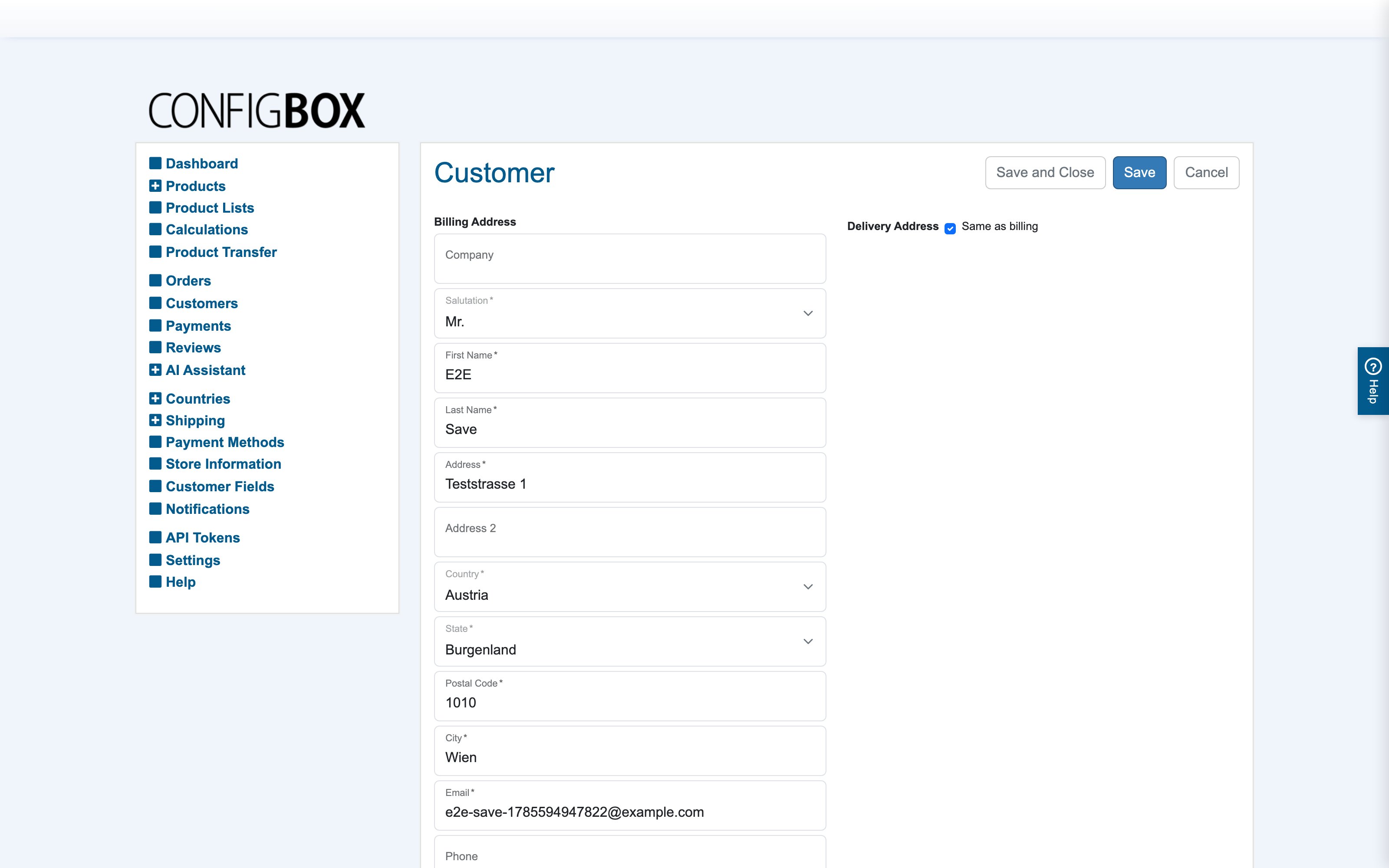
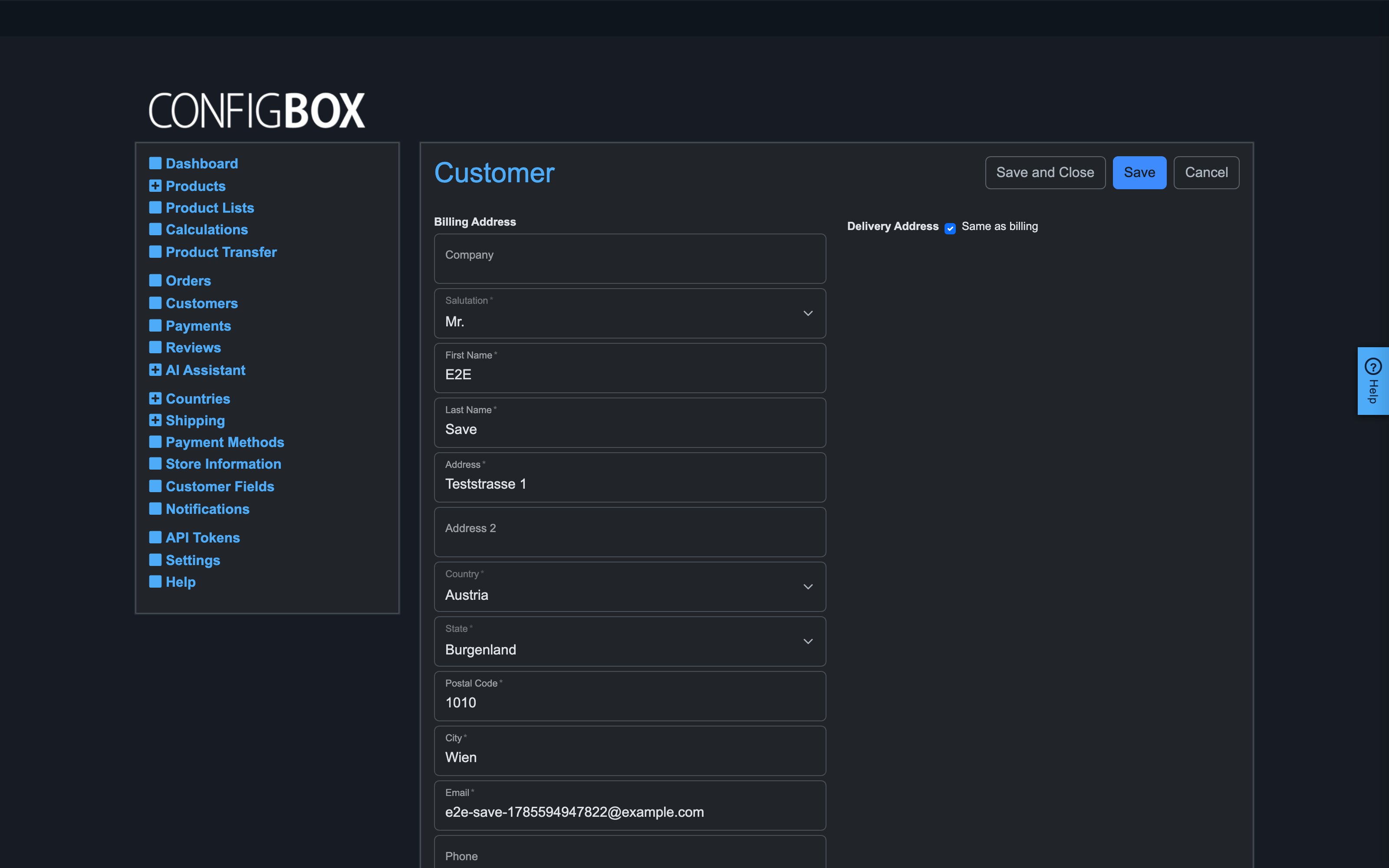
Go to Customers and open a record (the orders list links here from each order too):
-
What you'll actually edit:
- Billing Address — company, salutation, name, address, country/state, email, phone.
- Delivery Address — a separate block; Same as billing collapses it.
- VAT IN — the VAT number; for EU B2B customers this drives reverse-charge handling, so fixing a wrong one matters.
- Customer group — move the customer between segments; their pricing mode, permissions and discounts change with it (see customer groups).
- Language and Newsletter — communication preferences; notifications use the customer's language.
- Platform User ID — the linked site account; this link is how a login lands on this customer record (and in the group its platform group maps to).
-
Save.
What happens next
Changes apply to the account and to future orders. Placed orders keep the address data they were ordered with — that's deliberate (the order is the historical record); the order screen links back here for the current data.
Good to know
- Guest checkouts create temporary records ("No customer account" rows in the orders list are their earliest stage). Completed purchases become permanent customers; abandoned temporaries are pruned automatically after the lifetime set in Settings → Maintenance.
- Which fields customers themselves see and must fill (checkout, quotation, profile) is the Customer Fields matrix — not this screen.
- The custom fields at the bottom are free-form slots (labels from Settings) — usable for internal notes like a CRM id, and readable by rules.