Set up the order emails
- Version
- 3.x
- Updated
Audience: store admins · Scope: the Notifications screen · Last reviewed: 2026-07-20
What this does — Notifications are the emails your store sends by itself as orders change status: order received, payment confirmed, shipped, quotation ready … Each template is tied to one order status and can address the customer, the shop manager, or both. Set these up once, and processing an order becomes "change the status — the email takes care of itself".
Steps
-
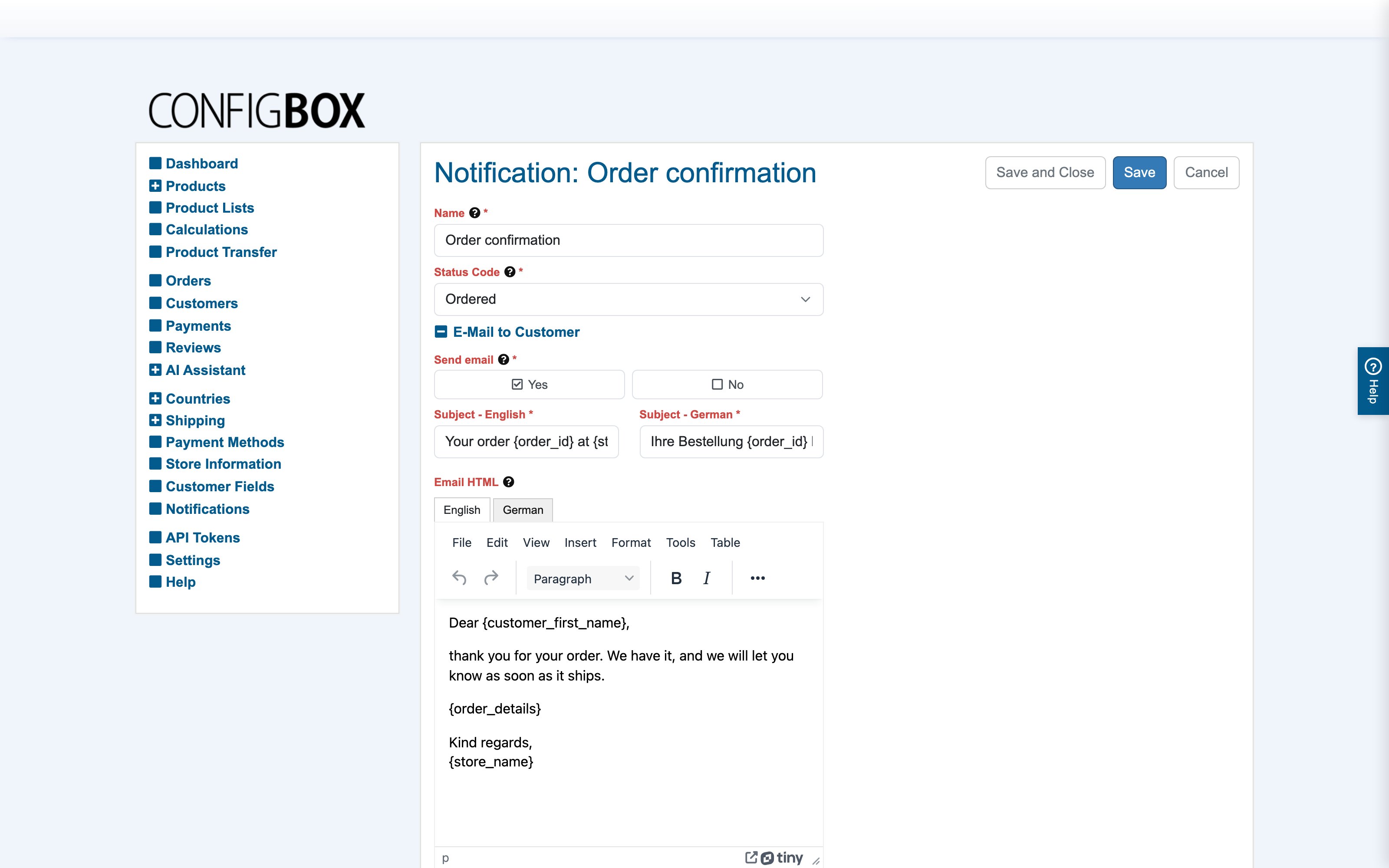
Go to Notifications and open a template (or Add one):
-
The header fields:
- Name — back-office label ("Payment Confirmation").
- Status Code — the order status that fires this template (here: Paid). One template per status you want to communicate.
-
The E-Mail to Customer section:
-
Send email — the on/off switch for this recipient.
-
Subject — per language.
-
Email HTML — the body, per language, in a rich-text editor. Write it like a normal email and drop in placeholders where order data belongs — the demo template reads:
Dear
{firstname}{lastname}! We have received your payment for order id{order_id}and will ship as soon as possible. … Kind regards,{shopname}Placeholders are replaced per order at send time — customer fields, order data, and your store information (
{shopname}etc.).
-
-
The E-Mail to Shop Manager section works identically — its own switch, subject and body. Use it for internal alerts ("New order {order_id} needs confirmation").
-
Save, then test: place a test order and move it through the statuses — every email should arrive, in the right language, with every placeholder filled.
What happens next
From now on, each status change on an order fires its matching active template automatically — whether the status was set by a payment provider (→ Paid) or by you in the order screen.
Good to know
- No email went out? Check, in order: does a template exist for that exact status · is its Send email on · is the template's language content filled for the customer's language.
- The quotation flow has its own statuses (Quotation requested, Quotation sent) — give them templates too, or quote customers hear nothing. Whether the quote PDF is attached is a customer-group switch.
- Invoices can be emailed automatically when released — that's the Send invoice via email switch in Settings → Invoicing, separate from these templates.
- Keep bodies short and factual; the order details are in the customer's account and on the attached documents. A subject like "Your order {order_id} has shipped" beats prose.